Registration in TWP
 To create a cash register in your bot from TWP, you need to register on their website here
Important! You won’t be able to register without an invitation code
Registration is simple; next you will need to issue (create) a merchant — the corresponding button is located on the left in the menu of your personal account.
Example screenshot of the settings is below in the next block:
TWP merchant setup
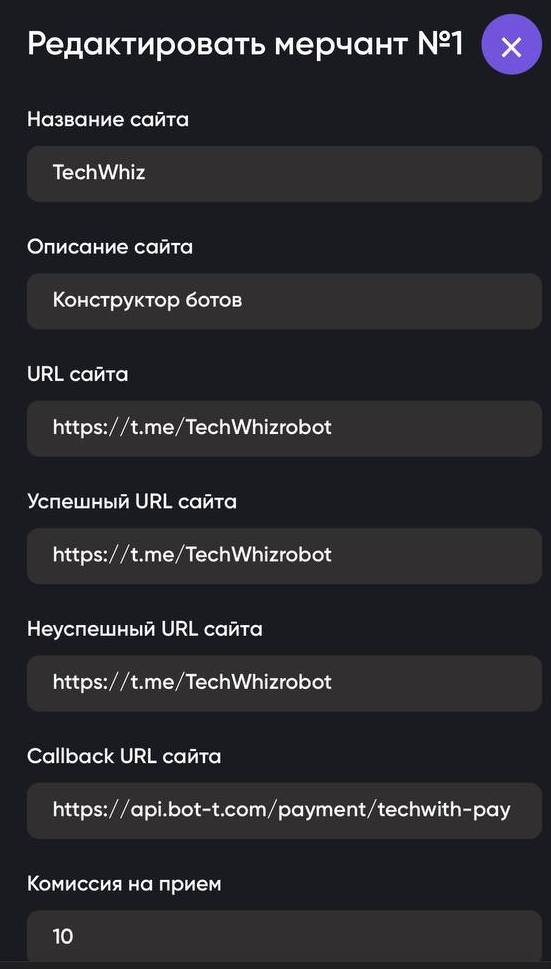 In the Сallback URL field, insert the link:
 https://api.bot-t.com/payment/techwith-pay
After adding all settings and moderation of your merchant on the TWP website and waiting for moderation by the BOT-T administration - we enter the information on the BOT-T website in the payment method, test the payment, if everything is fine - we release our store to production, if not, then write here https://t.me/TechWhizPay_Supportbot
Where is the key to your cash register in TWP?
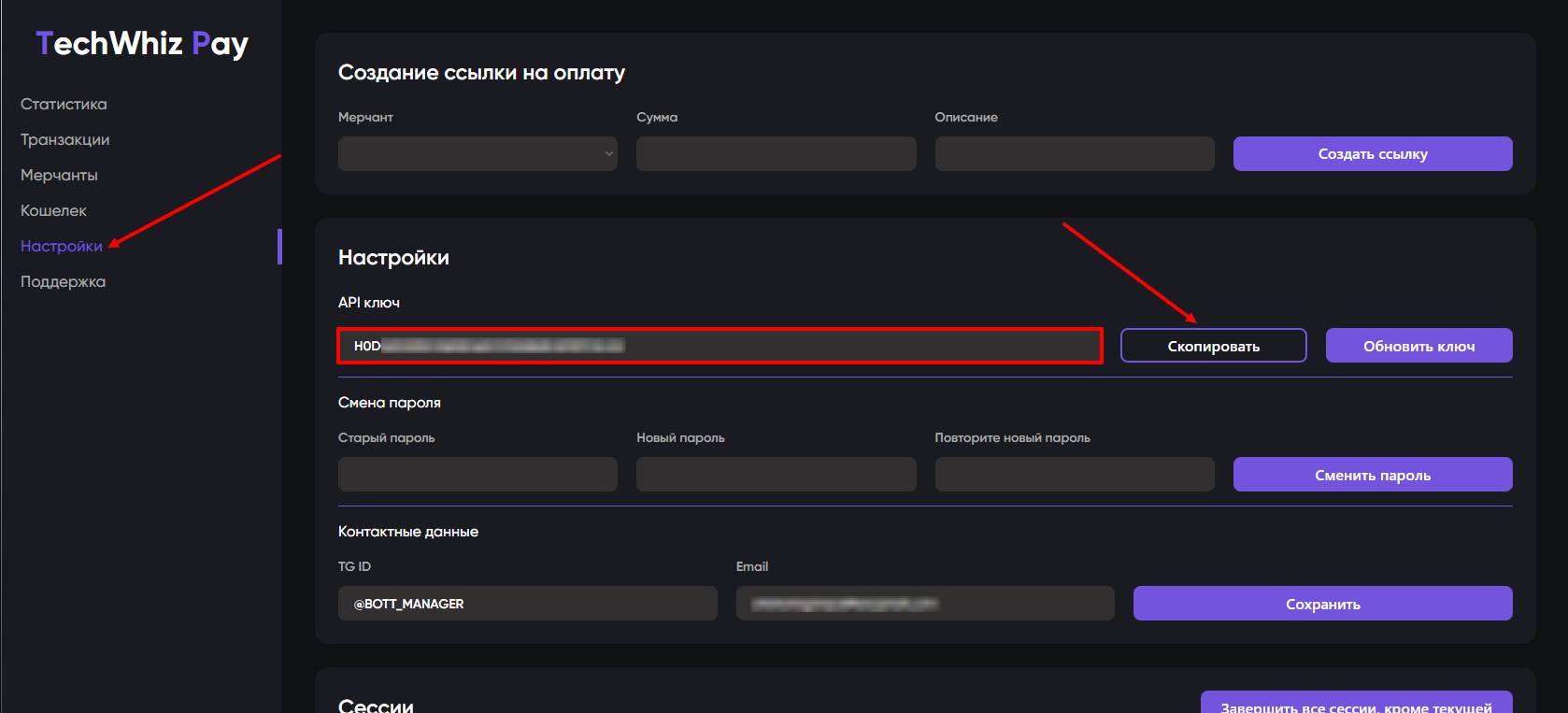 To configure the cash register on the BOT-T website, besides the cash register ID, you will also need a key. Where can you get it?
Go to settings (in the menu on the left) and find the "API key" tab, copy it, and enter it on the BOT-T website
free of charge and without programming knowledge BOT-T.COM