

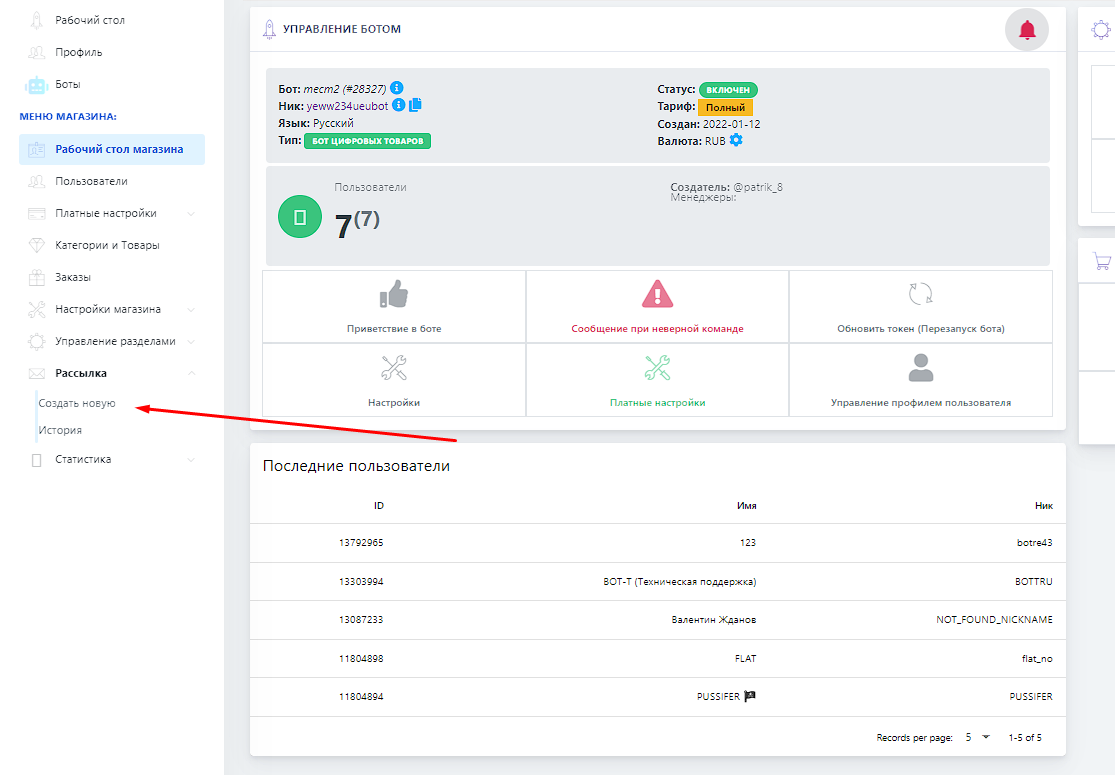
 The mailing is located in the bot panel on the left in the menu, as shown in the screenshot. Also in this block is the history of mailings you have made, and the advanced mailing; it is described in the next topic.
 Where is the mailing button and panel
The mailing is located in the bot panel on the left in the menu, as shown in the screenshot. Also in this block is the history of mailings you have made, and the advanced mailing; it is described in the next topic. How to conduct a mailing campaign
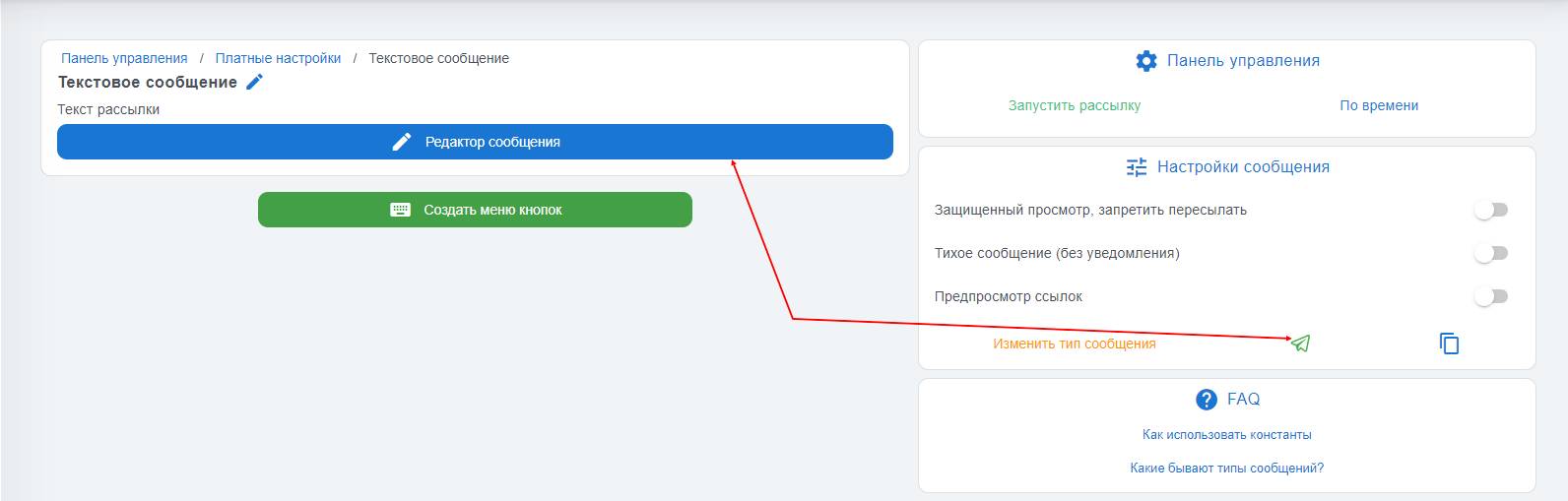 There are 5 types of mailings - text (the maximum number of characters for it is approximately 4000 thousand) and with an image, etc. (max. number of characters 1024), feedback (when you need to conduct a customer survey) , video and GIF mailing
To choose the mailing type, you need to click the button to which the arrow points - number 1.
2. The arrow points to the text editor, text content, and emoji settings
3. In this block, you can add a button with a link to a specific resource
4. Delayed mailing function, to use it, start the mailing and set the time to launch the mailing
How do I start a broadcast through the bot?
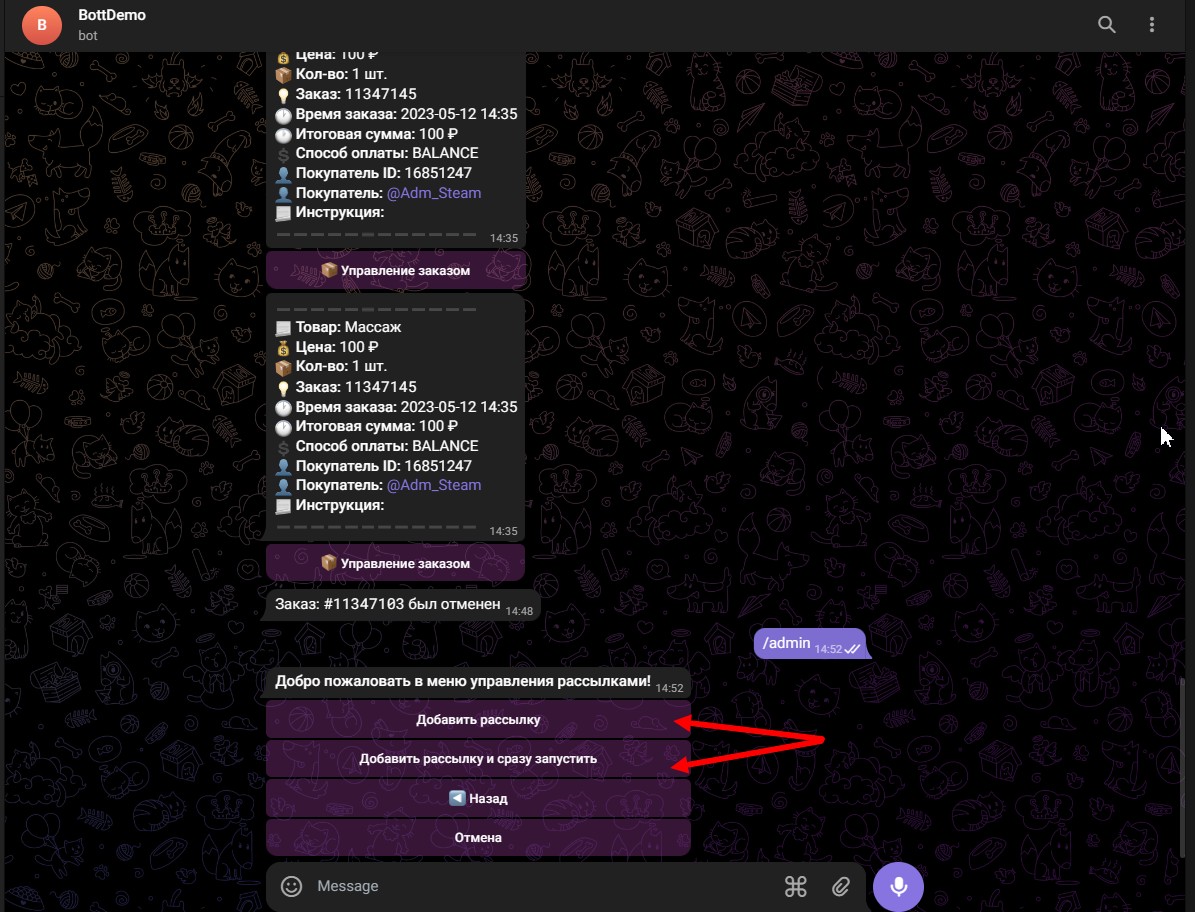 To start a mailing campaign through the bot, use the command "/Admin" then press the "Manage mailings" button
You will see 2 options
Add mailing and Add and start immediately
Add mailing
As soon as you add the mailing, you will have the option to edit the mailing, start it, get a text SMS, and reset the mailing.
In the selected mode
Add and start immediately
as soon as you send the bot a photo and mailing text
it will immediately start sending it to the bot users
To edit the font style, use the встроенный editor in Telegram.
Mailing history
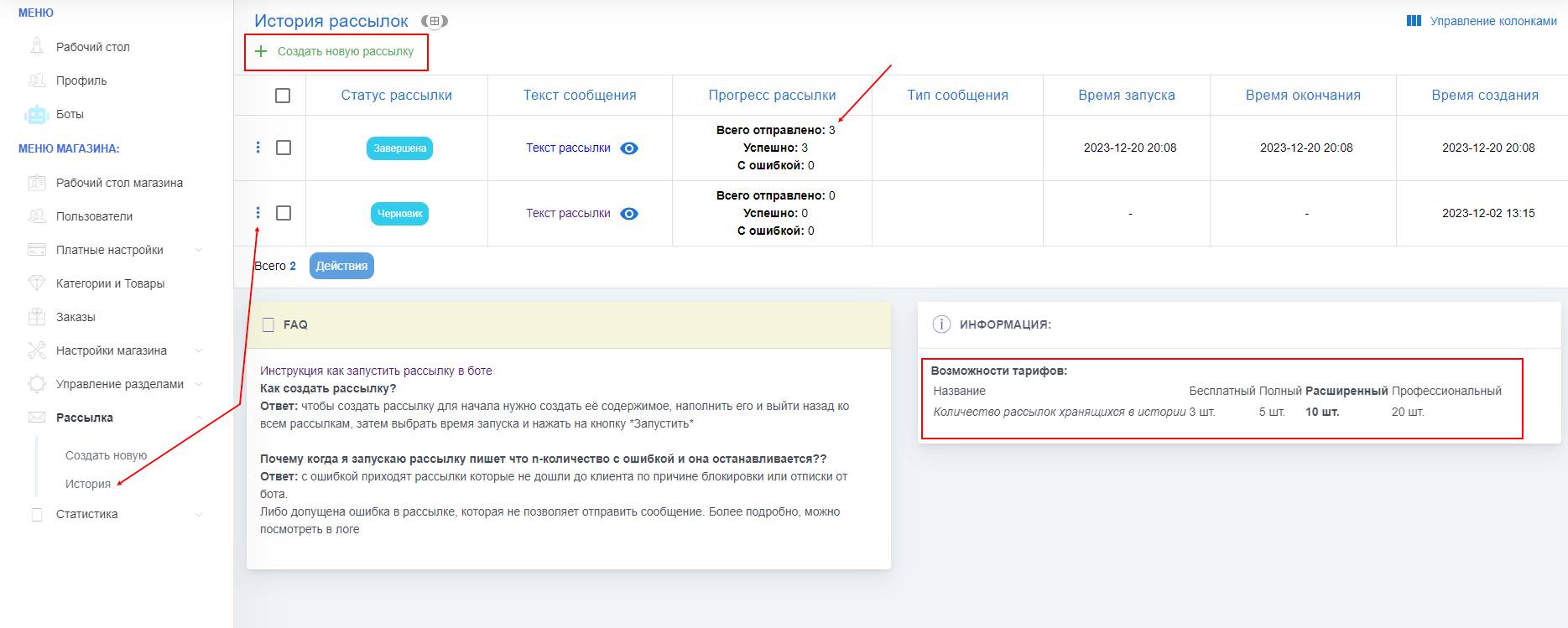 The mailing history button will help you use templates from previous mailings and view the mailings that were launched and analyze them.
You can also see how many mailings you can launch simultaneously and how many of them are stored in your history.
This is directly proportional to your current plan
What should I do if the mailing stops with an error?
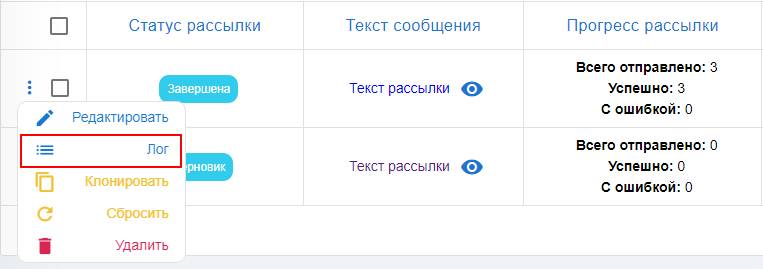 First, try clicking the "Force launch" button
if this method did not help
Check the selected mailing type
-if you selected the "photo and text" type but did not upload the photo itself, the mailing will not start; you need to either remove it or upload a photo for this mailing
-Check the mailing logs. Often, by reviewing the mailing logs, you can find the error yourself.
-You checked the logs and verified the SMS type, but the mailing still does not work?
The error may occur because of a large number of inactive participants; try cleaning inactive users from the bot in the "Users" tab
in other cases, contact technical support, describe your actions, what error occurs, and send a link to your bot and a screenshot.