

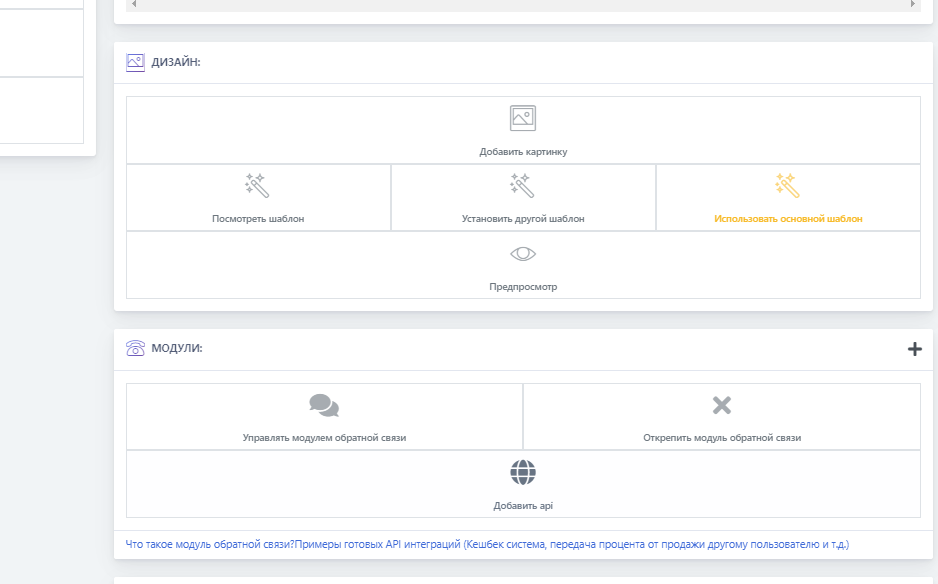
 This module is located in products and serves as an additional tool for selling a product to collect information from the user.
For example, we sell Steam balance and after the sale we need to know where to credit the funds — to which account; the feedback module will help us with this.
The principle of operation is simple: the client pays for the purchase of Steam balance and enters the nickname of their Steam account, and then you provide the service based on the response to the order.
This module can be configured for each type of product; below it will be shown and explained how to set it up and what it looks like in the bot.
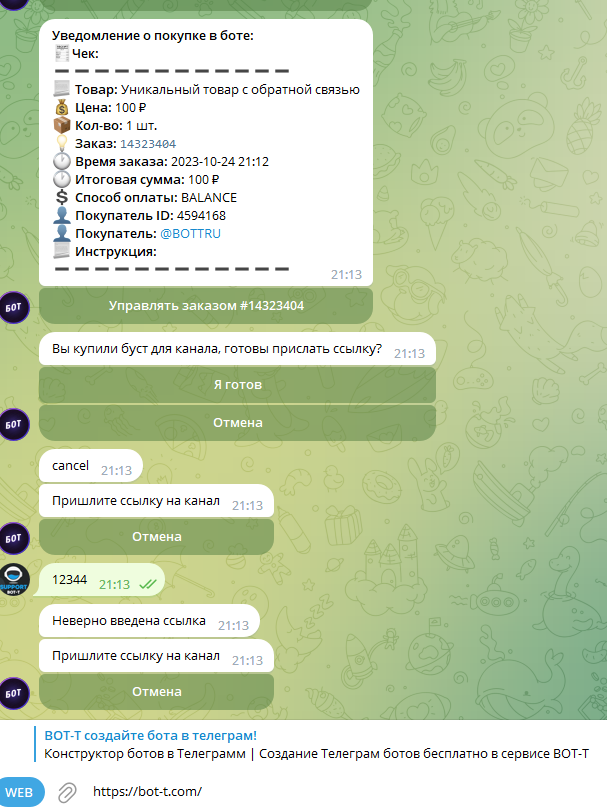 The screenshot shows how it looks
 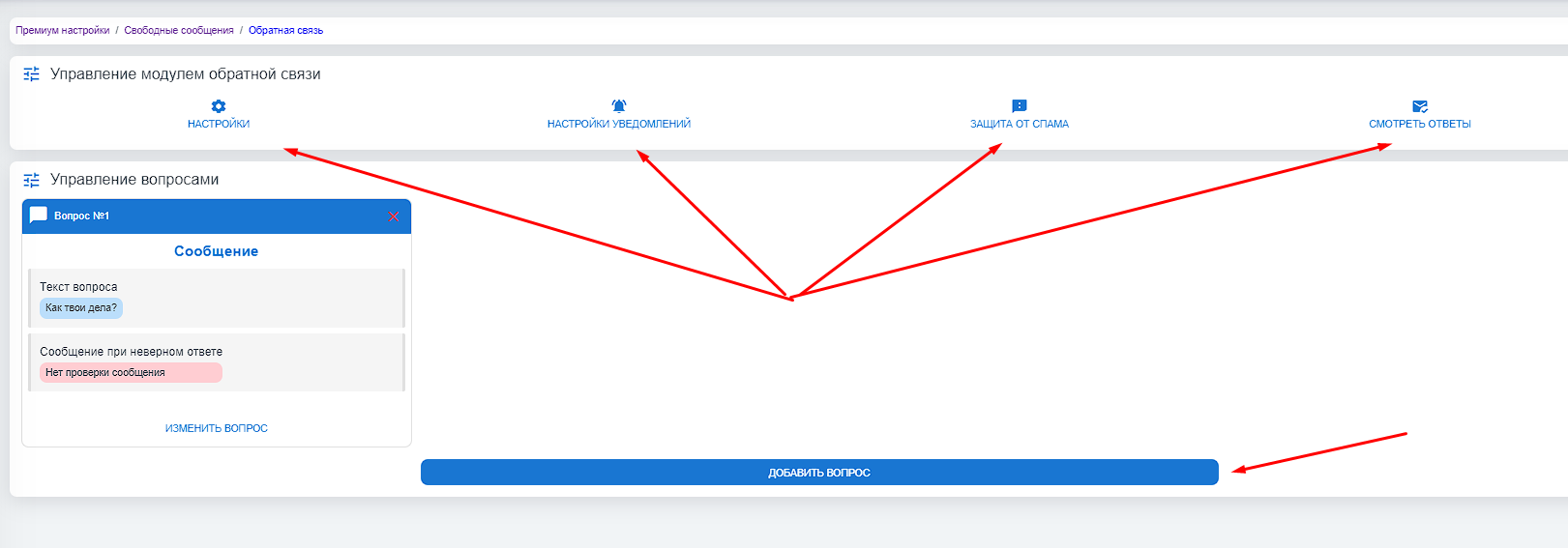 This field appears when entering the module; there are 4 buttons here:
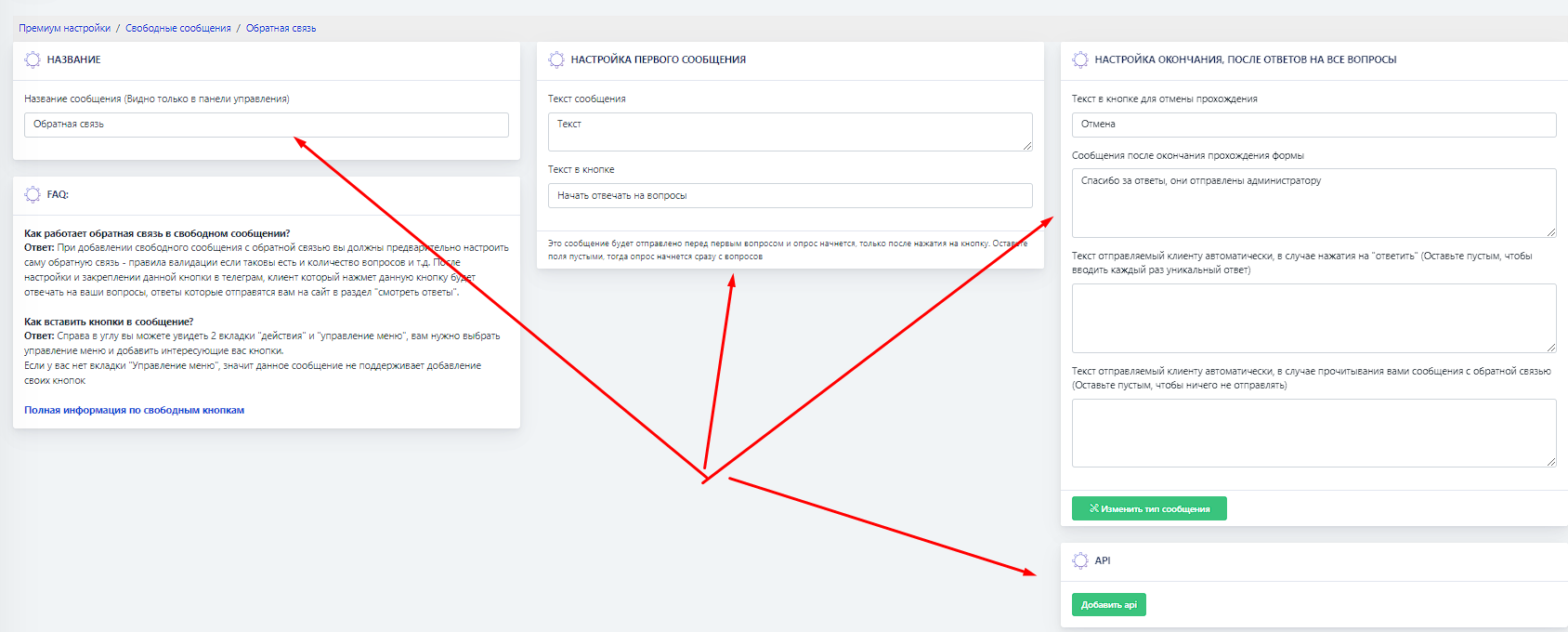 In this button, the first arrow is used to set the name of your module.
 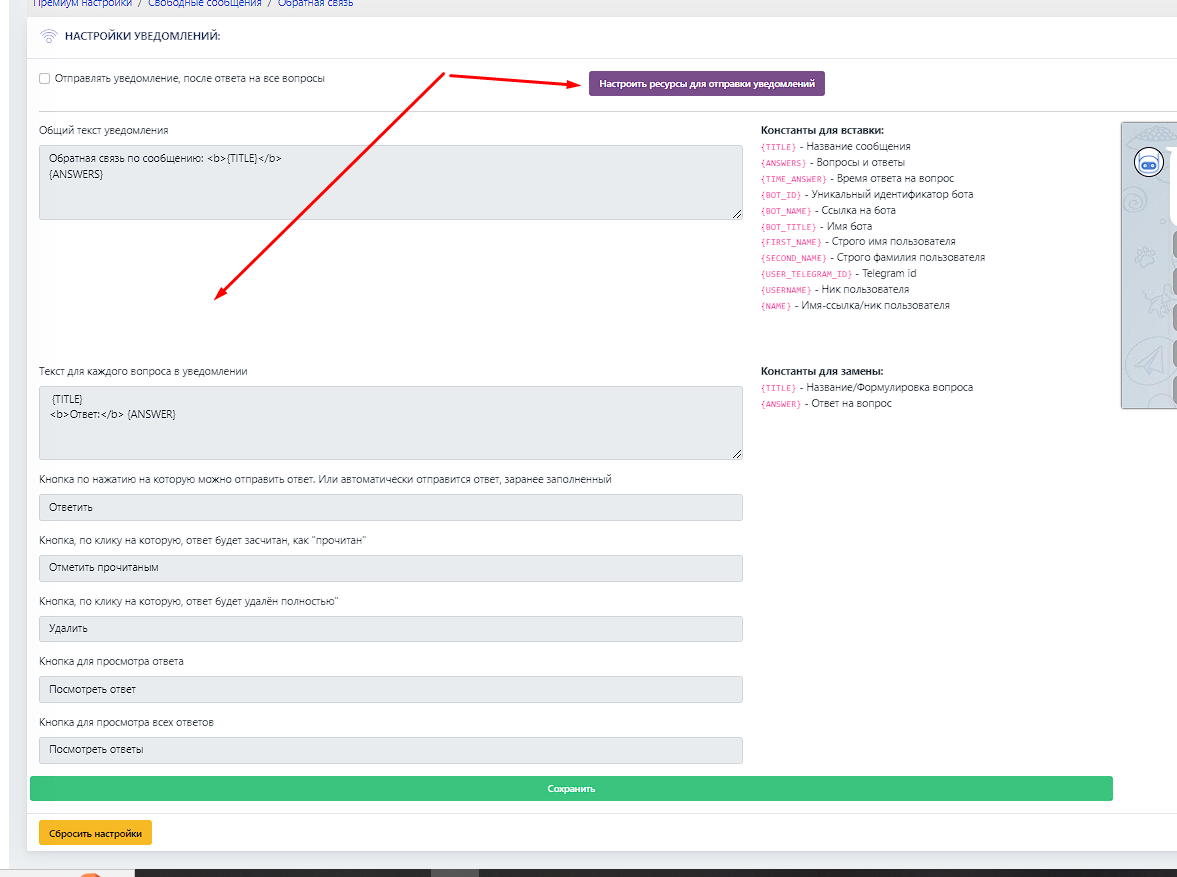 In this button, you can configure the constants that will be shown to the user and to you (their functions are listed on the right).
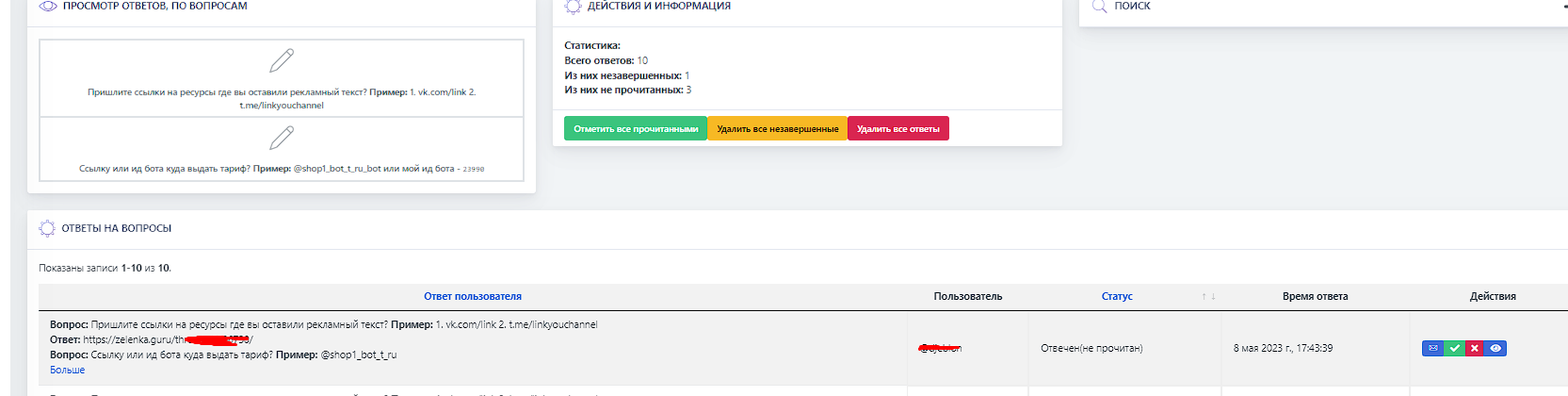 In this button, you can view the questions, reply to the customer, and mark them as read so you don’t get confused with the responses; all questions and attempts to answer them are collected here.
 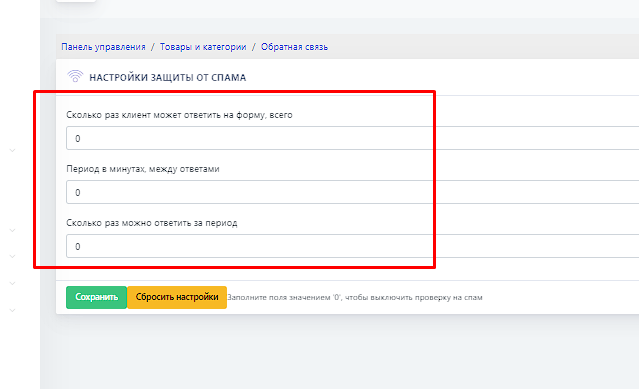 Spam protection is needed to limit an annoying client from sending repeated responses to feedback.