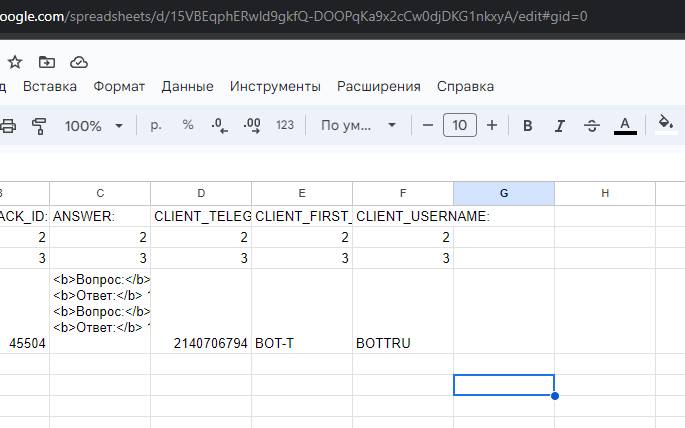
 We go to your spreadsheet and copy the string from the address bar, as shown in the screenshot. Save it for future use.
Example string from the screenshot:
15VBEqphERwld9gkfQ-DOOPqKa9x2cCw0djDKG1nkxyA

Help Center BOT-T
Find answers, learn how to use the service, and get help from our team.
For example: payment, plans, Telegram bot, reviews...

Search results
We go to your spreadsheet and copy the string from the address bar, as shown in the screenshot. Save it for future use.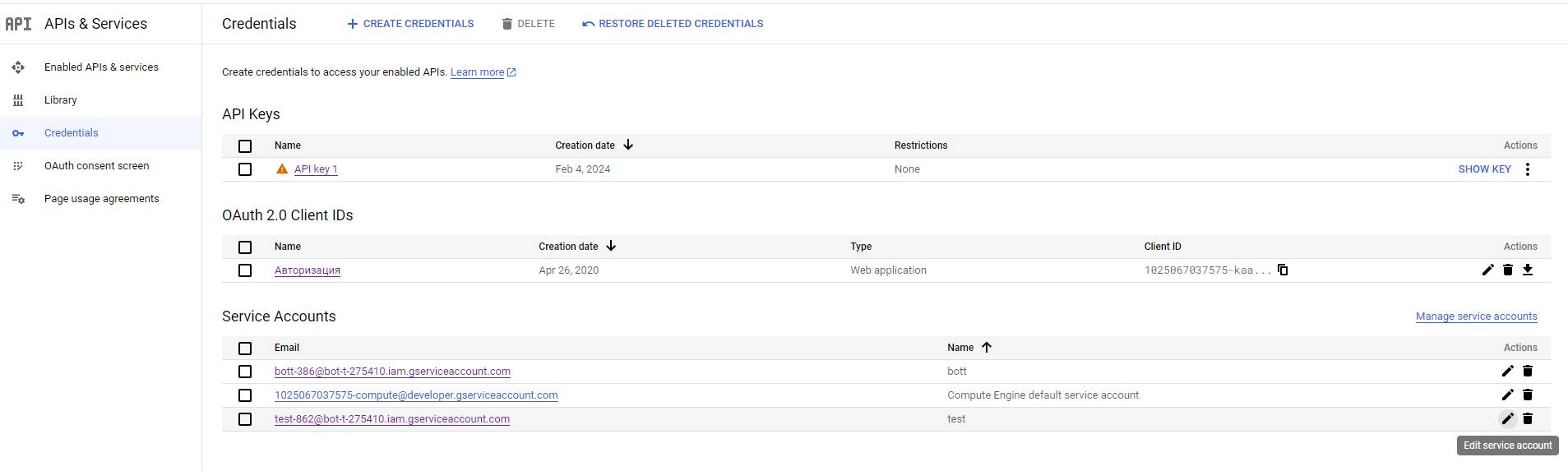 If you do not have a service account created or it has been created incorrectly, go to the account creation step: https://bot-t.com/faq/HELP/sozdanie_servisnogo_akkaunta
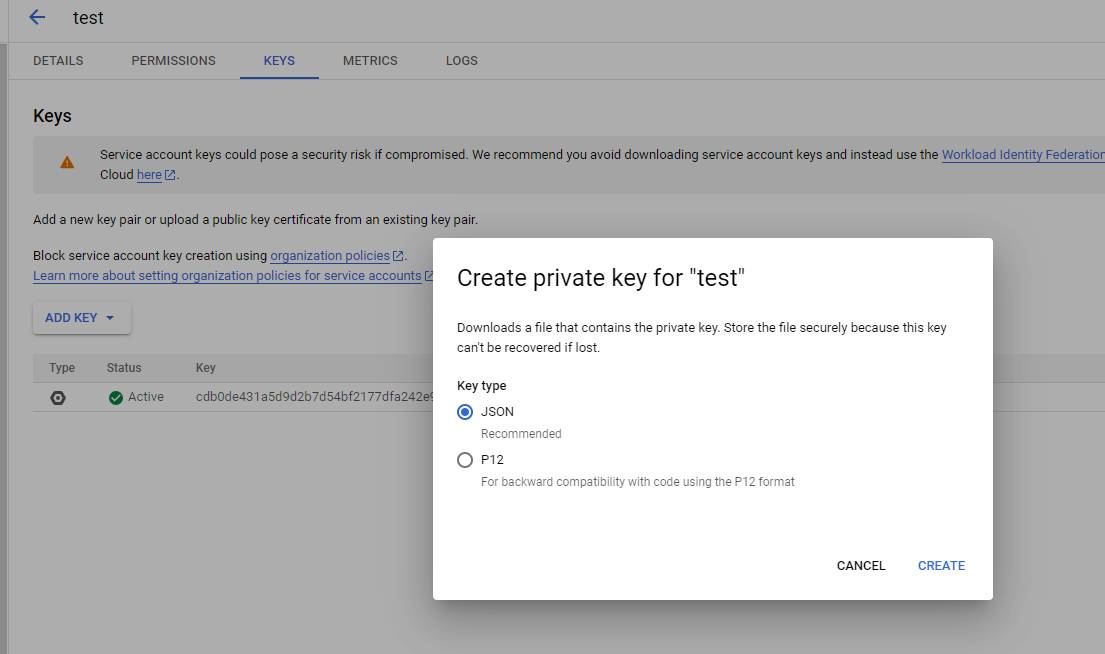 Go to the KEYS tab
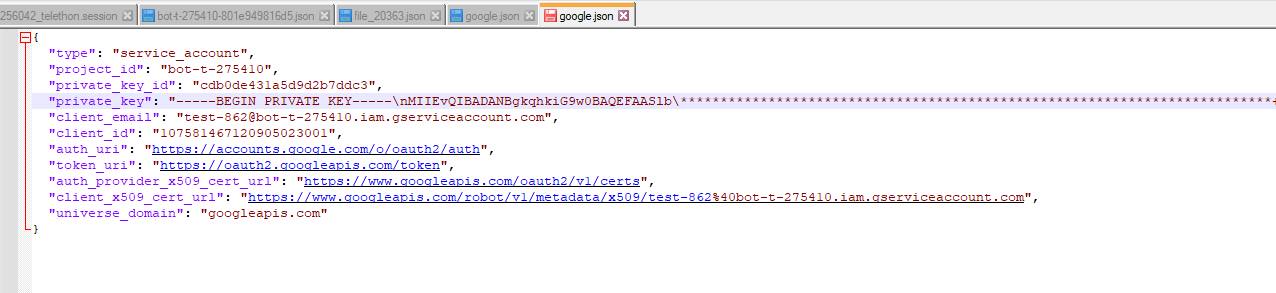 Copying all content for further use
 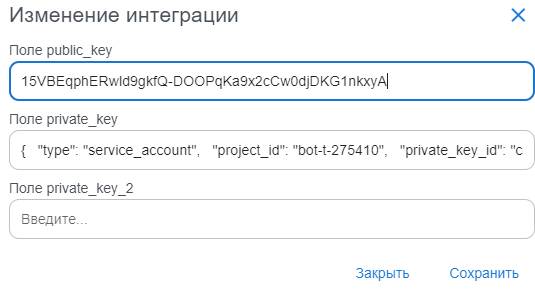 Fill in the data as shown in the screenshot. Do not delete any symbols or add anything.
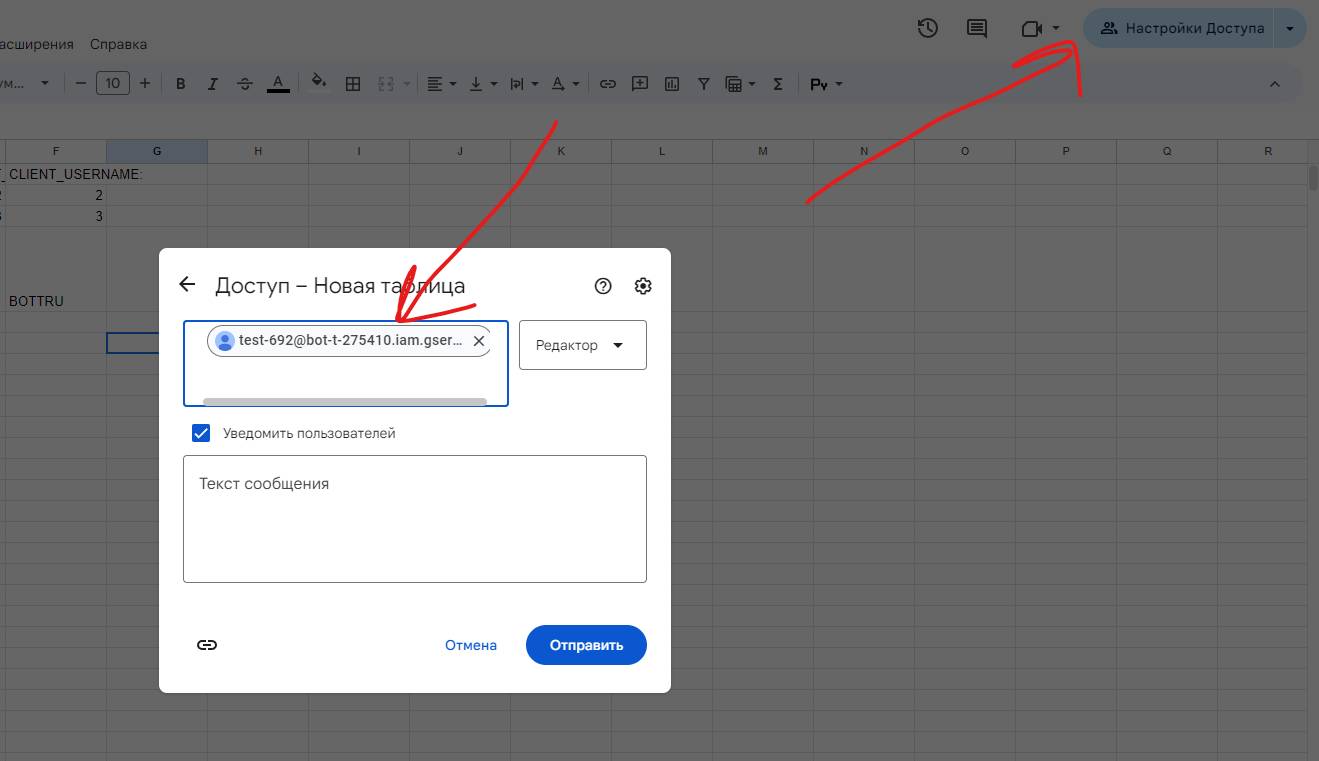 Very important step!