 What are templates?
 - templates are a kind of structure that is applied to product categories and can be customized individually for each product and category!
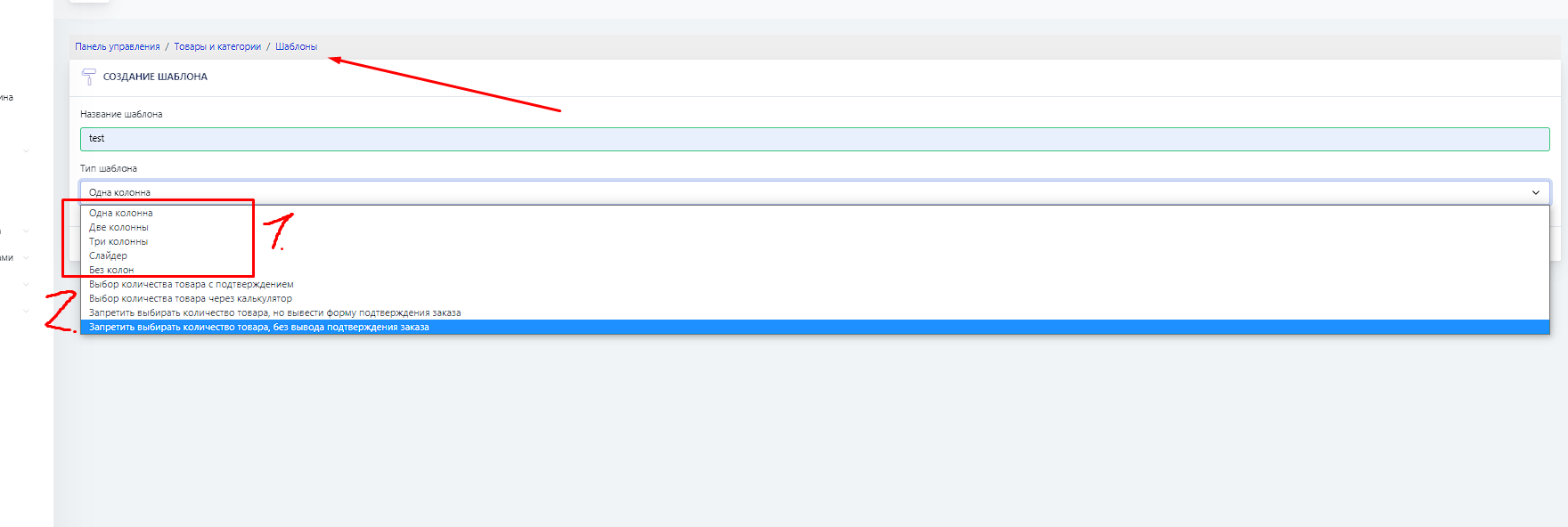
The screenshot shows the templates you can add; each has a different structure and specialty.
1. Category template
One column - the template displays 1 line of buttons from top to bottom
Two columns - the template displays 2 lines of buttons from top to bottom
Three columns - the template displays 3 lines of buttons from top to bottom
Slider - this is a template concept for photos, when the client browses the product using buttons(arrows)
No columns - this is a custom template similar to free buttons, configure it however and whatever you want! (I do not recommend it for those who do not know what free buttons are and how to configure them - this is an advanced setting)
2. Product templates
Product quantity selection with confirmation - a template for products with quantity selection and adding a
YOUR OWN QUANTITY button
Product quantity selection through a calculator - a template for products with quantity selection through buttons like on a calculator, etc.


 The receipt editor is the text that appears after the user pays for the order. This text can be edited; this setting will apply only to the template where you make the changes.
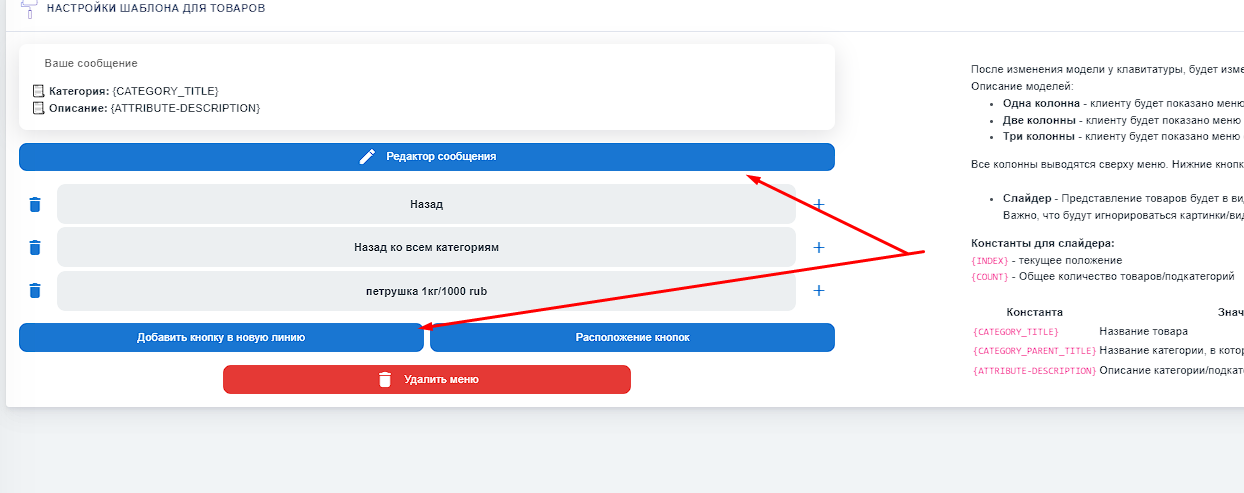 Editing a template is similar to creating free buttons; add and build your own unique template!
 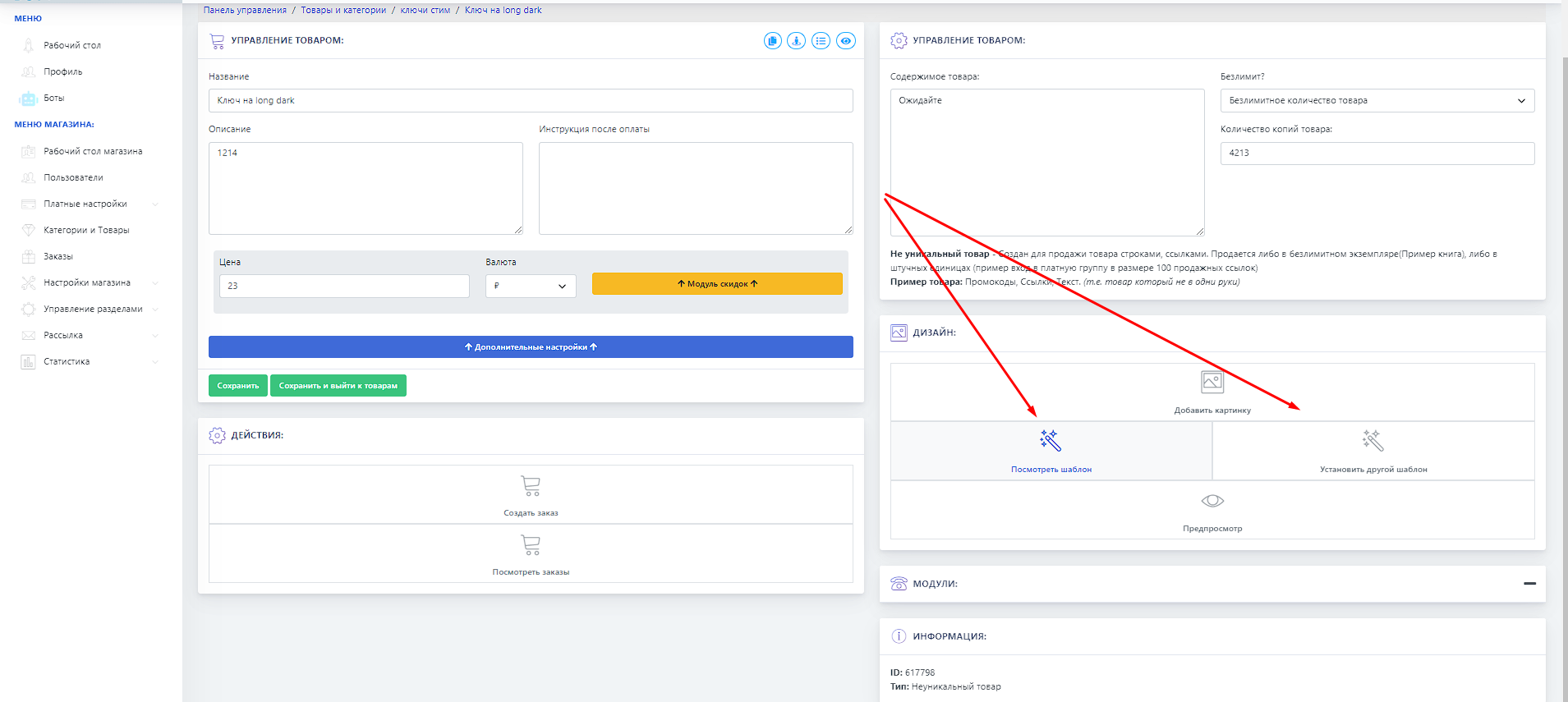 You can set the template using the button in the category or product.