

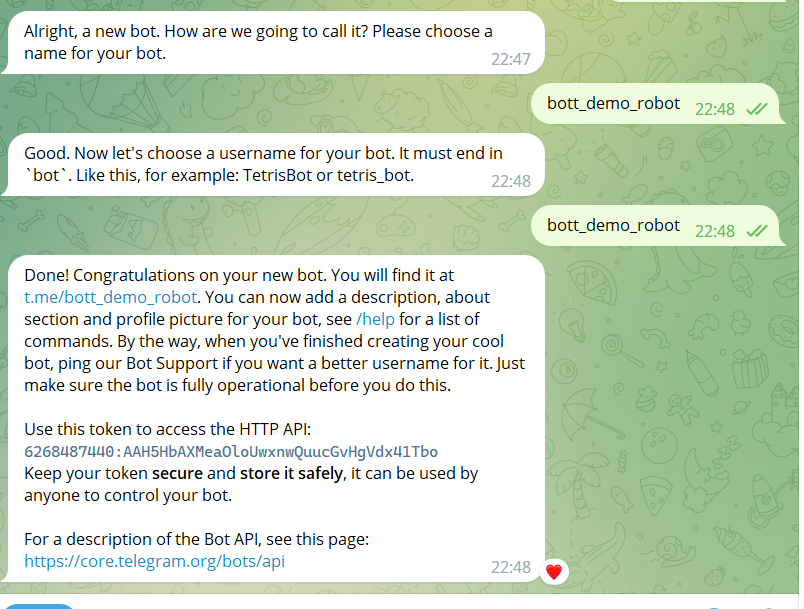
 To create a bot, go to the bot @botfather, and create a new bot. How to create a bot, see here. Next, go to the website, log into your account, and go to Bots > Create a bot Physical goods (Physical Goods) then paste the token received from @botfather (see screenshot below) and fill in the information about your bot. Choose the currency carefully; once you select it, you will not be able to change it to another one.
 Bot creation
To create a bot, go to the bot @botfather, and create a new bot. How to create a bot, see here. Next, go to the website, log into your account, and go to Bots > Create a bot Physical goods (Physical Goods) then paste the token received from @botfather (see screenshot below) and fill in the information about your bot. Choose the currency carefully; once you select it, you will not be able to change it to another one. Adding a new product
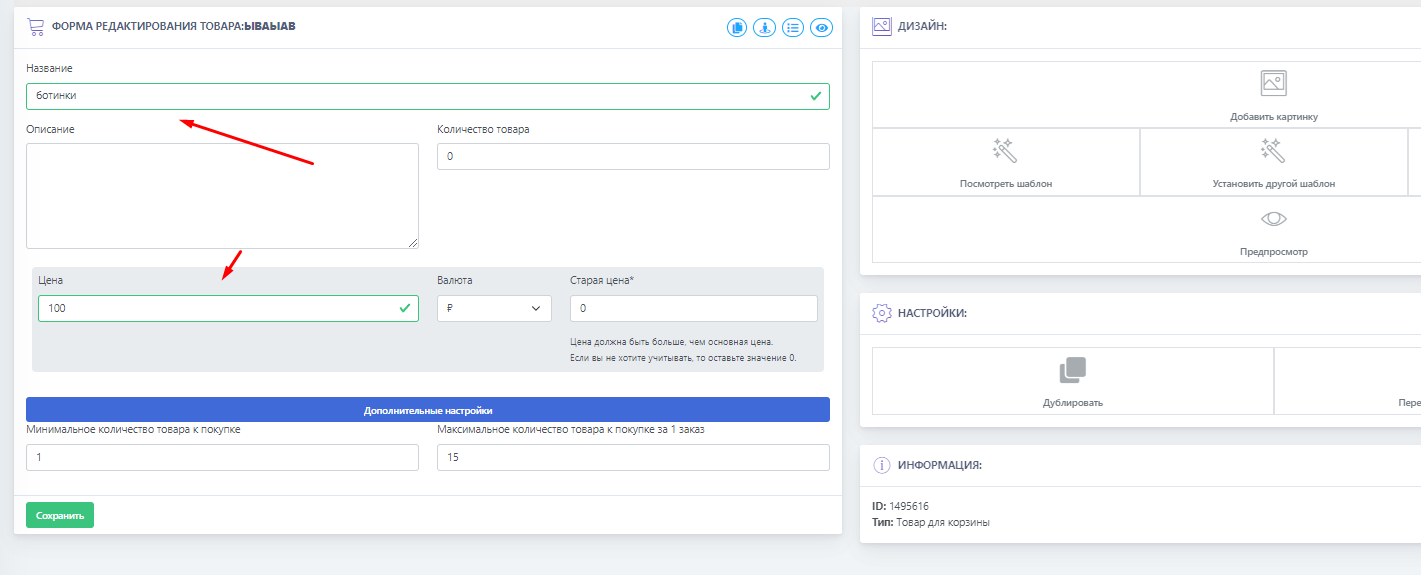 To create a product, you need to create a category in which the product will be stored. Then click the "Create product" button and proceed to configure the product.
 IMPORTANT! We do not limit you by product types - create whatever you like, but please take into account the delivery and receipt method of the product by the customer!
Shipping methods setup
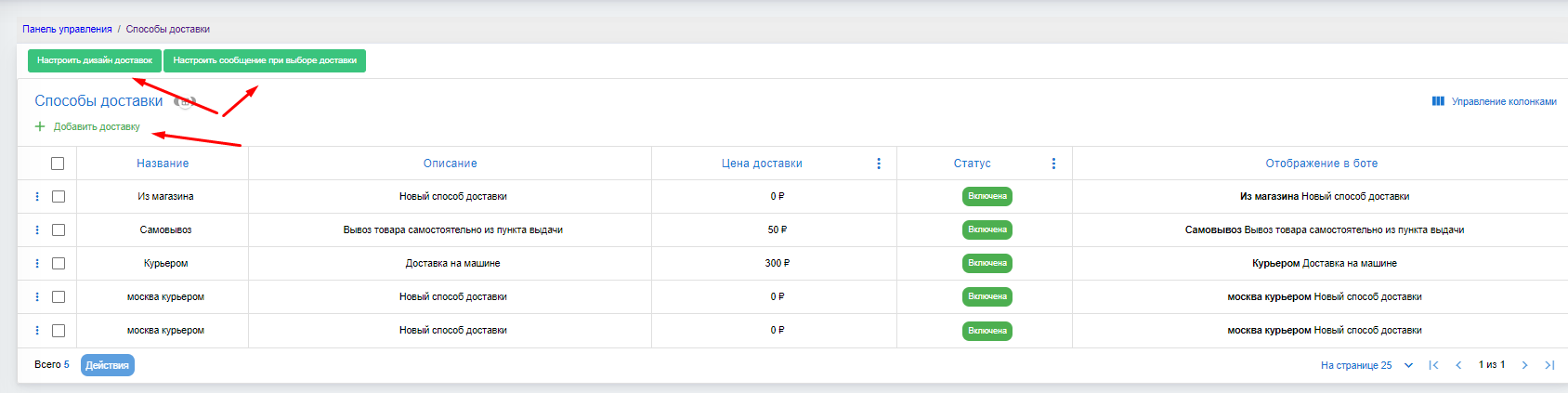 Since we have already created our first category with a product (see above), we need to set up a shipping method so the customer can receive the product.
To add shipping methods for your product, you need to click "Shipping Methods" on the main page.
Then add a shipping method and name it, for example, "Mail Delivery".
The shipping amount will be added to the user's order. Payment is possible cash on delivery (when the parcel has arrived to the buyer); in that case, the shipping cost will not be added.
Next, you need to configure each shipping method and select the shipping cost. If you do not know how to configure a shipping method, you can view it here.
View orders
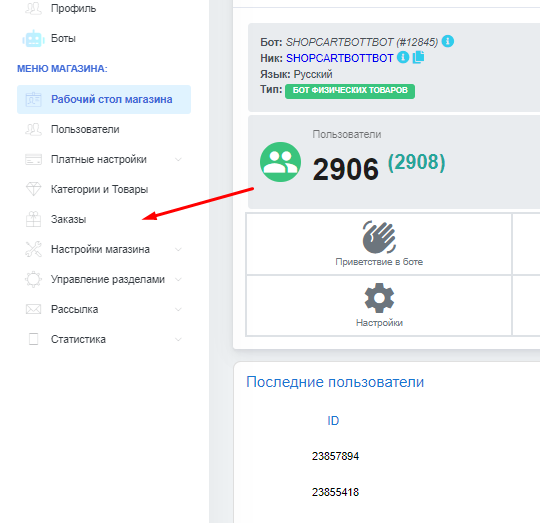 To view the status and where the item is being sent, you need to go to your bot's main menu and click on ORDERS. There you will see the information you need, and with this function you will be able to manage old and new orders.