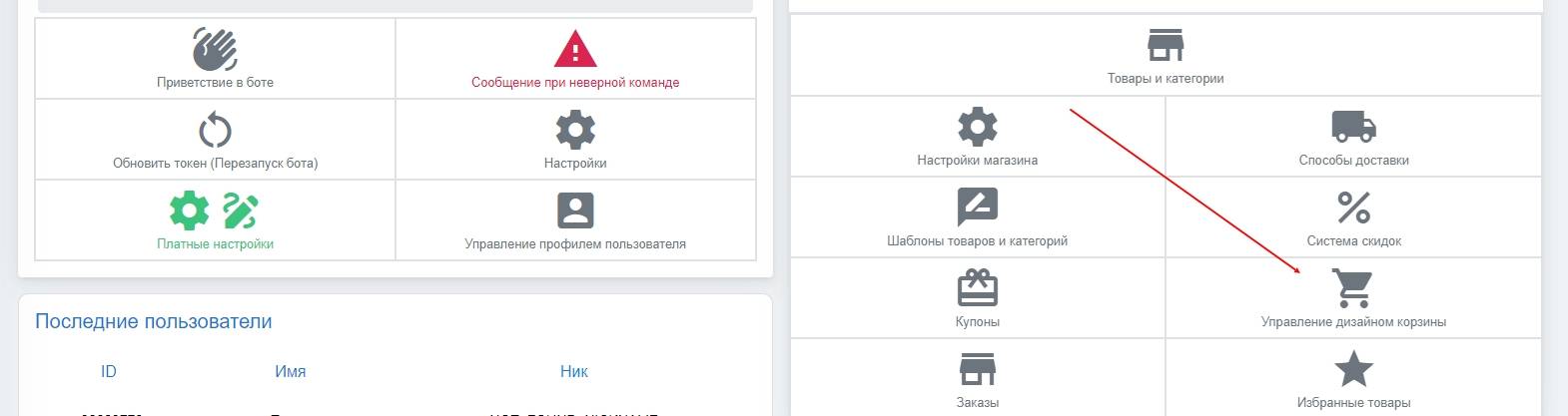
 An important difference between a physical goods bot and a digital goods sales bot is the presence of a cart.
 To go to cart design management, you need to click the corresponding button through the bot’s desktop.

Help Center BOT-T
Find answers, learn how to use the service, and get help from our team.
For example: payment, plans, Telegram bot, reviews...
Search results
An important difference between a physical goods bot and a digital goods sales bot is the presence of a cart.  You will see 4 main sections for managing the cart:
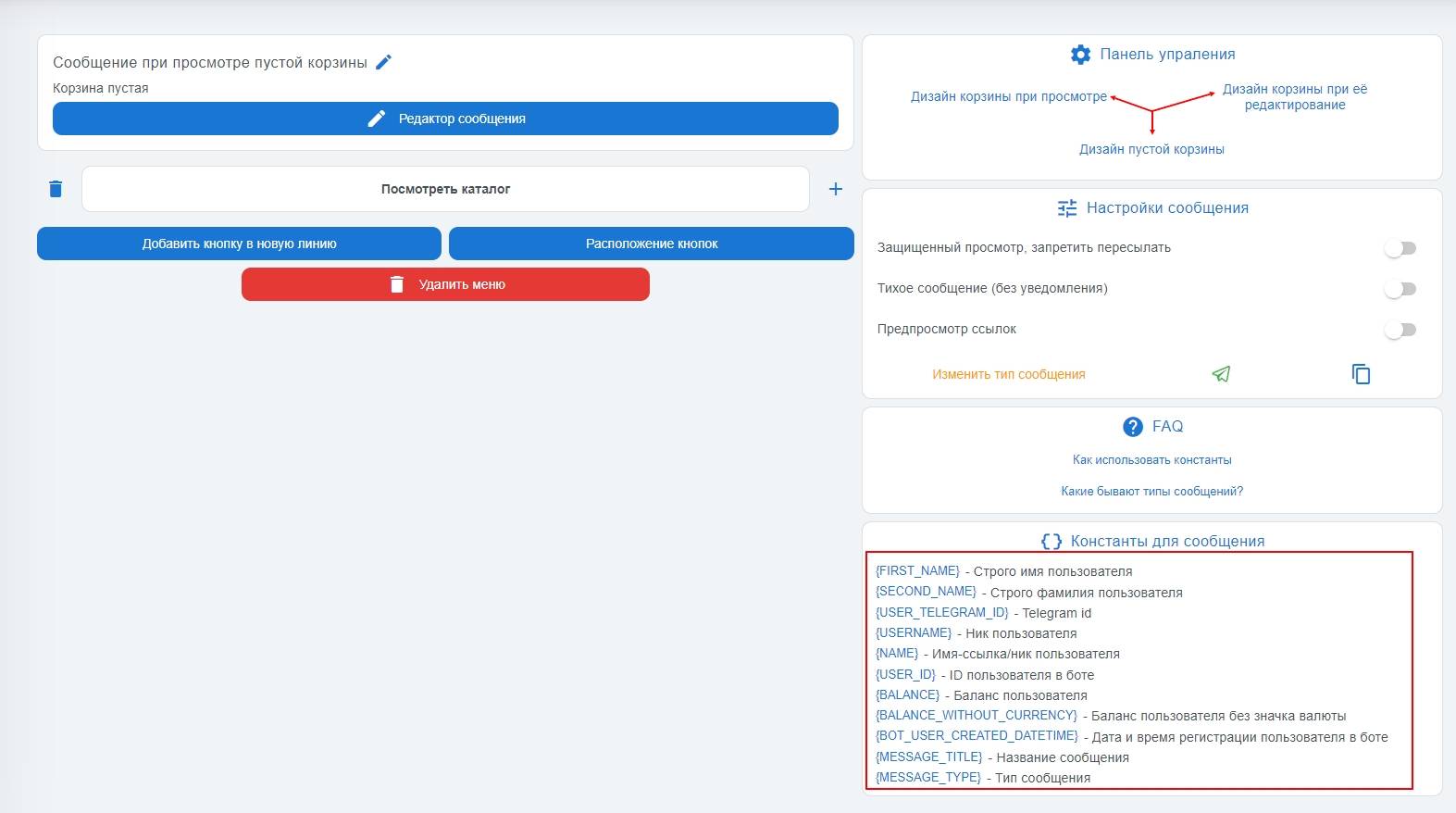 From any section of the cart settings, you can switch to another block via the "Control Panel" in the upper right corner.
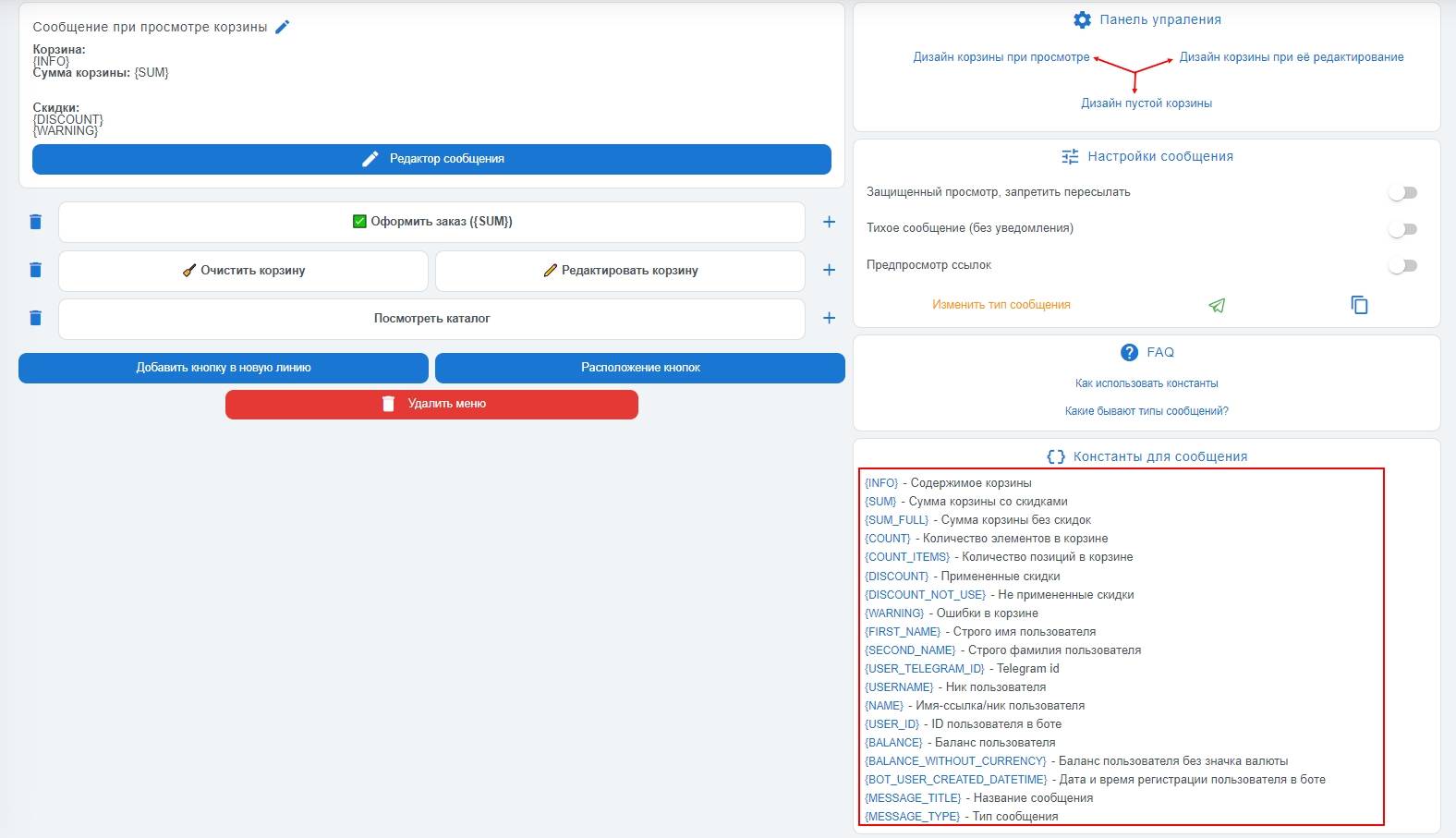 This block configures the design of the user cart view when it contains items; by default, from the cart you can:
 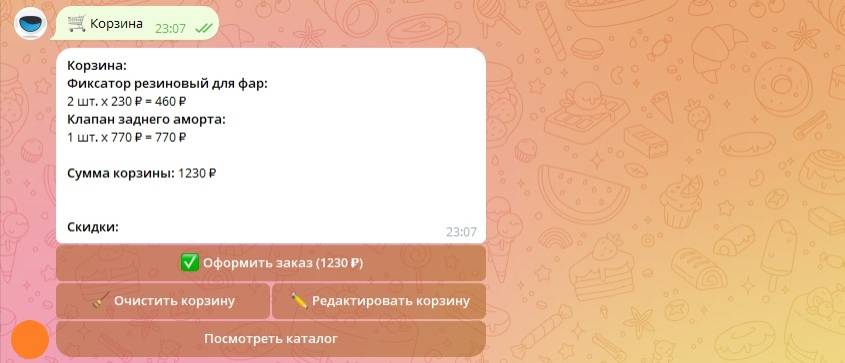 In the screenshot, you can see what the cart design looks like when it contains items while working with the bot during the order creation stage
 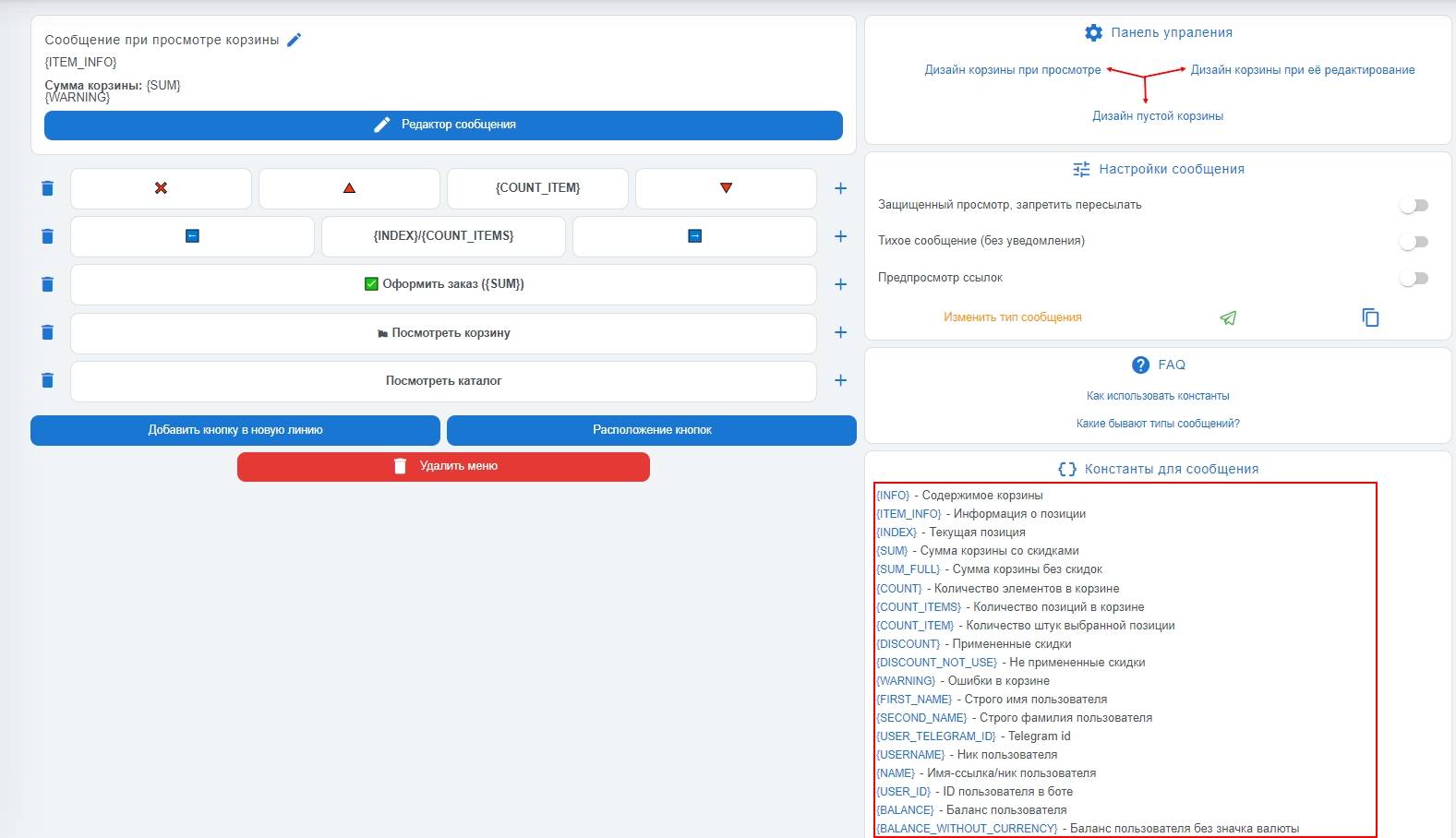 This block configures the design of the user’s cart view at the order placement stage; by default, from the cart view you can:
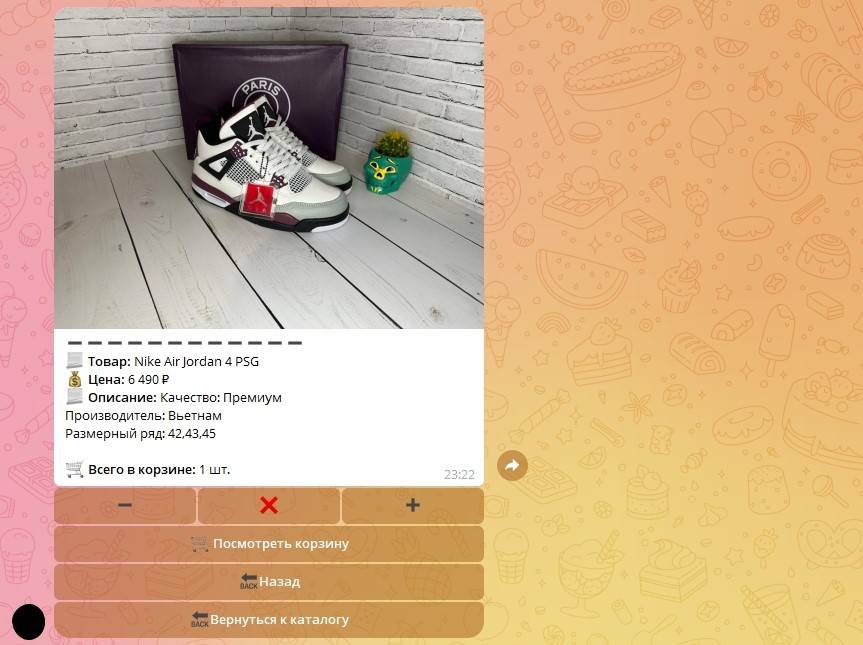 In the screenshot, you can see what the cart view looks like during the cart creation stage; in this example, additional buttons and emojis have been added