
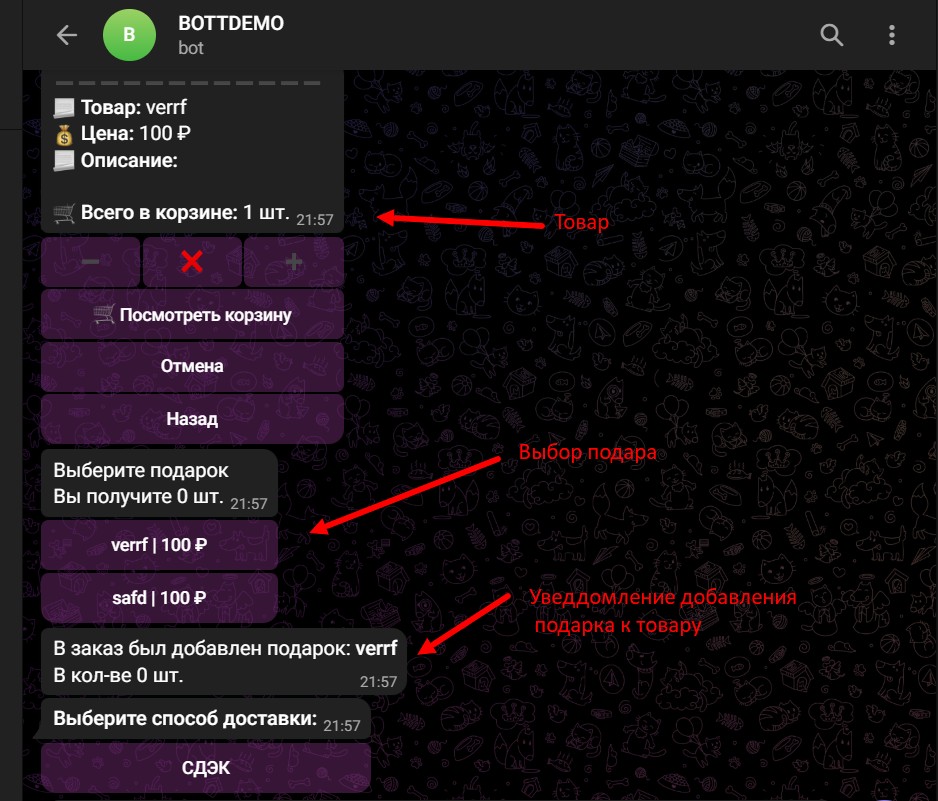
Gift system mechanics.

Gift system mechanics.The mechanics of the gift are simple.
When setting up a discount for customers and selecting a gift, the user will receive the gift (please note: the gift is provided free of charge).
All you need to do is set up the conditions for receiving the gift (minimum price, minimum number of items in the cart, etc.).
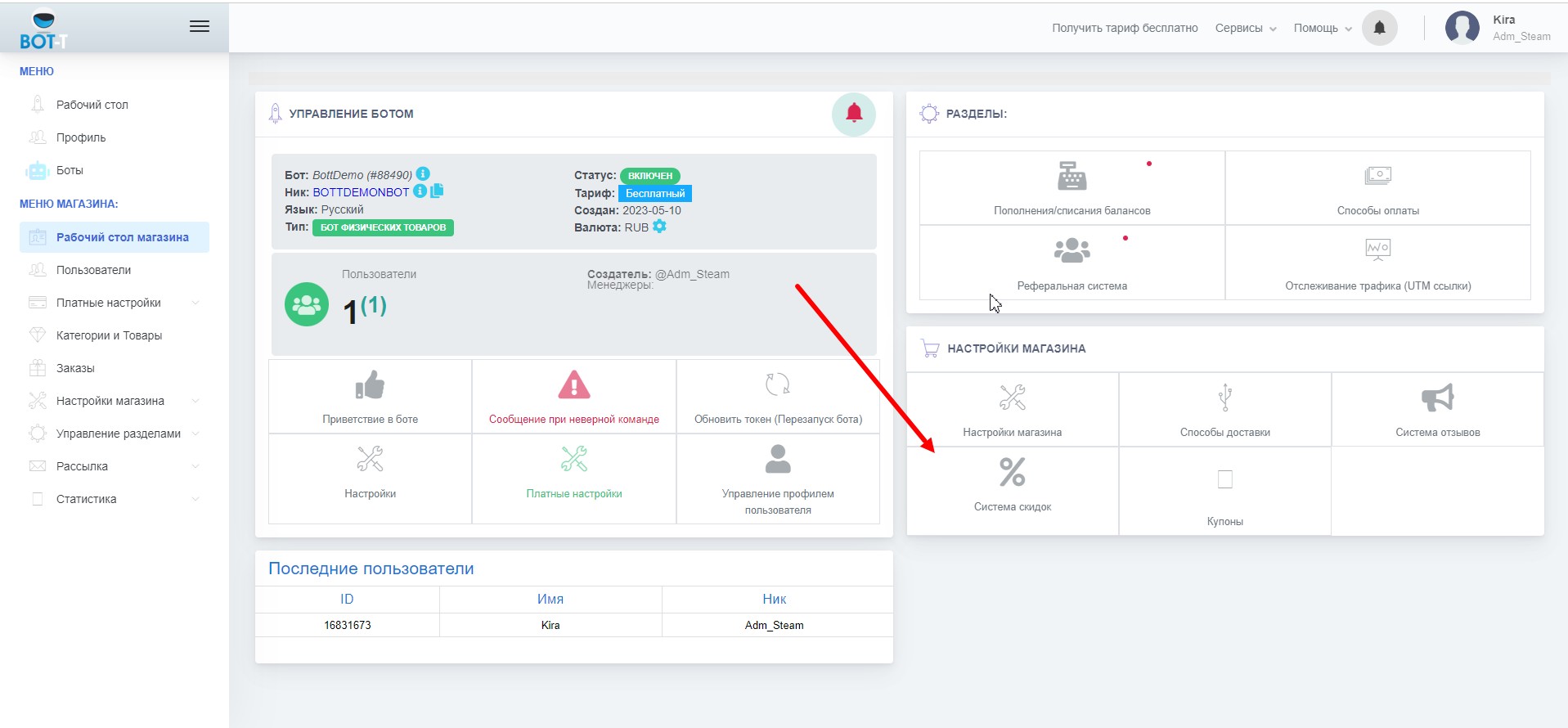
Gift addition

Gift additionOn the main page, select the “discount system” button
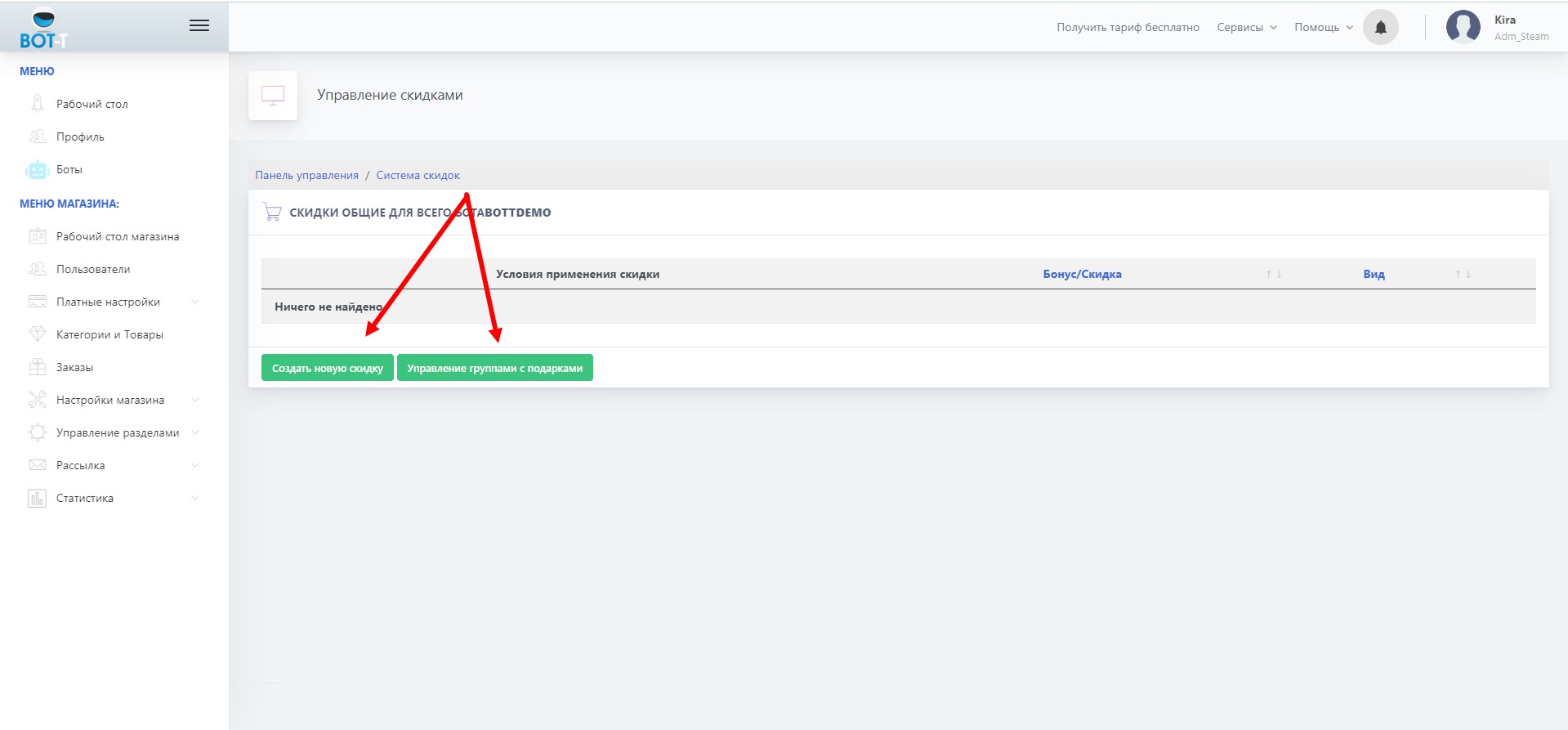
then click the “gift group management” button

Creating a new discount

Creating a new discountFirst, you need to create a new discount
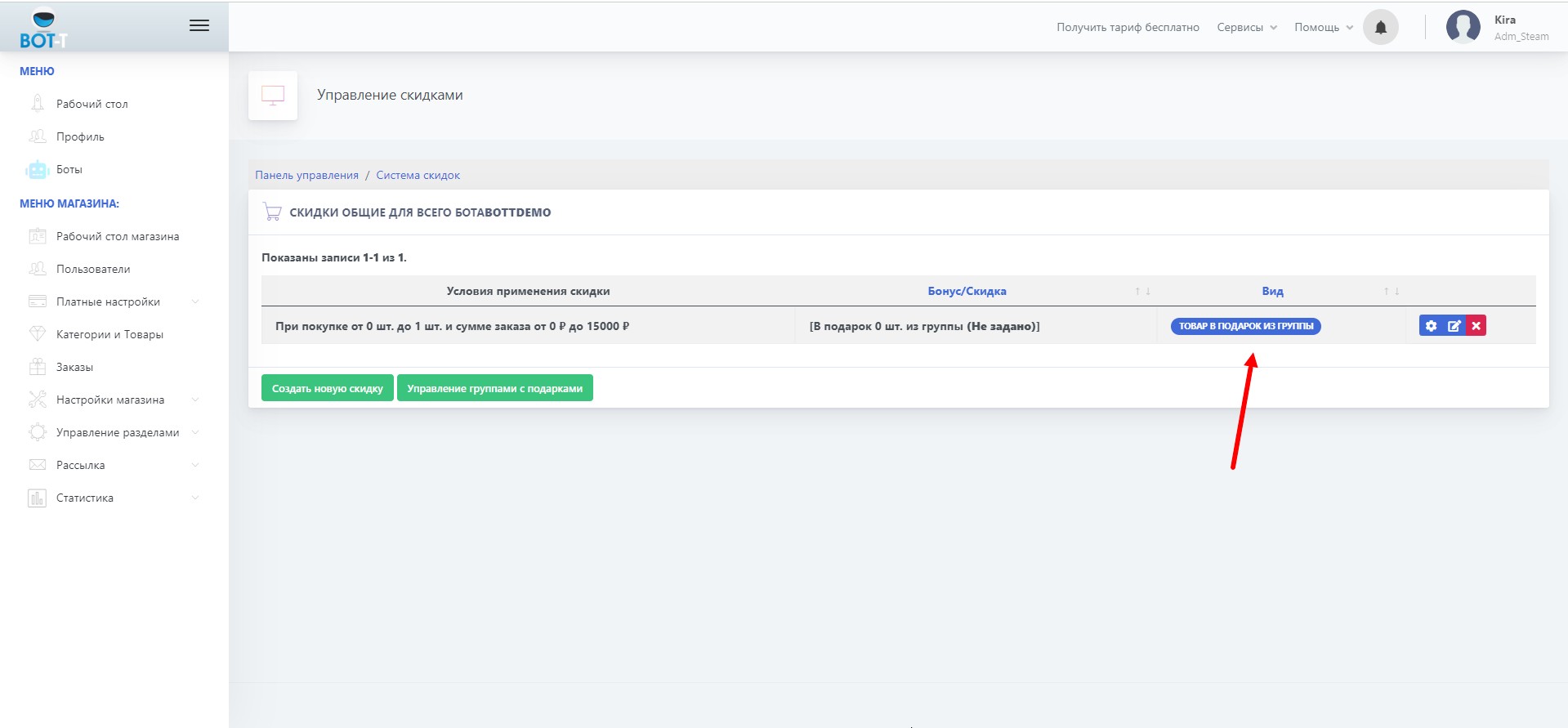
to do this, click the "Create new discount" button
1. In the window that appears, select "product as a gift from a group" and click add.
2. Set the criteria for receiving the gift, then click save.

Creating a gift group

Creating a gift groupTo do this, click the "Manage groups with gifts" key
1. Click "Create gift group," enter the group name and description, and click Add.
2. Click the "Edit gifts" key.
3. Select the item that the user will receive in the event that all criteria are met.

Gift setup

Gift setupYou can choose a gift either as a group of gifts or as a single gift
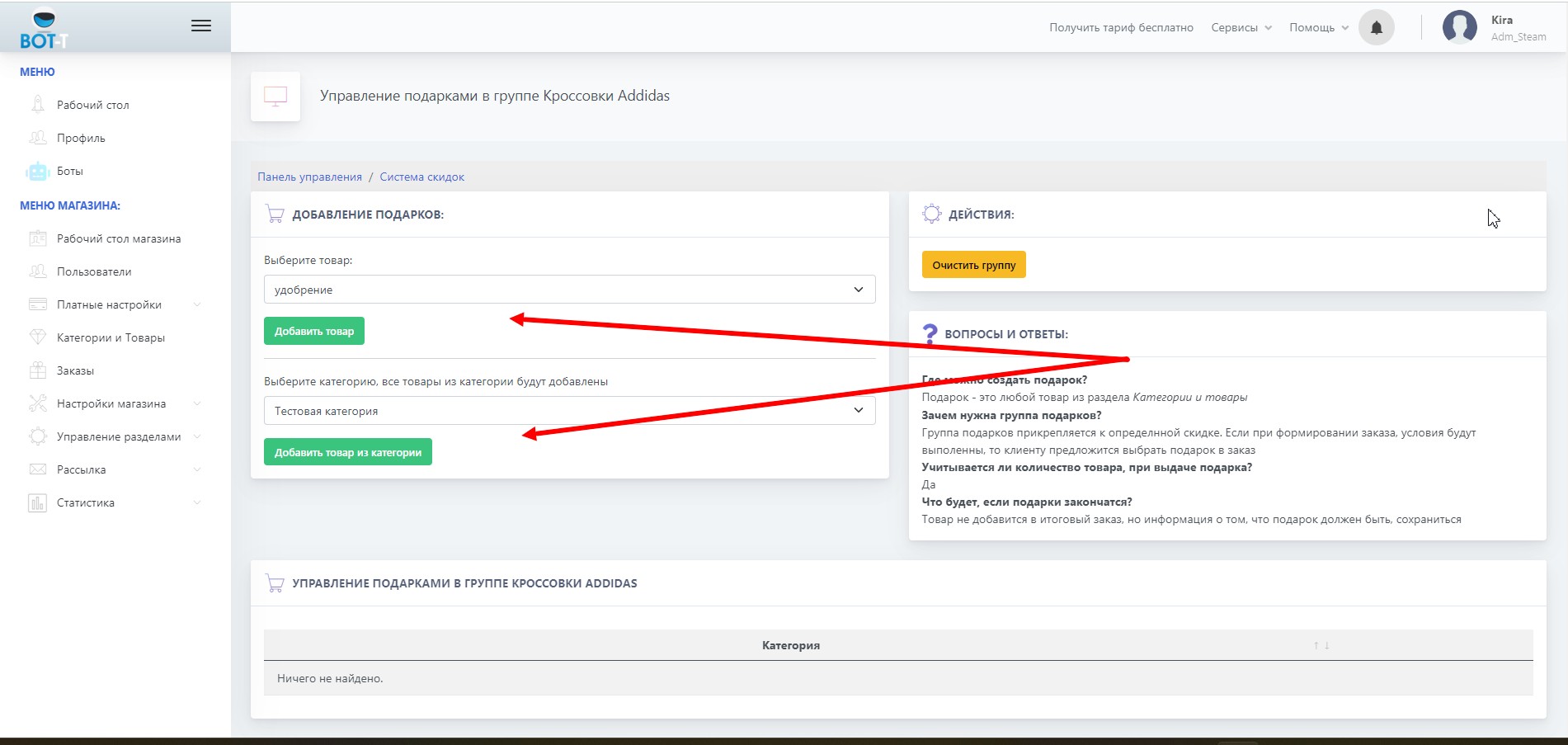
1. Gift setup
-Select a product to give as a gift
-Click Add product

2. Product group setup
-Select a category to give as a gift
-Click Add product from category.

We attach a gift to our discount terms

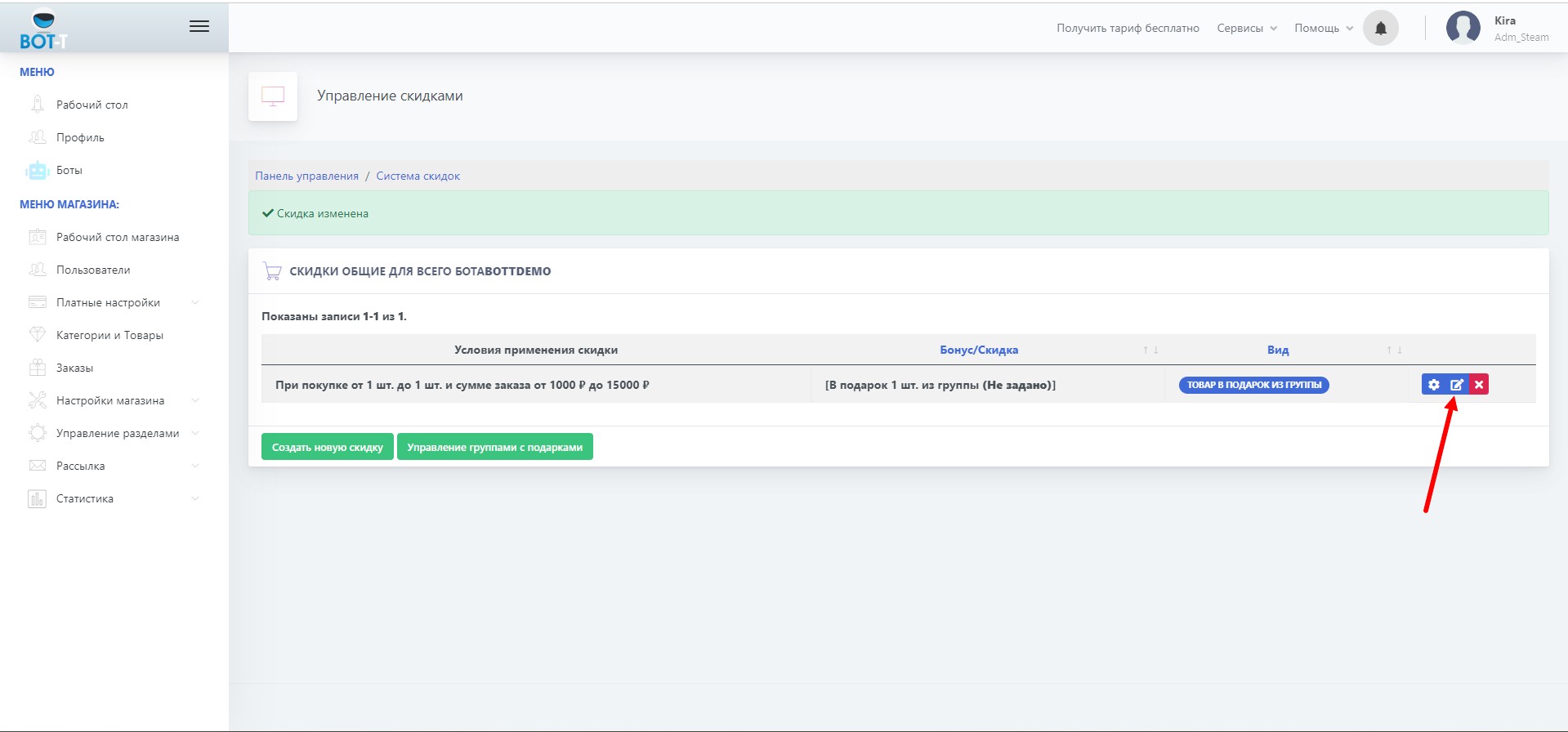
We attach a gift to our discount termsClick the edit button and select the group we created earlier.
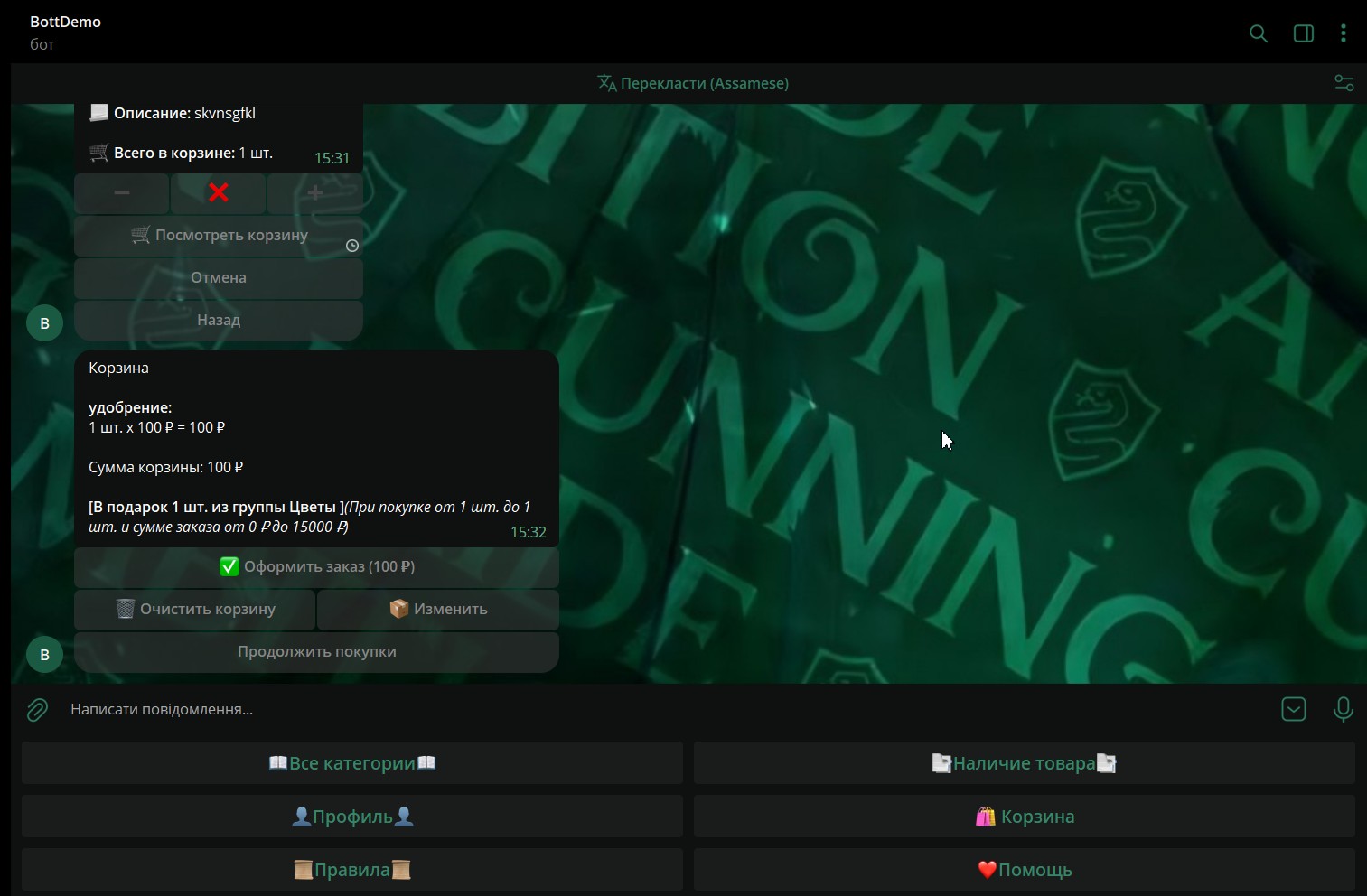
Now the user will receive the gift if all the conditions you specified earlier when adding the discount are met.

Final result

Final result

What are gifts for?

Gifts help retain existing customers and strengthen loyal attitudes toward the brand.
Corporate souvenirs demonstrate that you value and understand the customer, and they establish a connection with them that motivates and encourages engagement.
They convey the company's values and strengthen the brand's reputation.

Create a bot:
free of charge and without programming knowledge BOT-T.COM