Creating an auto-request acceptance bot

Creating an auto-request acceptance botTo create a bot for automatic request acceptance in Telegram via the bot builder bot-t.com, you need to create a bot in @botfaher (more details here)
After issuing the API token, you need to select the bot type "Channel request acceptance bot" in the "Desktop" tab
After successful creation, select the "step-by-step setup" tab to quickly configure the bot.

For a more informative guide and bot setup, I RECOMMEND watching this video

What are the greeting and second greeting in the bot, and why are they needed?

Greeting and additional message in the auto-application acceptance bot are messages that the bot automatically sends to the user after receiving their application.
Greeting is the first message that the user receives from the bot immediately after submitting the application. It contains information that the application has been accepted and will be processed as soon as possible. The greeting may also include thanks to the user for reaching out and a note that they can ask additional questions or clarify details.
Additional message is a message that the user receives after the application acceptance is confirmed. It may contain additional information about the application processing process, such as the expected response time or the contact details of the operator who can be reached for clarifications. The second greeting may also request that the user provide additional data or clarify information about the application.
Greeting and additional message in the auto-application acceptance bot are needed to notify the user that their application has been received and will be processed. This helps establish contact with the user, confirm their request, and give them the opportunity to ask additional questions or clarify details. Greeting and additional message also improve the level of service and communication with users.

Auto-application acceptance bot scenario and how does it work?

1. Greeting - what is sent by the /start command
2. Application handler scenario - The scenario that is sent when an application is submitted.
3. Scenario button - a button that is sent together with the scenario
4. Additional message - A message that is sent after N minutes, regardless of the application handler scenario
5. Application - a client’s submitted request to the resource
6. Resource links - Links generated in BOT-T for accepting applications to the resource. They can be used to track traffic.


What does this look like for users in the bot?
1. The subscriber clicks your invite link that they saw in an ad.
2. Then they see a window where they can submit a request to join. They click it.
3. A message pops up saying that their request will be reviewed and accepted.
4. They are instantly and automatically subscribed to the channel.
5. If you have set up a greeting, the subscriber receives a message from your bot (even if they have not interacted with it before).
6. If you have a second greeting, after some time (which you set yourself), the subscriber will receive another message with your text. You can see our illustrative example of what this looks like here
Important: The bot accepts the request instantly, but the subscriber does not see this right away. They will either find your channel in their feed later, or immediately click the link again to go to your channel, or receive a message from you through the bot, in which you greet them.

Connecting a resource to the bot

Connecting a resource to the botTo connect a resource to the bot, you need to take a few simple steps.
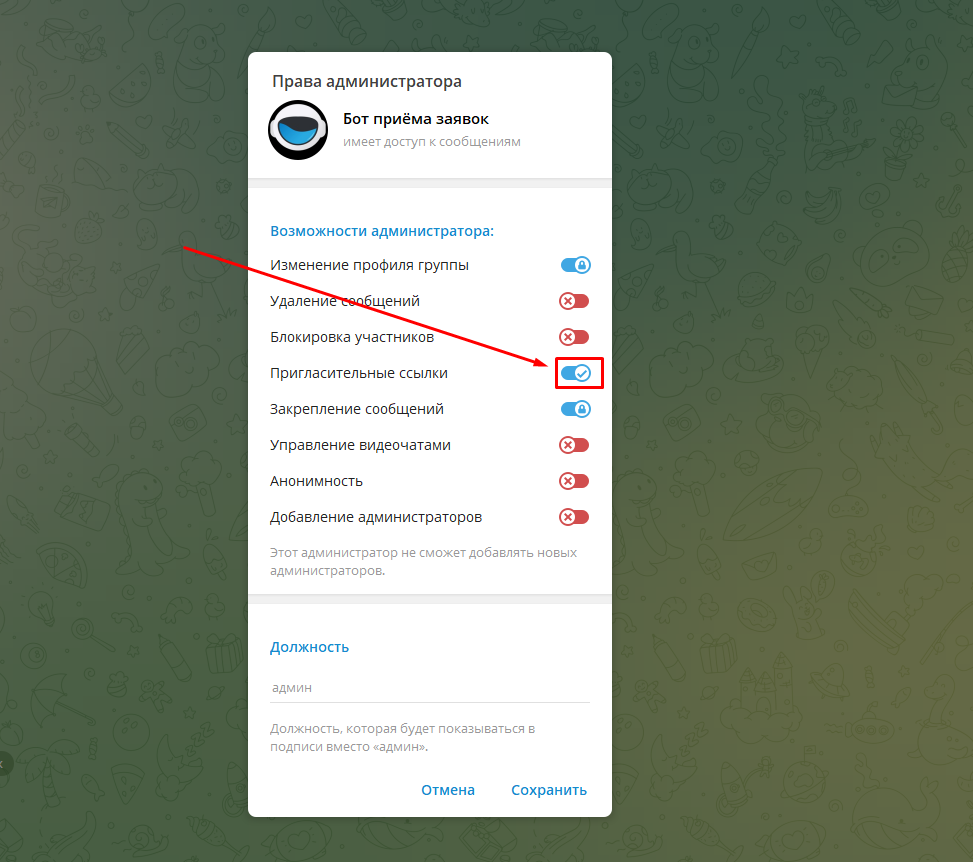
The first stage is to grant the "invite links" permission to your created auto-application acceptance bot.

This section is located in "resource management (group)", then the "administrators" button - find your created bot and grant it the "invite links" permission
Attention: if you have other bots connected that have the same permission, then remove this permission from those bots, otherwise the auto-application acceptance bot will work incorrectly!

Creating an invitation link

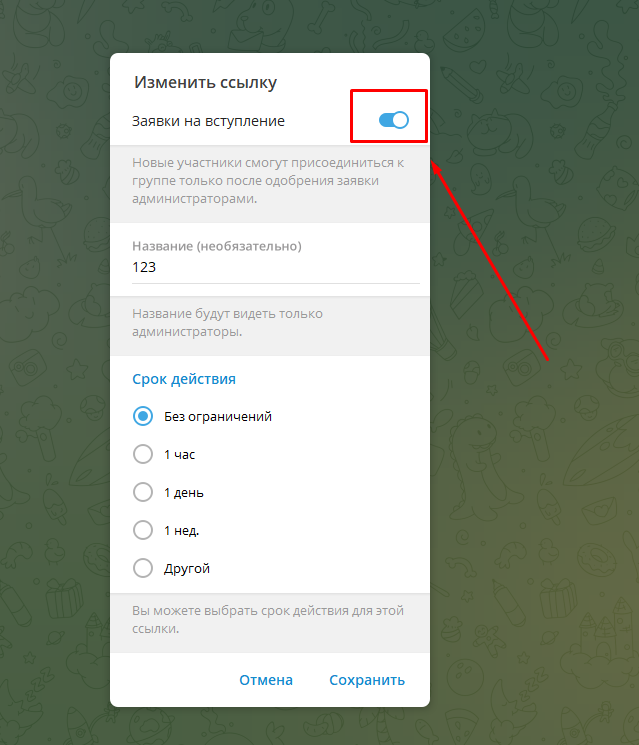
Creating an invitation linkThe second stage is to create an invitation link with “membership request” rights (see screenshot)
This section is located in the resource settings “group management,” then go to “invite links” and click “issue a new link” with “membership request” rights.
The link you issue will be the main one for inviting new users to your resource (share only it)

What is “accept an application after clicking in the bot,” and how does it work?

What is “accept an application after clicking in the bot,” and how does it work?This setting is mandatory for those who want to keep their audience in the bot!
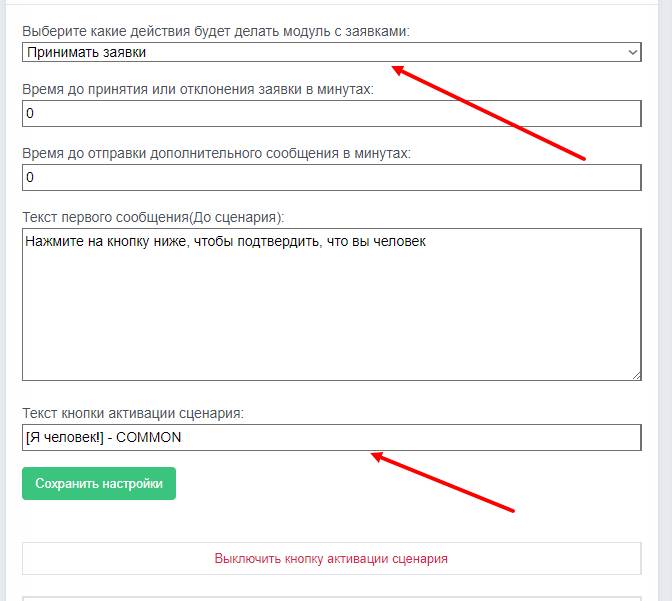
To retain the audience in the Telegram auto-application bot after 24 hours, you can use the notification subscription or mailing feature. This will allow the bot to send notifications and information to subscribers even after 24 hours have passed since the last interaction.

For example, you can do it like this: after joining the resource, the user will receive a message in the bot to confirm that they are a "human" (see screenshot). In fact, this button is needed to keep the person in the bot; as soon as the user clicks the button, they will automatically be retained in the bot and gain access to your chat or channel.

Example of using a Telegram auto-application acceptance bot

1. The user sends the bot a message requesting information or placing an order.
2. The bot automatically sends the user a welcome message informing them that the request has been received and will be processed as soon as possible.
3. The bot saves information about the request, such as the message text, the user’s name, contact details, and other necessary information.
4. The user receives confirmation that the request has been accepted and can continue chatting with the bot, ask additional questions, or clarify details.
5. The administrator or operator receives a notification about the new request and can begin processing it.
6. After processing the request, the administrator or operator sends a reply to the user with the necessary information or results of the work.
7. The user receives a response from the bot and can ask additional questions or end the conversation.
Thus, the Telegram auto-request bot allows you to automate the process of receiving and processing requests, speeds up communication with users, and increases work efficiency.

Example:
Auto-acceptance: admin Dima bought ads in large channels. In the promotional post, he inserted a new invite link, through which new subscribers will submit requests to join. To avoid sitting 24 hours a day approving thousands of new join requests, Dima enables the "Auto-accept subscribers" feature; in addition to the link, he connected UTM tags to know where the subscribers are coming from and in what quantity. Now the process of joining new members happens automatically. The bot does everything on its own and tracks traffic, while Dima calmly goes about his business and in the future will know where and from whom to buy advertising to save money.

Automatic greeting: after an automatically approved join request, Dima can send new subscribers an automatic message from his bot. This feature directly helps increase reach and earn more from his resources.

Telegram bot for automatic application intake: main functions

Main features of the bot for handling applications in Telegram:

- Processing applications to join your chat or channel: The bot automatically reviews and approves requests from users who want to join your chat or channel.

- Sending messages to users: The bot can automatically send notifications, news, or promotional materials to all subscribers.

- Tracking UTM links: With this feature, you can analyze traffic sources and the effectiveness of advertising campaigns.

- Requiring a mandatory subscription (when configured): The bot can be set up so that a user can gain access to content only after subscribing.

- Closing access to a channel or group (when configured): If you want to make your channel or group private, the bot can automatically close access to new users.

- Creating sales funnels: The bot helps automate the sales process, from attracting a customer to closing the deal.

- Warming up the audience: The bot can regularly send interesting and useful content to keep the audience engaged.

- Collecting statistics: Get detailed reports on user actions, their interests, and preferences.

- Offering paid services: The bot can inform users about paid services or products that you offer.

- Managing a channel or group: The bot can perform administrator functions, managing members, content, and other aspects of the channel or group.

- Preserving the audience: Even if your main channel or group is blocked, the bot will save all contacts and chat history.

Application bot image

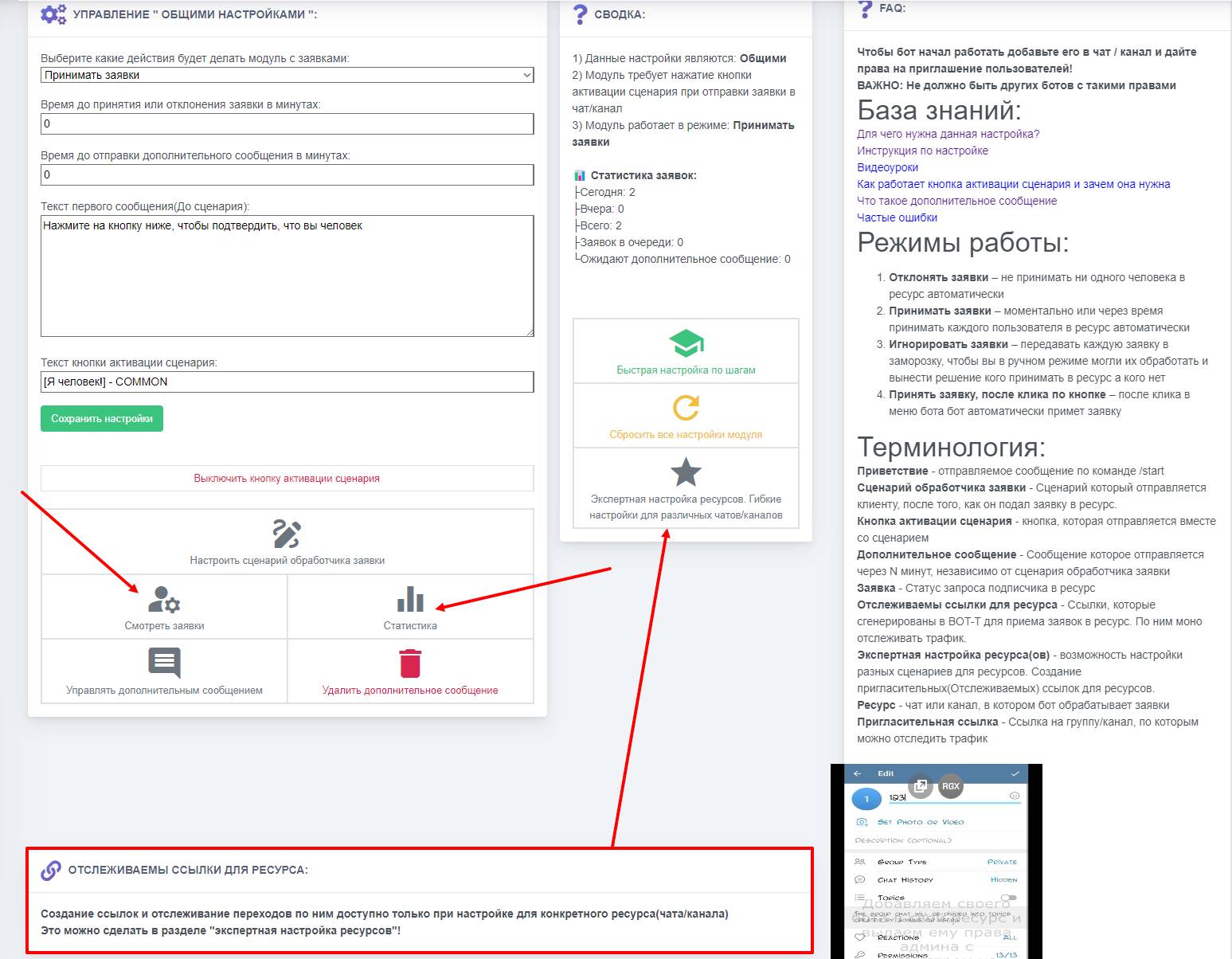
Application bot imageThe bot’s functions can be anything from viewing statistics and UTM tags to managing automatic admission of people by time; in each section on the screenshot there is a short instruction, it explains how all this works
The design can be edited to suit yourself, create different scenarios, etc. (requires a subscription from Full and above)

Create a free bot for receiving applications and try all the advantages of the service. The choice is yours!
Create a bot for receiving applications in Telegram in just a few minutes and enjoy unique features, the flexibility of the builder, and reviews from satisfied customers. Choose our platform and get full access to all the features!

Create a bot:
free of charge and without programming knowledge BOT-T.COM