

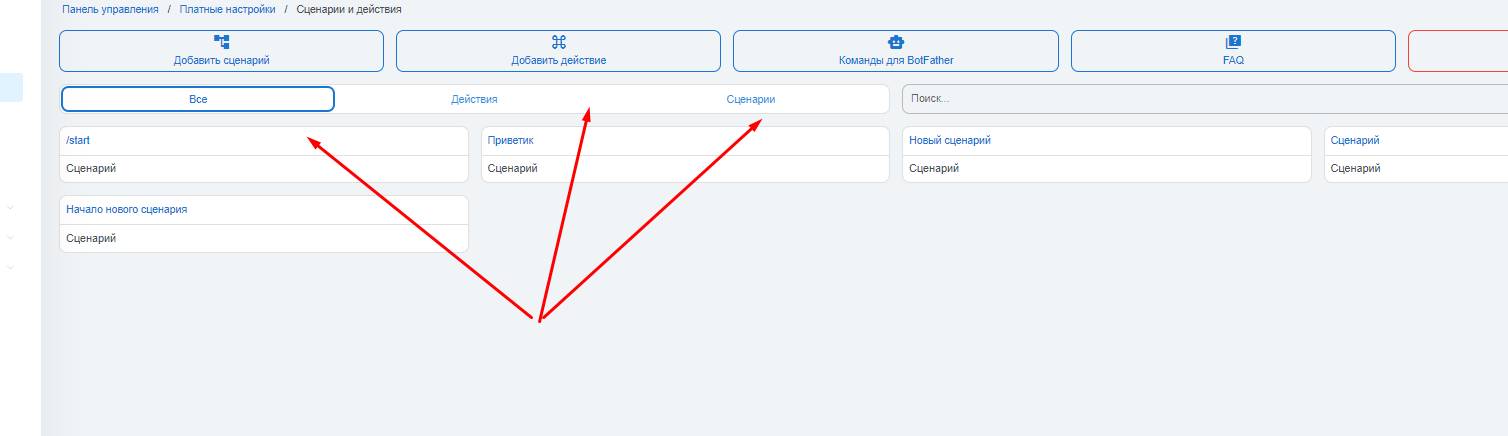
 In the bot builder's general section, you can create new scenarios (we'll look at this below), create new actions (free buttons), and specify commands in BotFather that the bot will use to display scenarios (more details here).
You can also output a scenario directly from the general menu button — by clicking the create scenario command — more details here
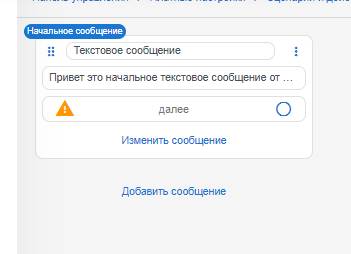 Only the text can be edited and changed, as the name implies
 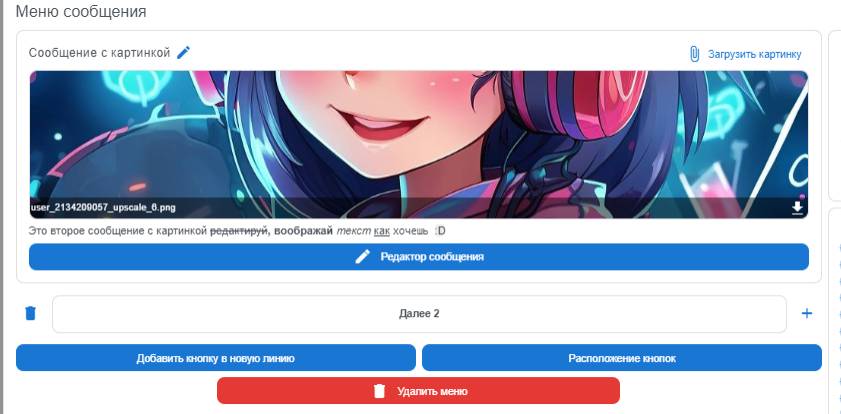 Image formats Jpng, png, webp can be attached to this block.
 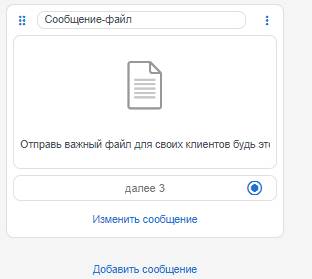 You can attach files to the script, from text files to entire archives!
  You can also upload video blocks into the script. Supported formats: webm (the bot will provide the file), mp4, AVI, mpeg, mkv
  I recommend attaching the GIF at no more than 10 MB, otherwise there may be an error.
  Helps with communication and gathering information from clients; more about setting up feedback is described
 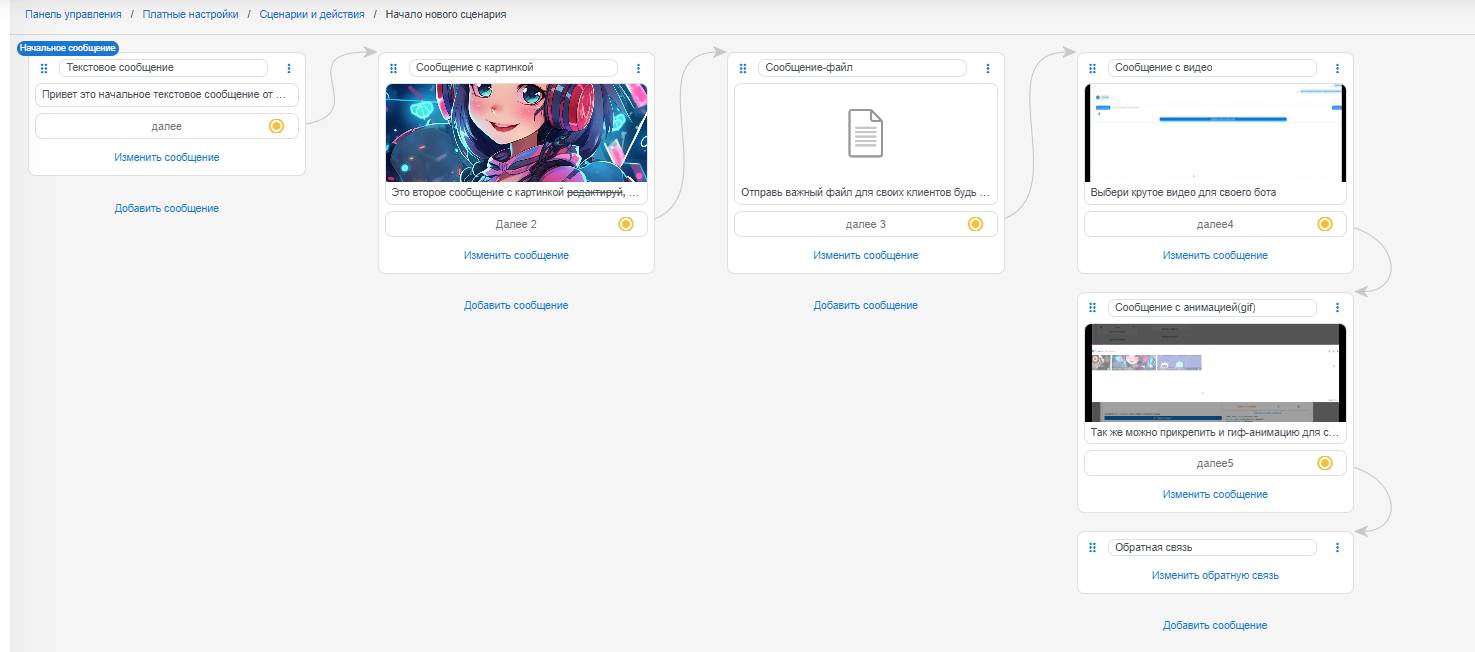 Each script element is connected by a button and its link; to connect one block to another, you need to release the button and assign it a link to another block. Then the script blocks will be linked into one element (see photo). If you want to create a script with action elements, you will also need to release the button and assign it a path to a free message (action).