

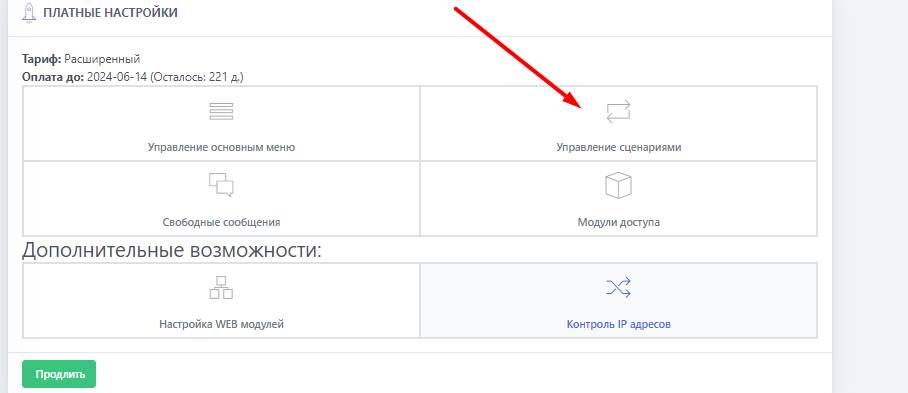
 Let's consider the /start scenario and attach buttons to this scenario. Where should we start?
Let's create a template for our bot in the bot -t and go to the main menu immediately after entering your token from the Telegram bot,
Go to the scenarios tab and set up our command /start , adding your text and the necessary constants (you can additionally attach media). The screenshot shows where the scenarios tab is located.
Video instructions for setting up a bot with mailing capability
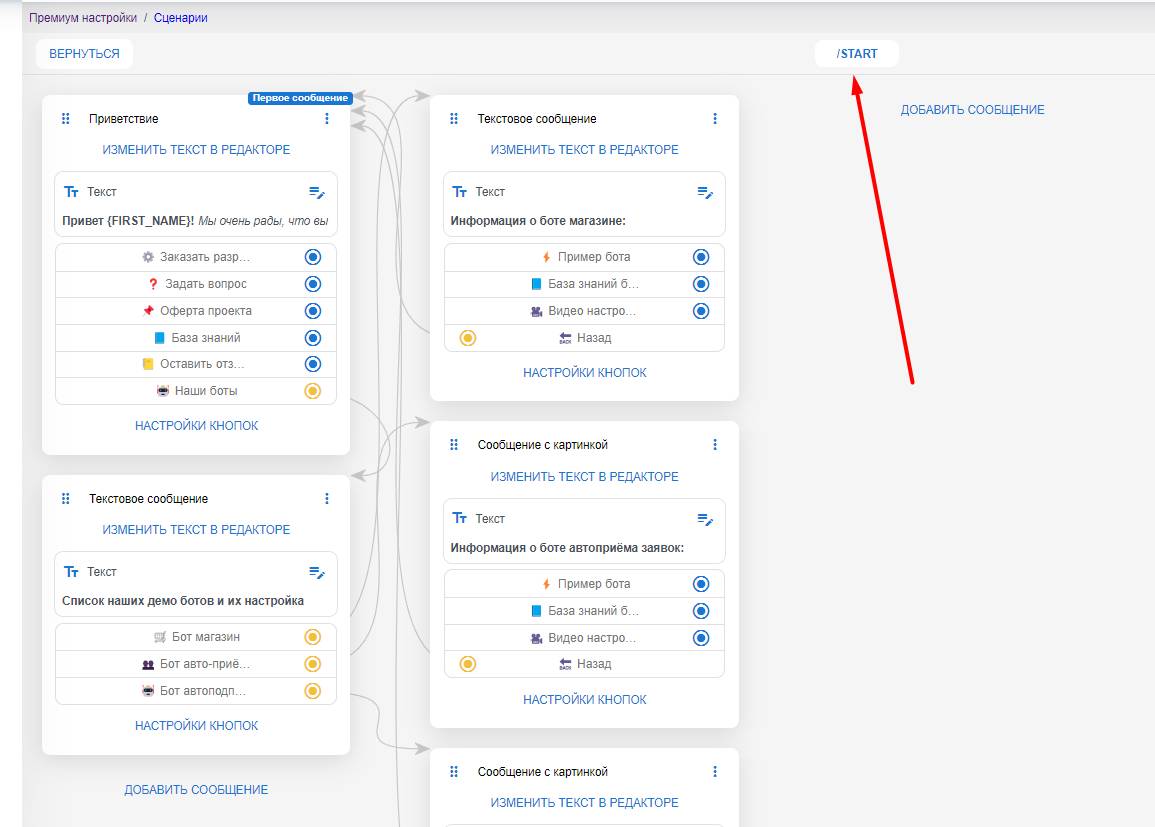 The general setup of scenarios looks exactly like this:
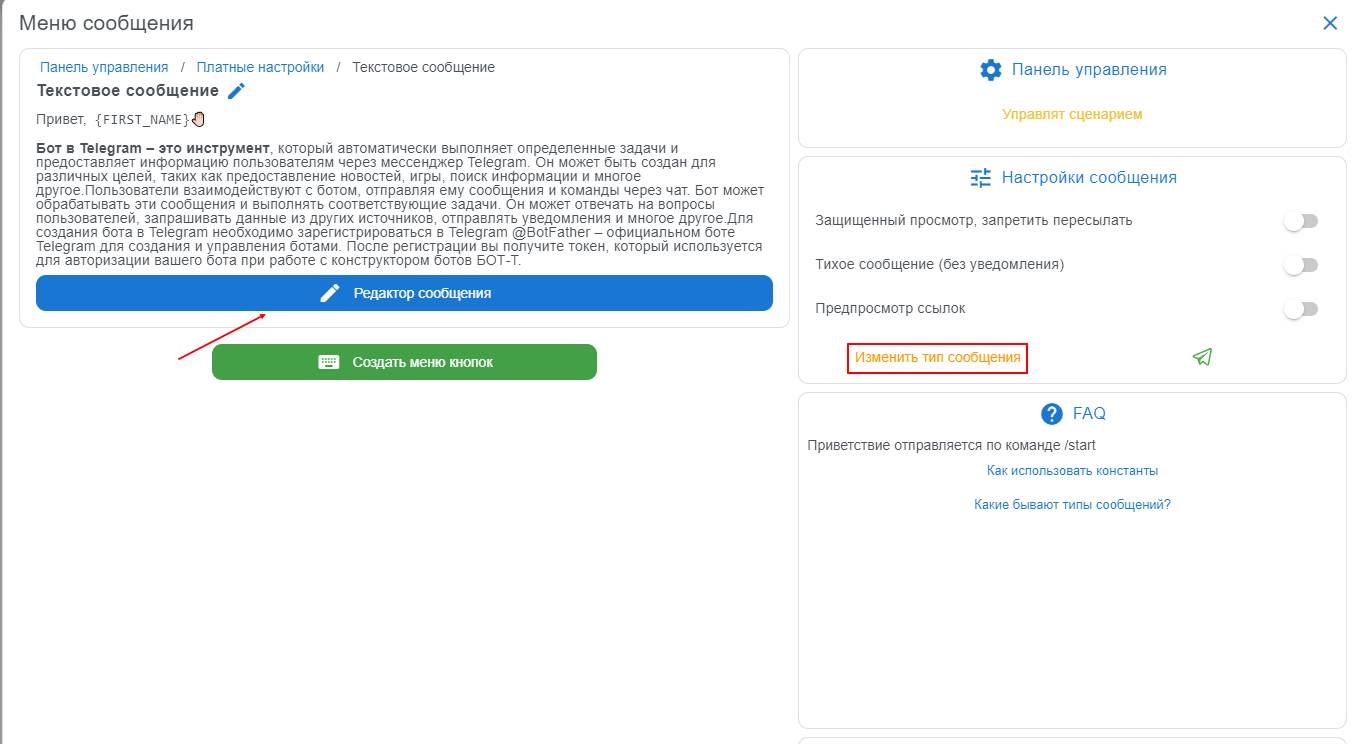 Configuring an individual scenario element is similar to configuring a free-form message. In this element, you can set up buttons, photos, videos, text, etc.
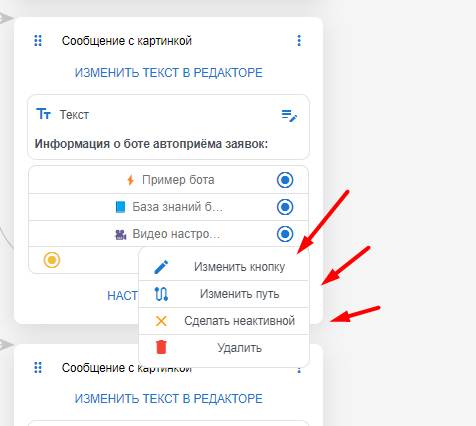 Each block can be linked to a block in your scenario in 2 ways — either by transition (for example, to a free message) or by connecting it to a block via a link (these are the arrows). In this way, you can configure a huge number of connections and make your scenario truly large. We have considered only one command, /start; to add commands in bulk, use