
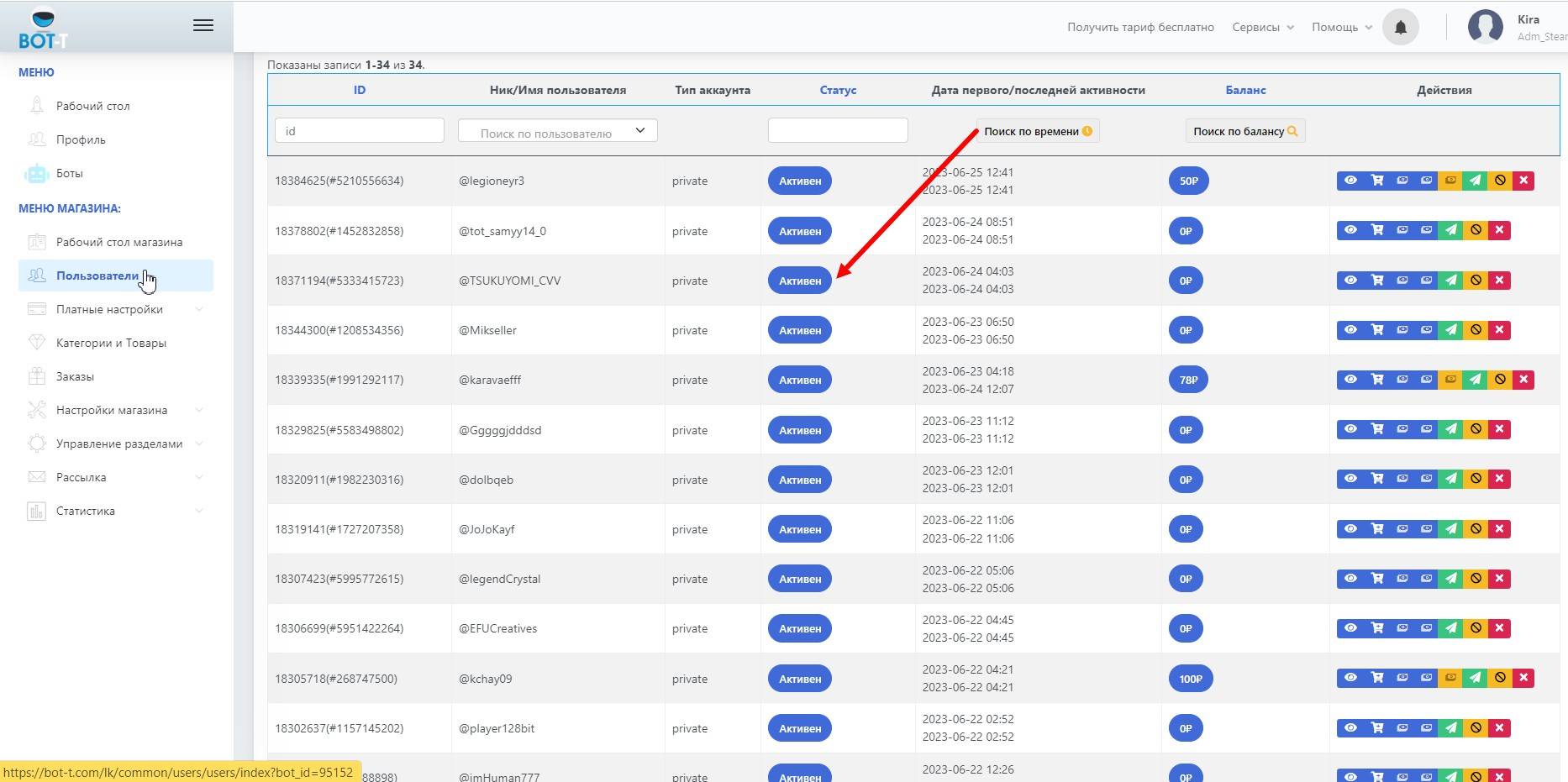
How do I assign a manager in the bot.
1. Go to the Users section
2. Select the icon (in the photo) in the dropdown menu (inside the section, choose the text - manager)
3. Enter the code received from the Authorization Bot
4. The person you selected needs to accept the rights in the bot (bell icon) within 60 minutes to become a manager in their personal account at bot-t.com
User statuses
In BOTT, users can have various statuses that determine availability and interaction capabilities with the bot.
Active user - fully available and can receive messages and broadcasts from the bot.
Inactive user - has blocked the bot and cannot be sent messages.
Blocked user - cannot receive broadcasts and interact with the bot.
Manager - has access to bot management, except for some critically important sections.
Unverified - the user has no functional differences from an active user and can be used for internal purposes.
Trusted - the user also has no functional differences from an active user and can be used for internal purposes.
free of charge and without programming knowledge BOT-T.COM