
 Unfortunately, at the moment BOT-T does not support multilingual functionality; you can only choose one specific language: Russian or English.
HOWEVER! There is a possible solution that would allow you to add language selection:
1) Create a menu with inline buttons and duplicate it in another language
2) This is fairly simple to do: you need to create the initial menu using free messages in a specific language
3) After we have created 2 menus in 2 languages, we need to create one more free message with two buttons, for example: "Choose a language/select a language" and below the text 2 buttons "Rus" and "Eng"; the menu in the corresponding language is linked to these buttons.
By following these instructions, you can simulate language selection for users.
What are free messages?
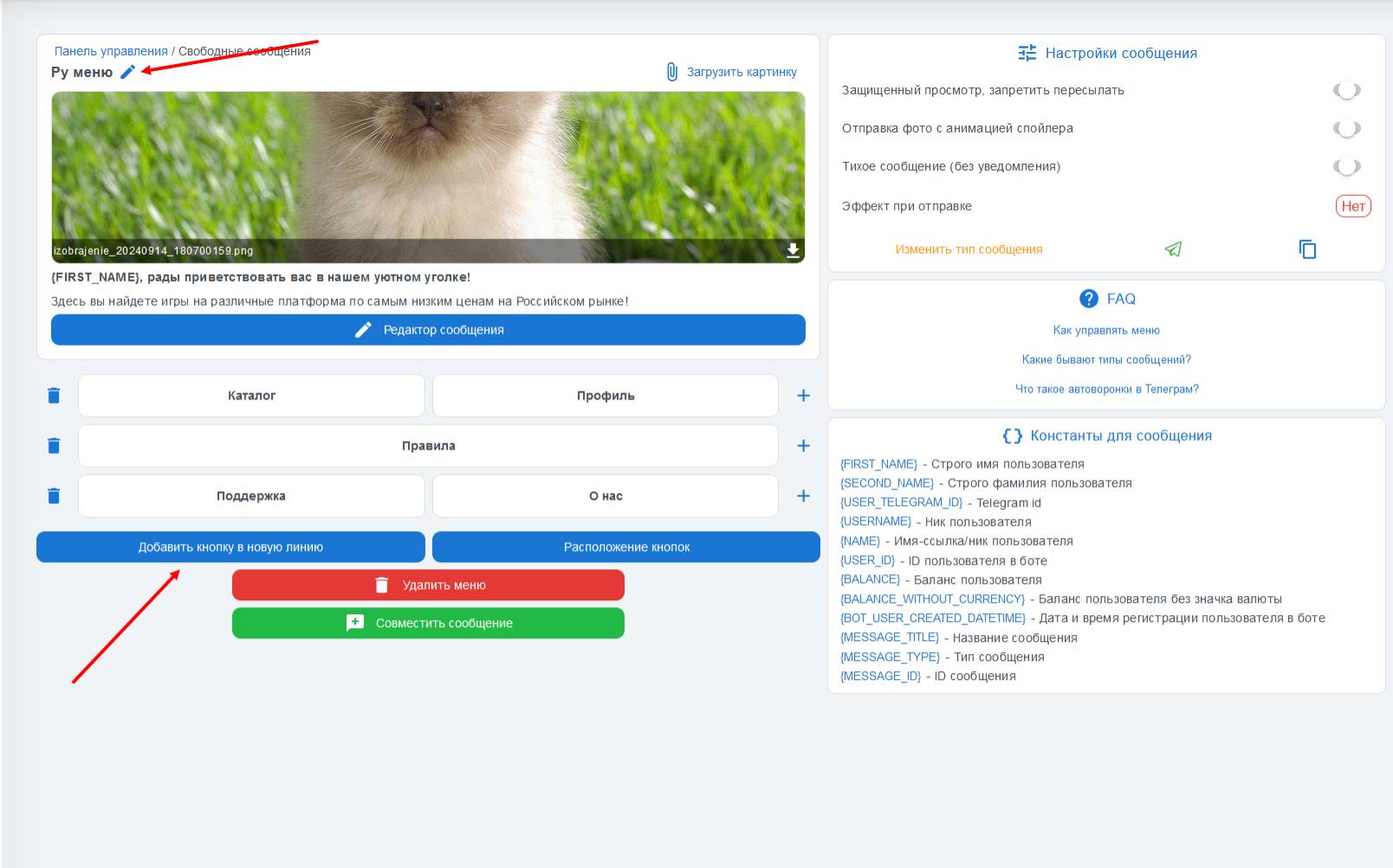 Have you already figured out what “Free Messages” are? Great! Then let’s move on to creating an inline menu.
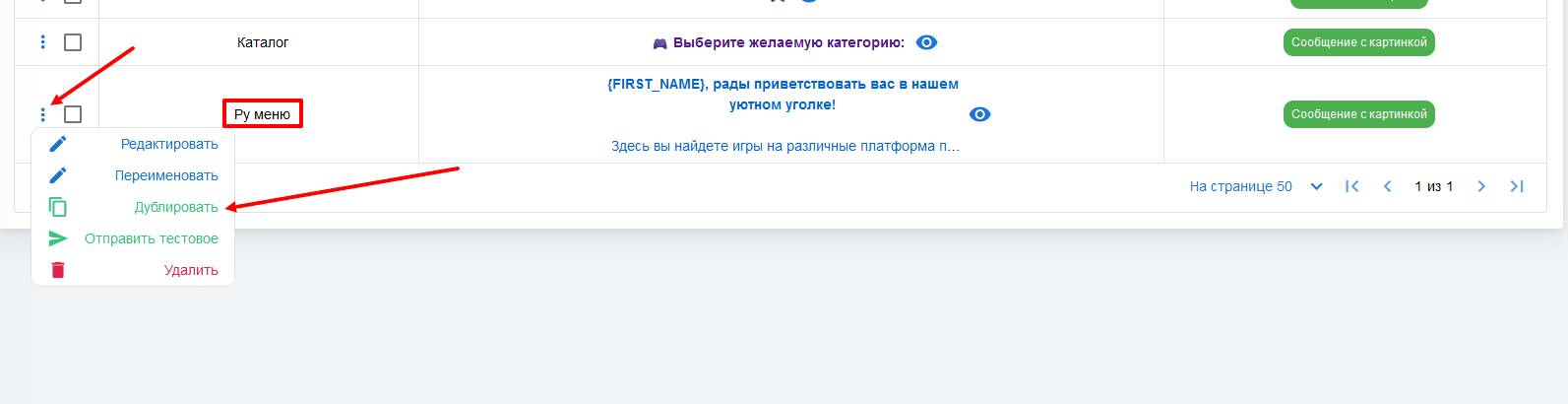 Next step - we duplicate the menu and translate the button texts and greeting into another language; there’s a small life hack! You can duplicate the menu in just a few clicks:
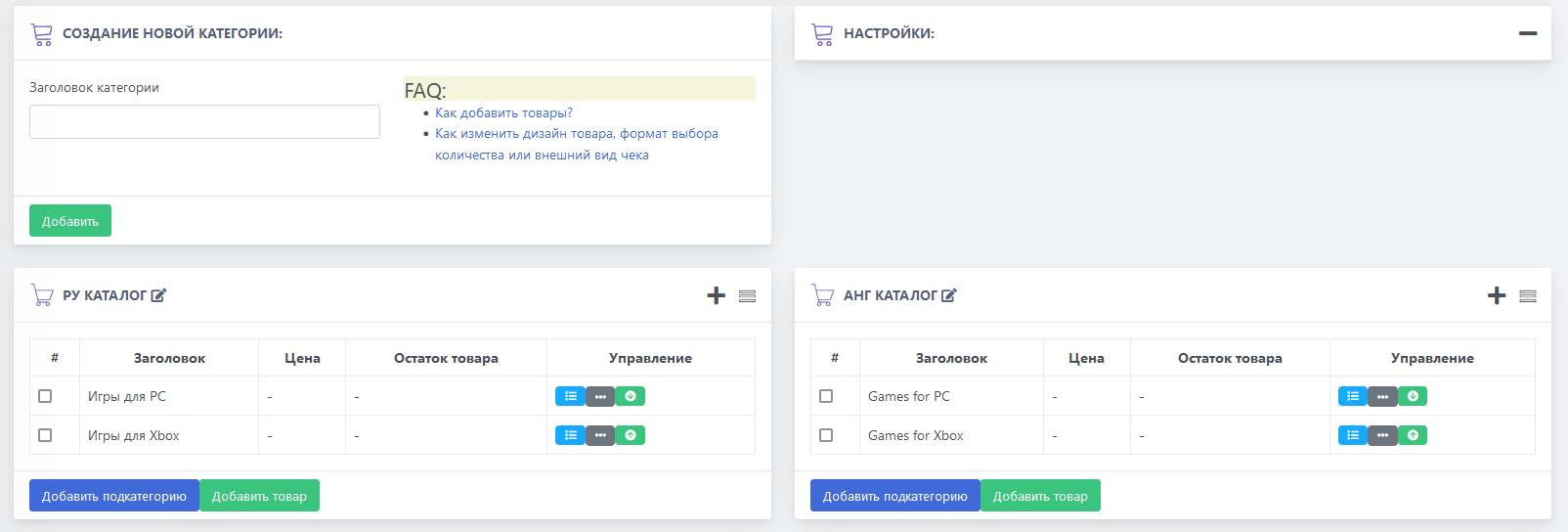 Perhaps you may have already guessed, like with the menu, we need to duplicate the catalog in different languages.\
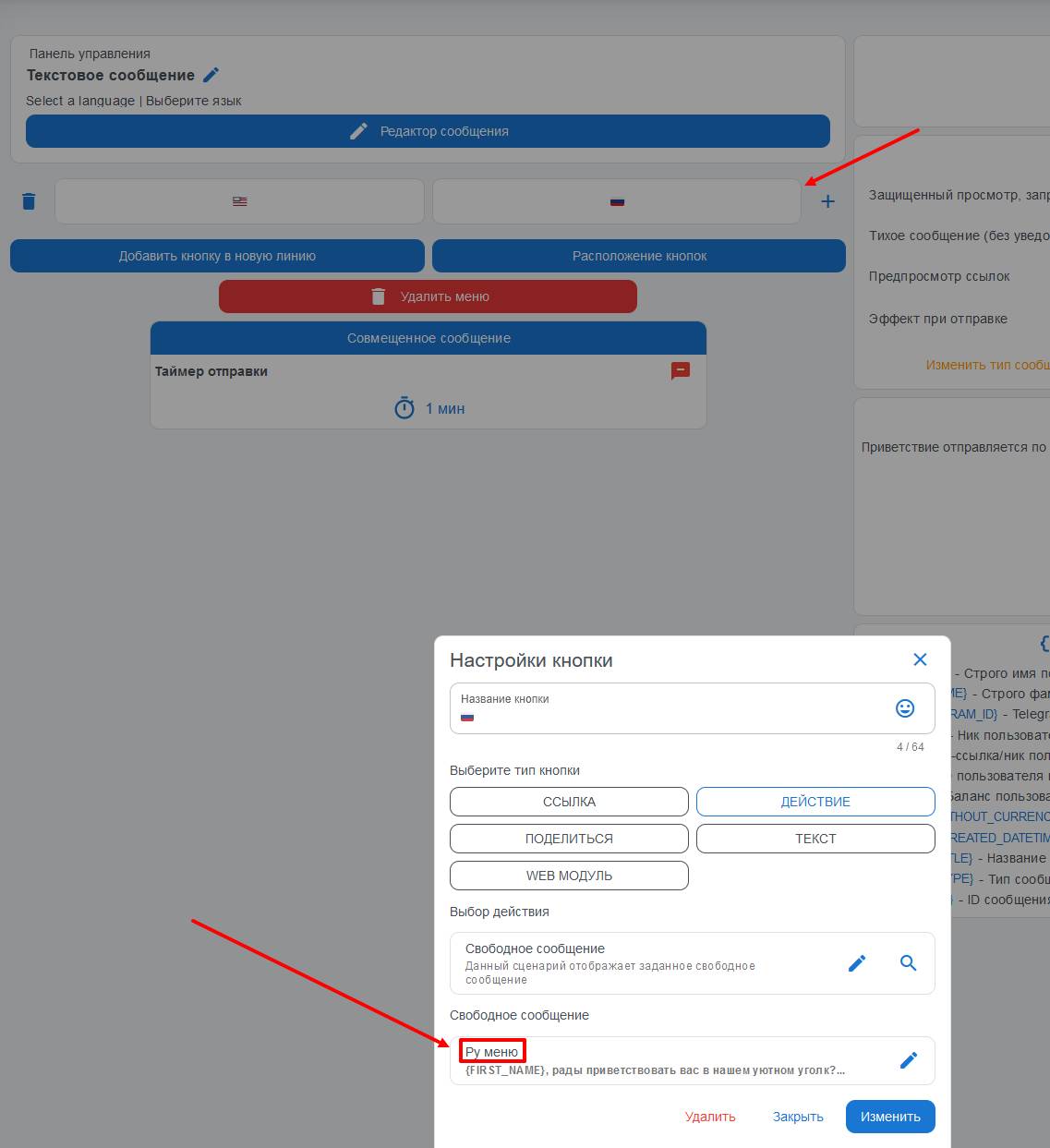 To configure the bot's subsequent language selection, go to "Greeting" via your project desktop.