
 To set up the cash register, first go to the bot @bitpapa_bot, select the currency, country, and language for interacting with the bot.
 Preparing to set up Bitpapa
To set up the cash register, first go to the bot @bitpapa_bot, select the currency, country, and language for interacting with the bot. Creating a checkout in Bitpapa
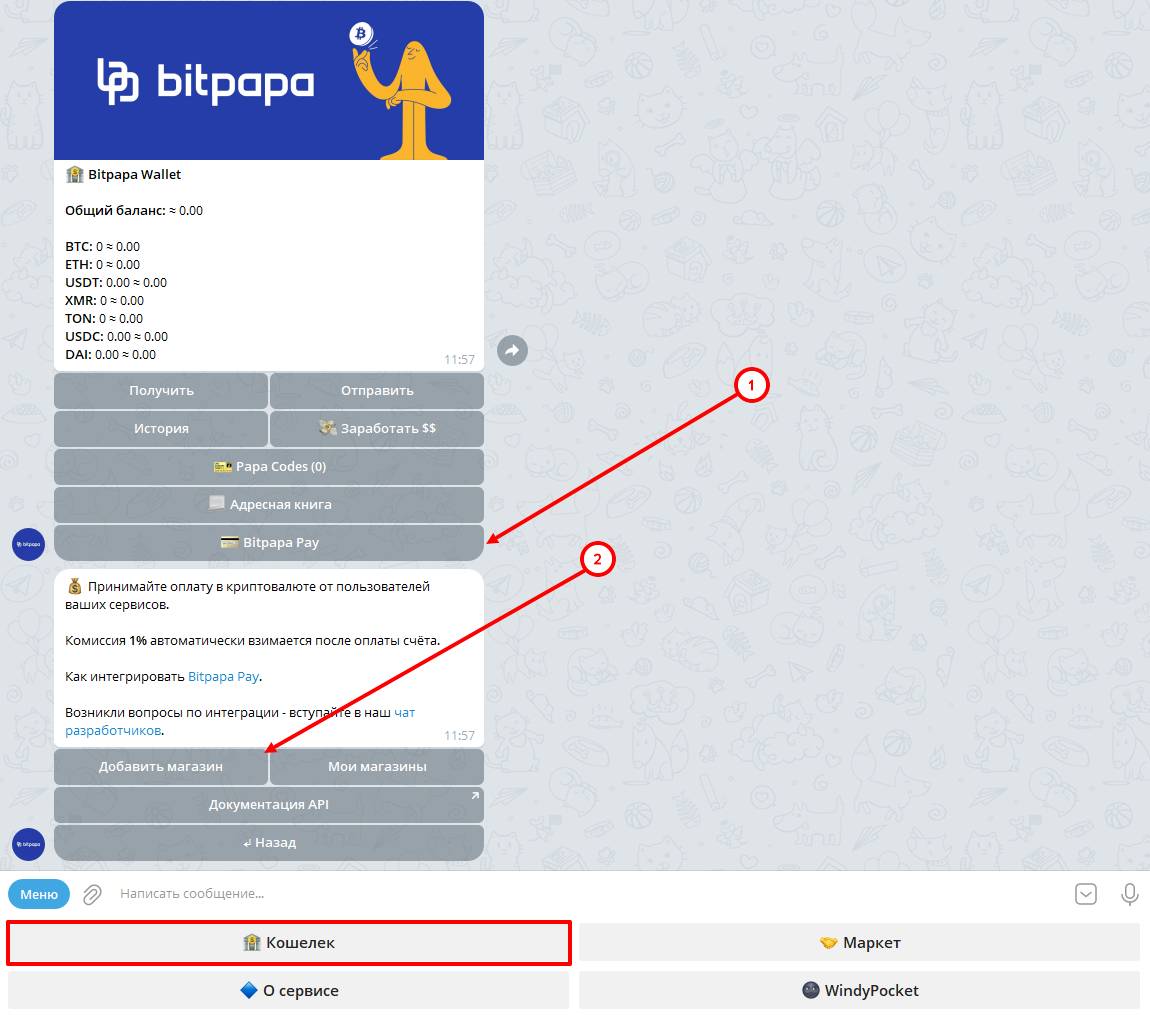 Next step - click the "Wallet" button in the bot menu, then click the "Bitpapa pay" button and add your store.
 Issueing an API token for the store
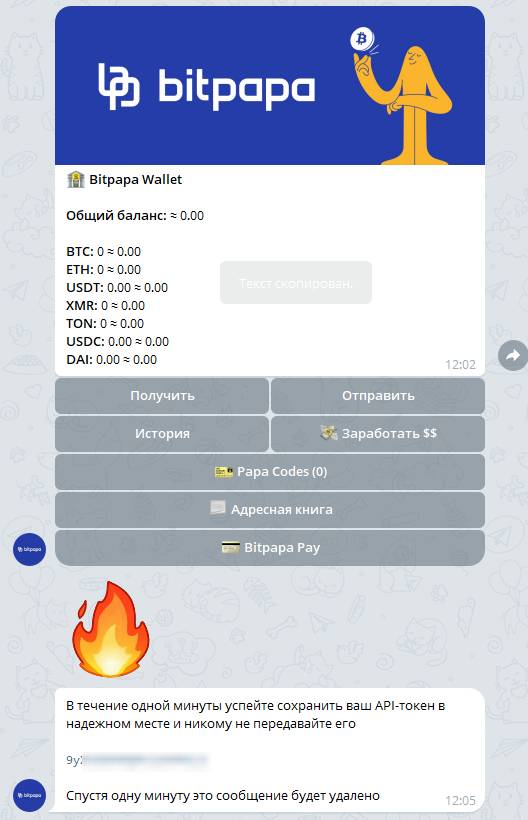 Let's go back to the "Bitpapa paу" menu and follow the instructions:
1) Select the previously created store
2) Go to the store settings
3) Click the "API token" button and generate a key
4) Important! Copy the key and save it in any convenient and secure place for you.
In a minute, the message with the key will be deleted, and the next time you go to the "API Token" button, a new key will be generated.
Setting up Bitpapa on the BOT-T website
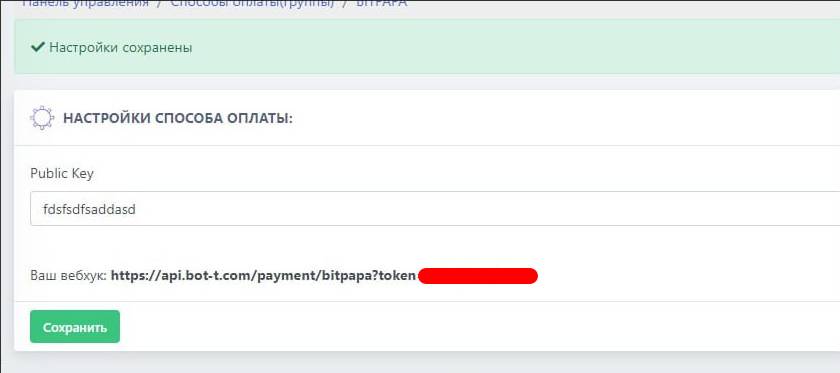 Penultimate setup step - go to the website bot-t.com and in the "Public Key" field enter the previously created store API token
In the screenshot, you can see the text "Your webhook" and some incomprehensible link; we will need that too, so copy it! It is thanks to it that your bot will receive a response from BitPapa about successful transactions and issue the product.
Setting up Webhook
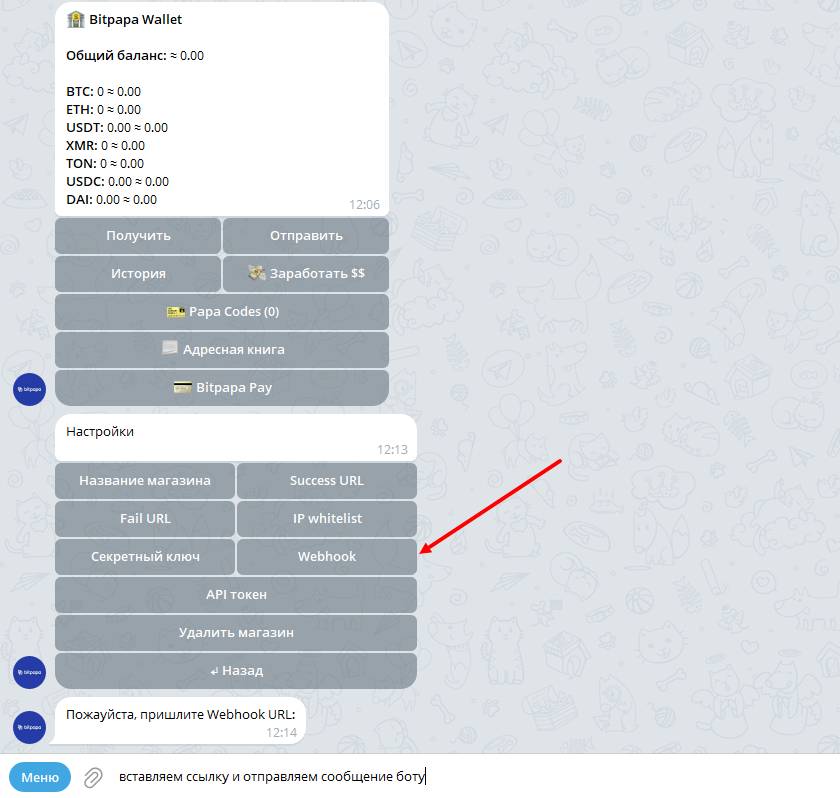 Returning back to the bot @bitpapa_bot, go to the store settings and click the "Webhook" button, then enter the link previously copied from the bot-t.com website
Done! Bitpapa setup is complete!