Registration in the Vanila Pay system
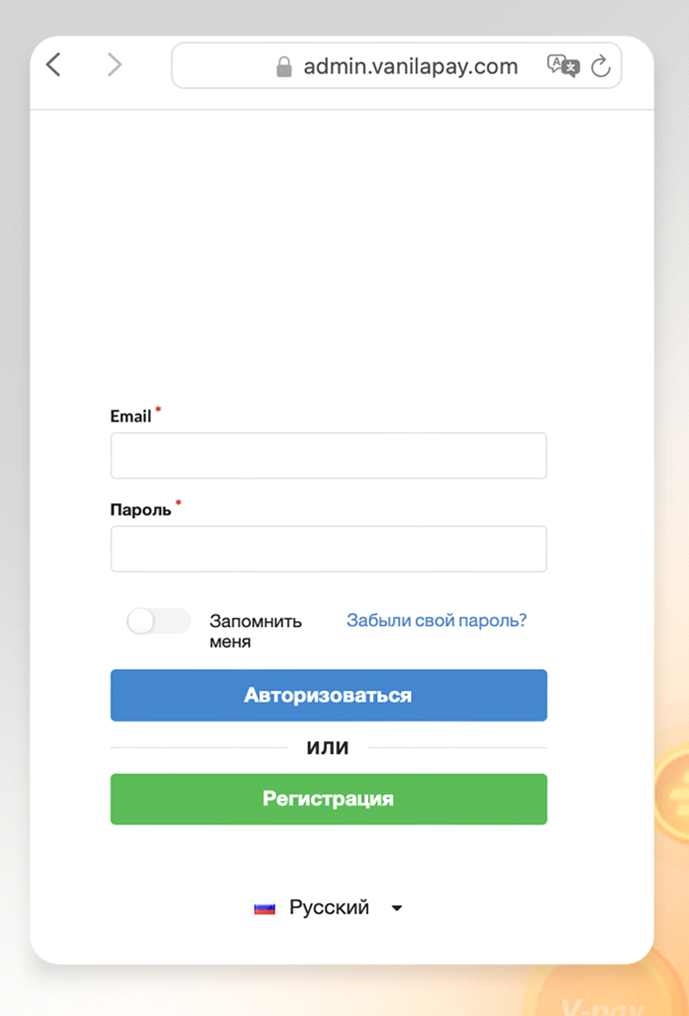
To register in the system, you need to go to the resource vanilapay
In the authorization form, click the “Registration” button and fill out the proposed registration form
Vanila client account setup
To access the personal account settings, you need to log in to the system and click the button with the username.
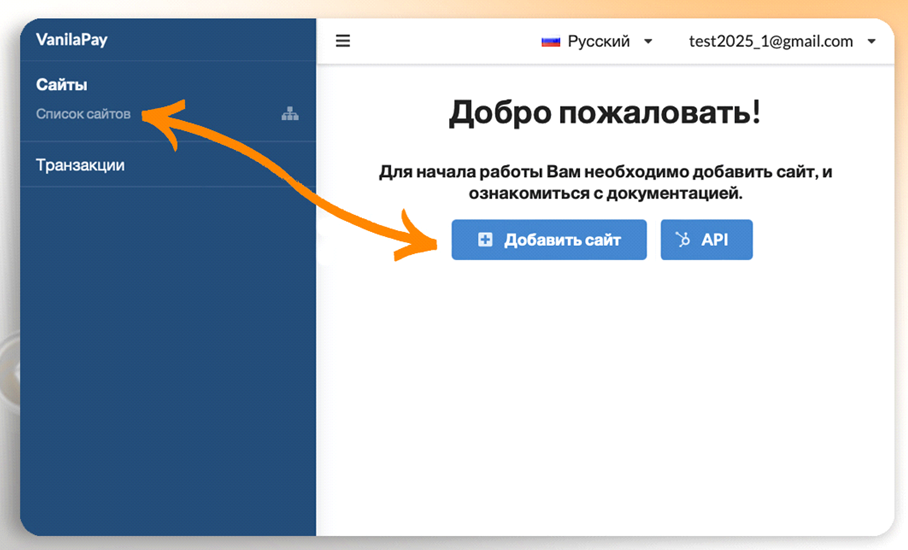
The “Sites” section allows you to add a site to the system,
view the added sites and their status, the current balance,
view fees and the minimum deposit/withdrawal amounts, as well as change
the site information and replace the key used by the site to
access the account via API.
To add a site, go to the section: Menu -> Sites - Site list
or on the main page, click the “Add site” button and fill out the provided
form.
Vanila pay main payment settings
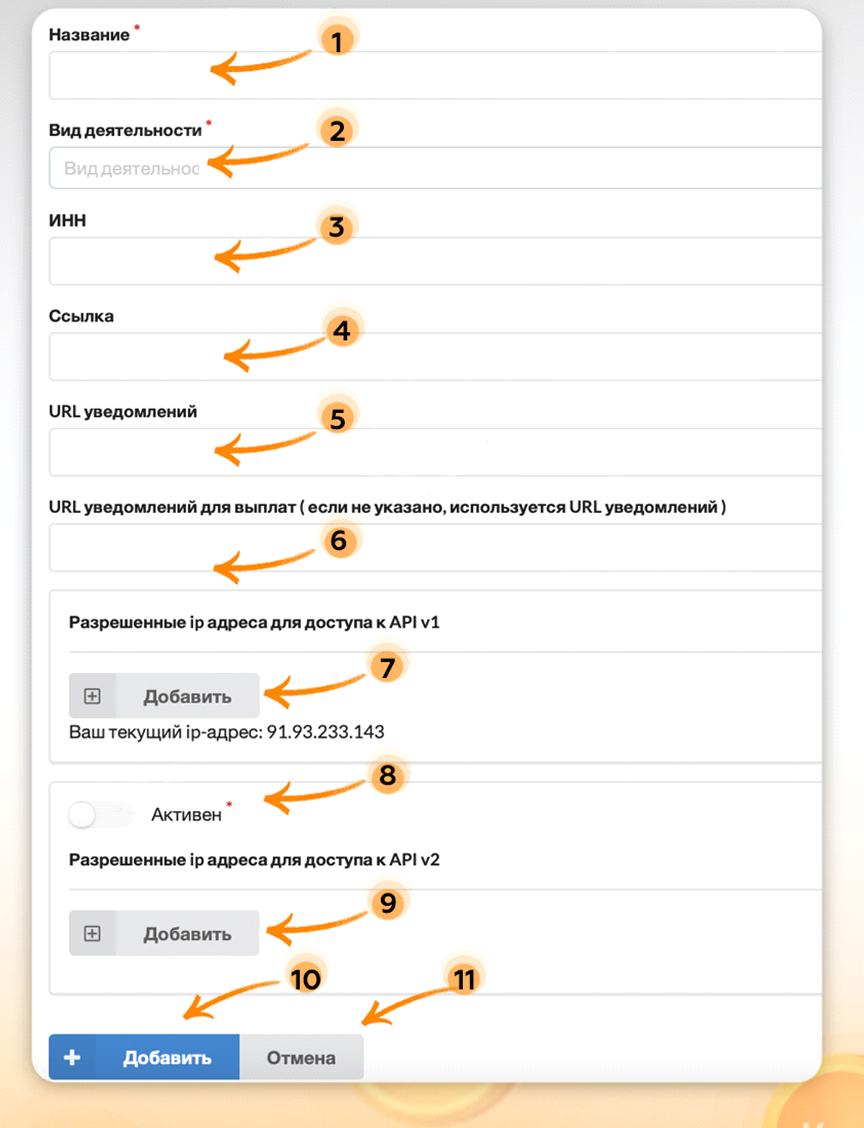
1 - specify the name of the website that will be added to the system;
2 - specify the type of activity;
3 - if you are a legal entity, specify your TIN
4 - you need to specify the website URL;
5 - you need to specify the URL for receiving notifications about transaction status;
6 - you need to specify the URL for receiving notifications about payouts; if
not specified, “Notification URL” will be used;
7 - allowed IP addresses for access to API v1 (we left the option to
enable the IP address list for some of our clients who are still
using the first version of the API)
8 - toggle to activate allowed IP addresses for access to API v2
9 - button to add IP addresses for access to API v2
10 - the “Add” button allows you to save changes and move the website to
the “Under moderation” status;
11 - the “Cancel” button allows you to cancel the action;
After filling out the form, click the “Add” button, and the website will move to the “Under moderation” state
Continuation of the main Vanila Pay payment setup
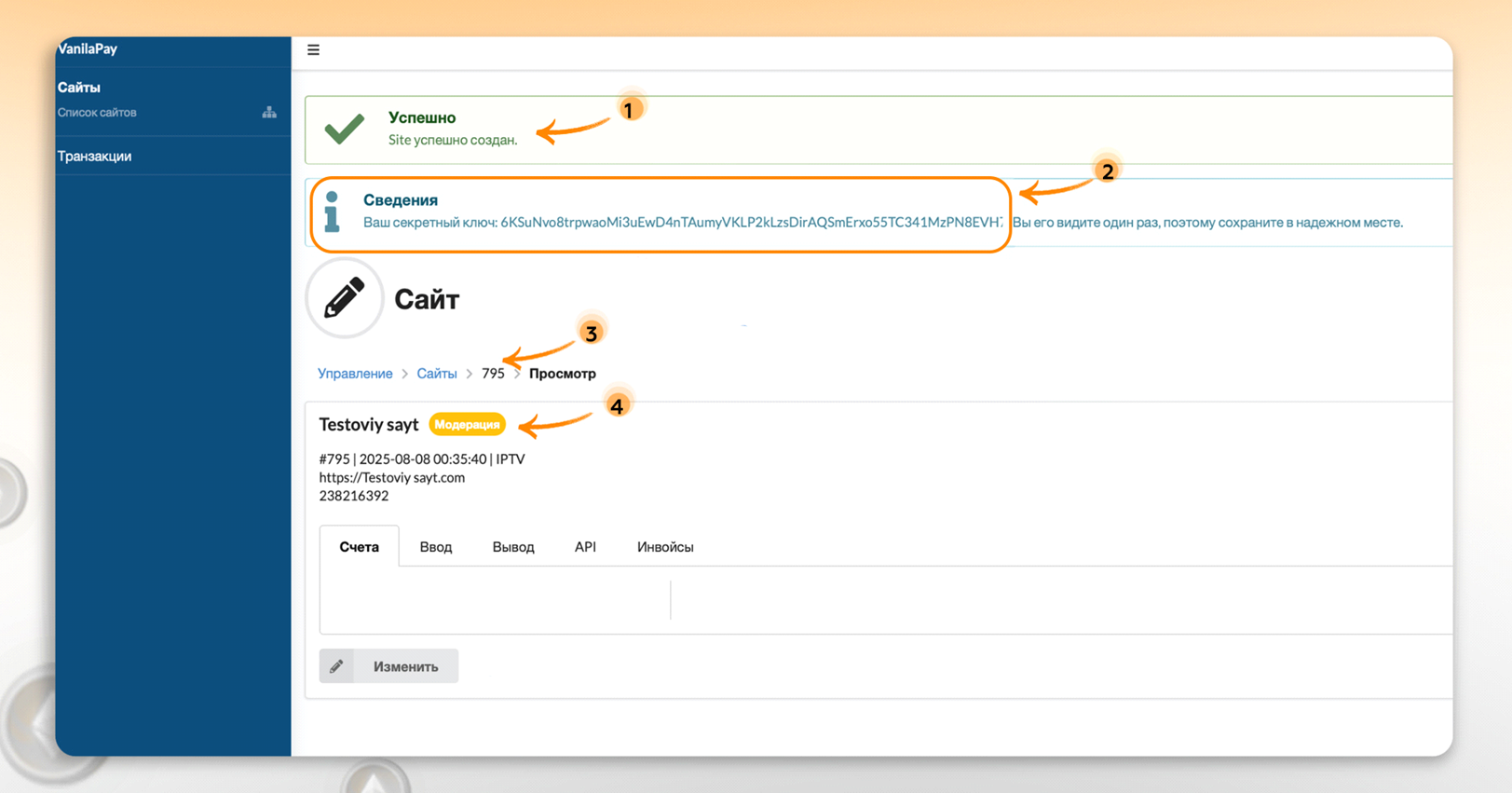
1. The system will then display a message that the Site has been successfully created.
2. Also, in the details window, the system will provide you with a secret key for working with the API; you need to copy it and store it in a place inaccessible to third parties
Sharing the secret key is strictly PROHIBITED! As soon as the secret key becomes known to third parties, it must be changed immediately
(this function will become available after the site status changes from Moderation to Active)
3. After receiving your site id, you need to contact @VyachAntipov, who will help you choose a plan and will moderate your site. When contacting, обязательно specify: 1 - The link to the project. 2- the id
of your site.
4. After the site is moved to the Active status, the site is ready to work
free of charge and without programming knowledge BOT-T.COM