

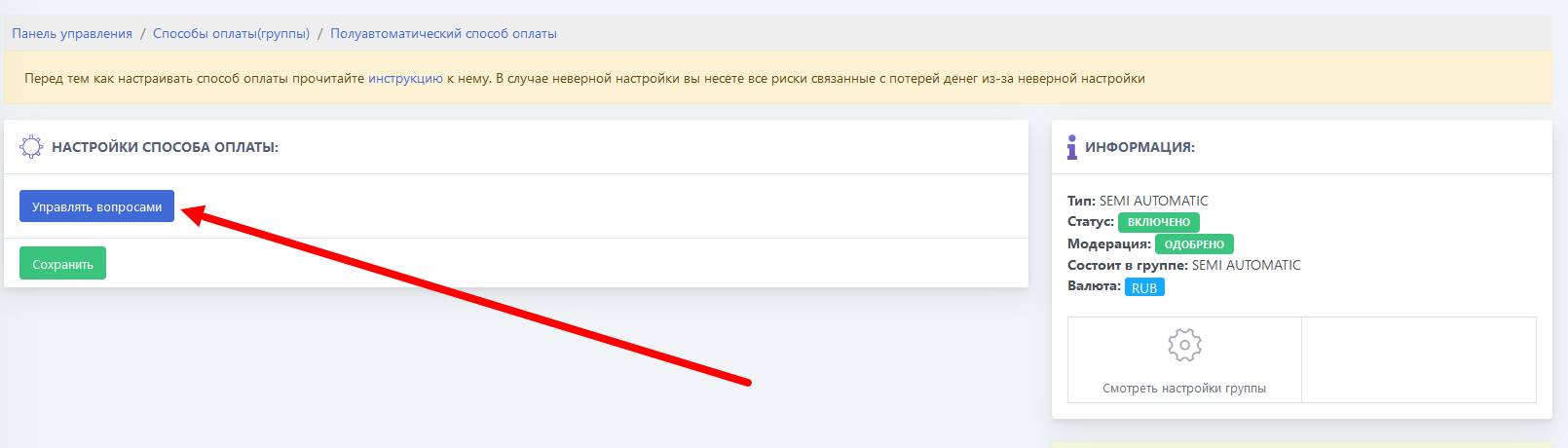
 Our setup begins with adding a payment method. As soon as we have added a payment method, we need to go to question management.
 Start setting up the semi-automatic payment method
Our setup begins with adding a payment method. As soon as we have added a payment method, we need to go to question management. How do I set up my own payment details?
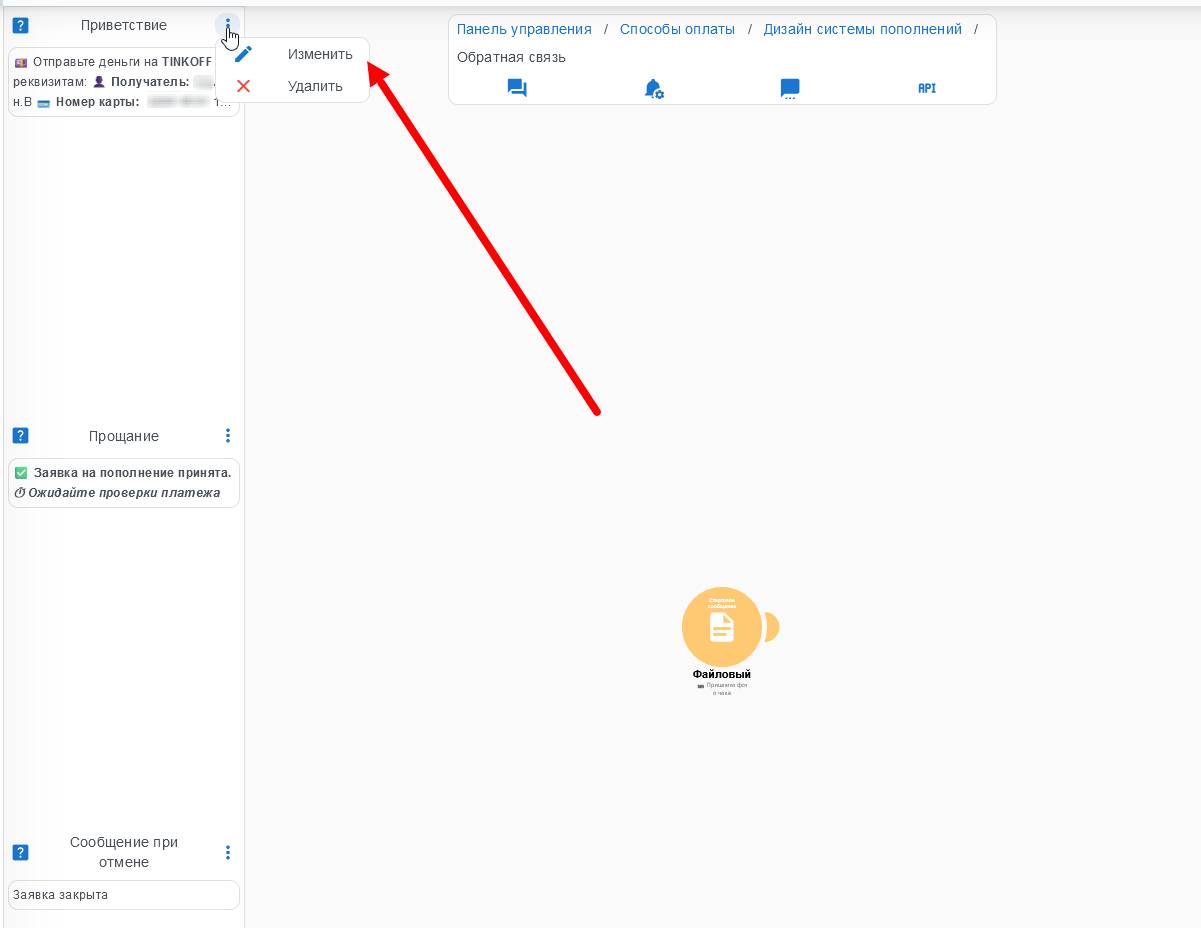 To specify your payment details, go to the "Greeting" parameter and enter the required text with the details, which will be sent to the client when they choose this payment method.
Example to insert:
💷 Send money to TINKOFF using the following details:
👤 Recipient:
Card holder💳 Card number:
Your card number💸 Amount due: {SUM} ₽
(the {SUM} constant substitutes exactly the amount that needs to be paid)📷 After the transfer, click the "I paid" button and attach a screenshot of the transfer.
We have described each feedback parameter in detail in this article
Adding additional questions
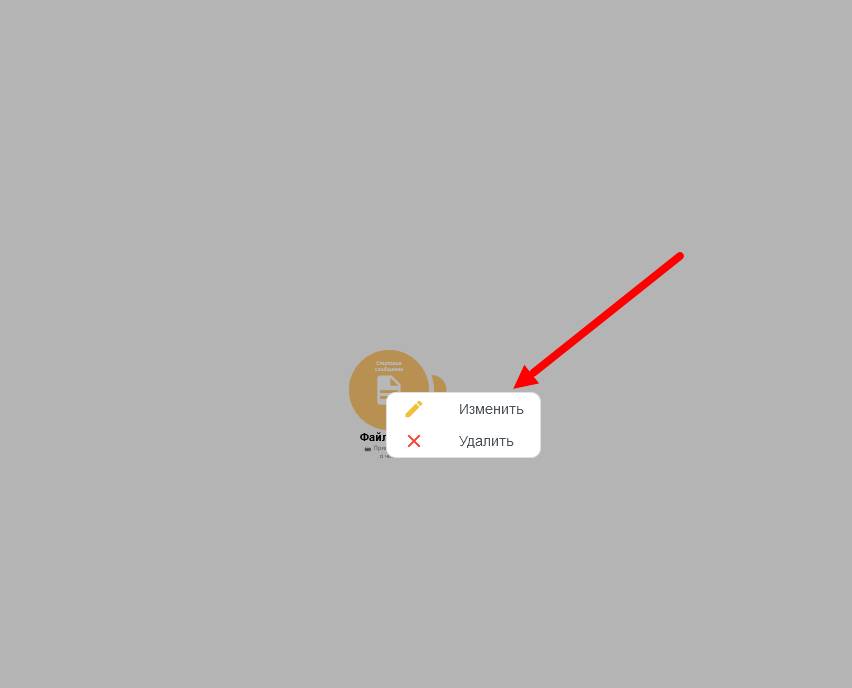 For a receipt/screenshot request for money transfer, we will need a question-file; click on the "circle" and edit the text/select the required question type.
 What does it look like in the bot
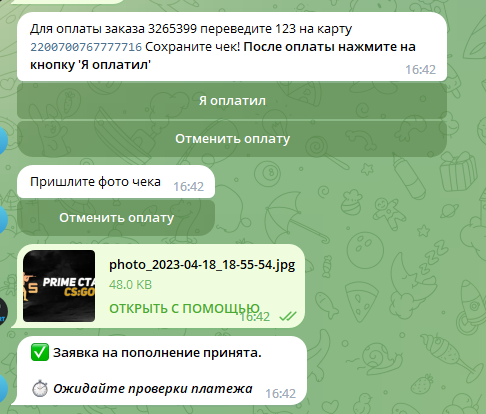 What does this look like in the bot
 Where can I see top-ups?
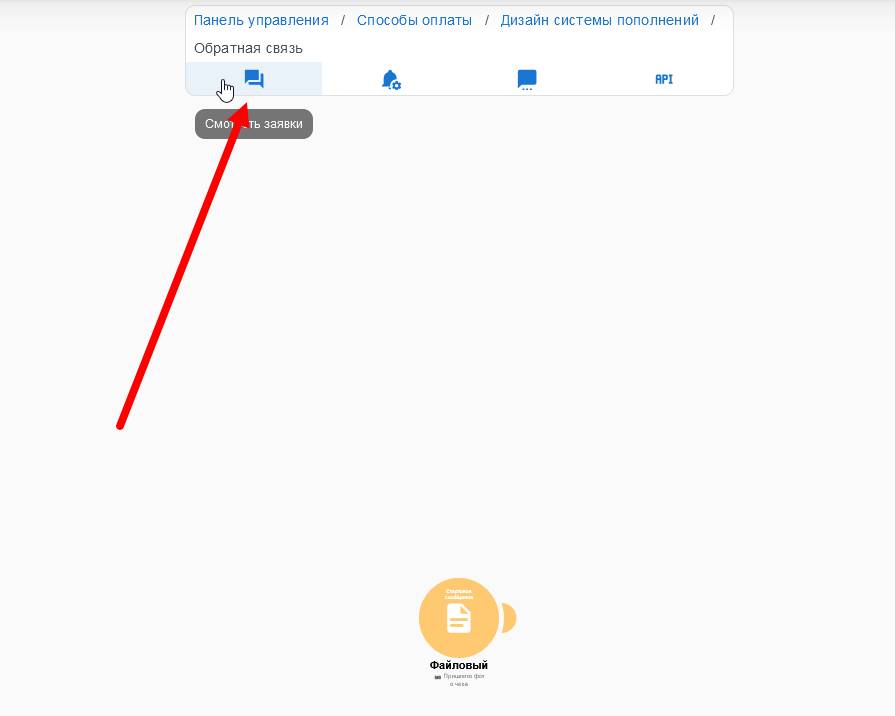 This block contains all top-up requests and receipt files, including the @handles of clients who chose this payment method.
 How do I count a deposit?
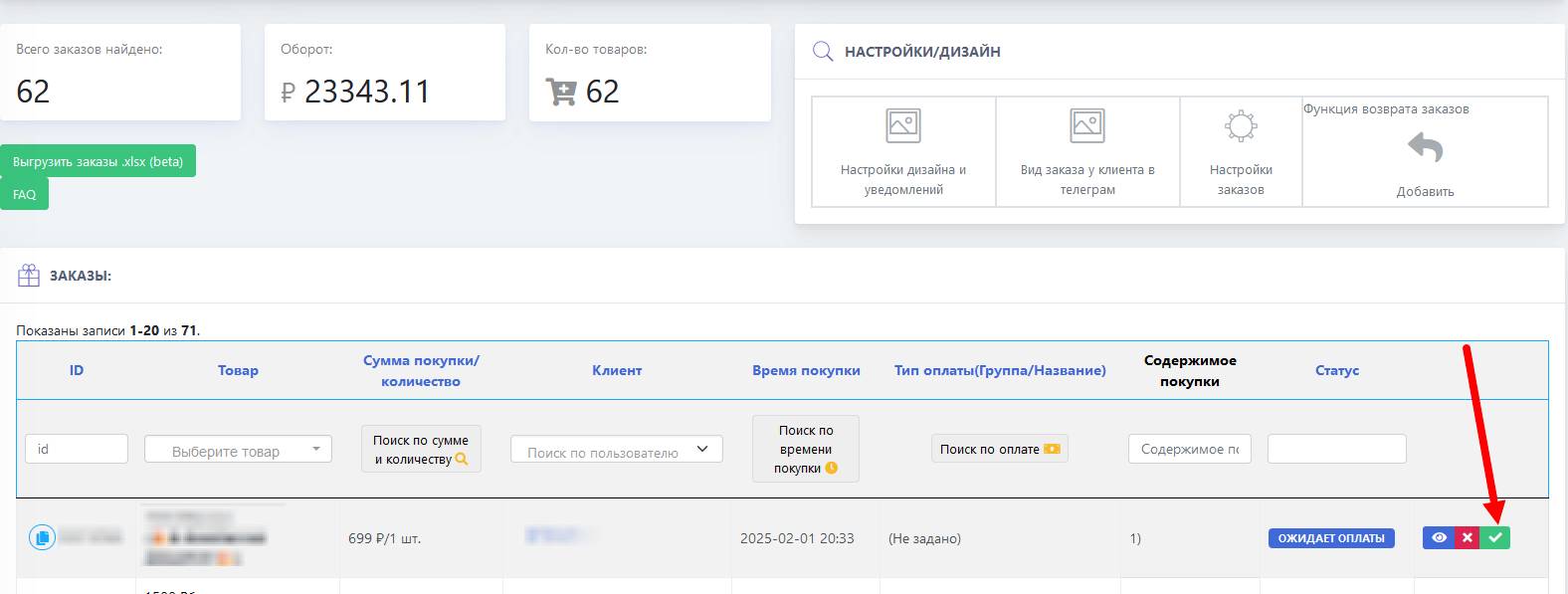 Top-ups can be credited in the TOP-UPS button on the main page (see screenshot). As soon as you click the checkmark, the user's account will be credited with the requested amount.