
About setting up Freekassa
To connect Freekassa you must configure and fill your store with products and in general, the bot should be ready for sales already now. In addition, you must have your own website or bot. Then add the Freekassa payment method. Freekassa can be added starting from the EXTENDED plan
Creating a cash register
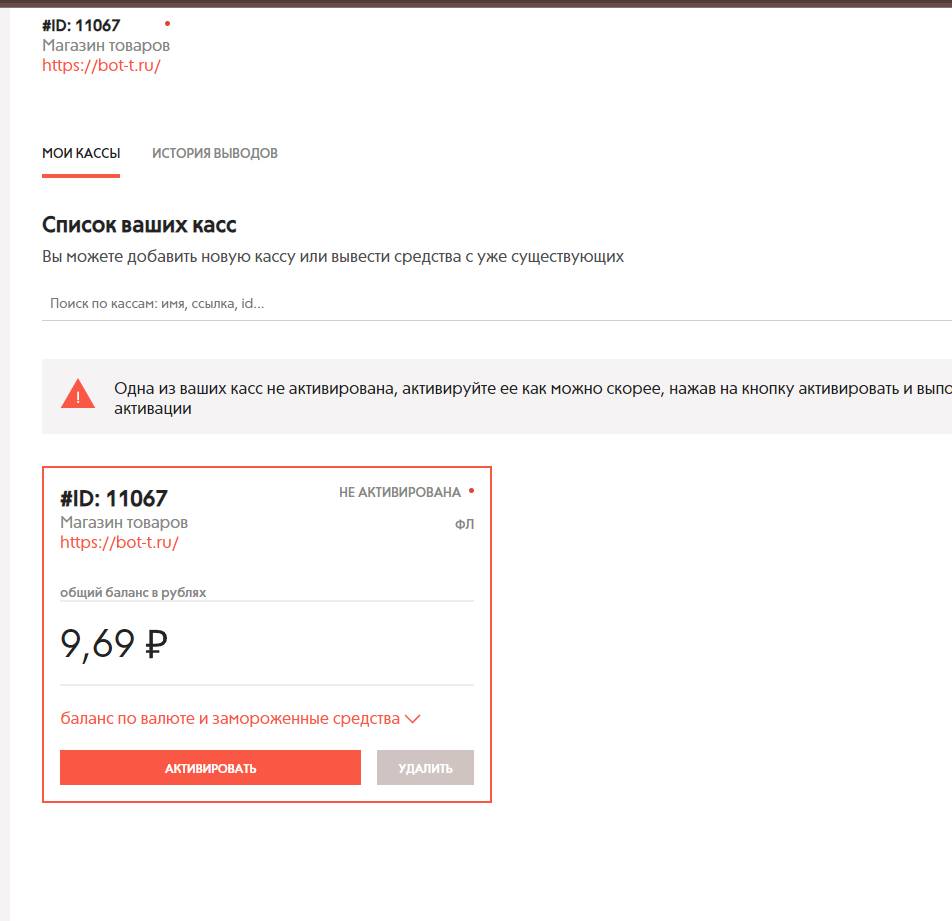 Go to the site FreeKassa 1) Register 2) Select the addition type SITE 3) Enter the website or bot address - we create a cash desk, wait for the cash desk moderation from the FreeKassa admins
 Cash register settings
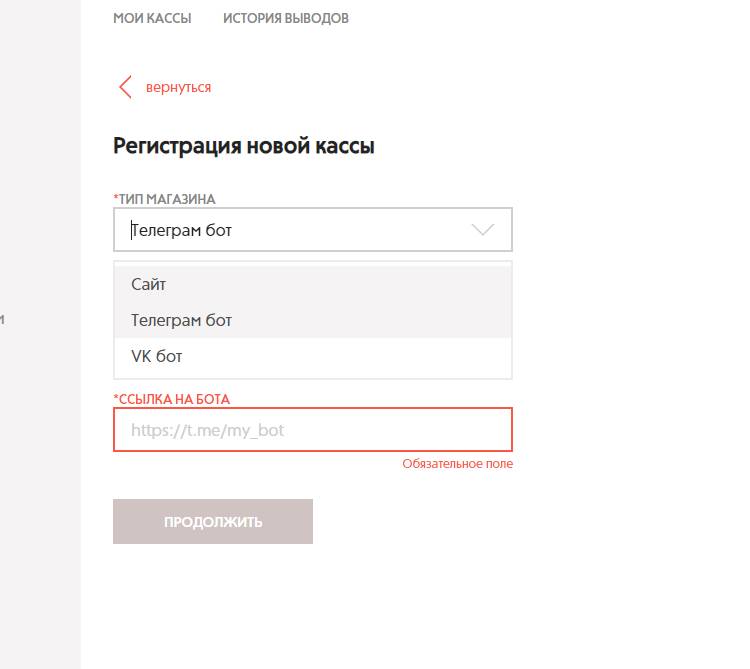 In the settings on the FC website, set it as shown in the screenshot — you need to insert a link to your bot or website
In the notification URL, add
https://api.bot-t.com/payment/freekassa such an address, and in other URLs the same address, i.e. https://api.bot-t.com/payment/freekassaImportant! You must use the POST parameter in the notification URL
Final step of FreeKassa setup
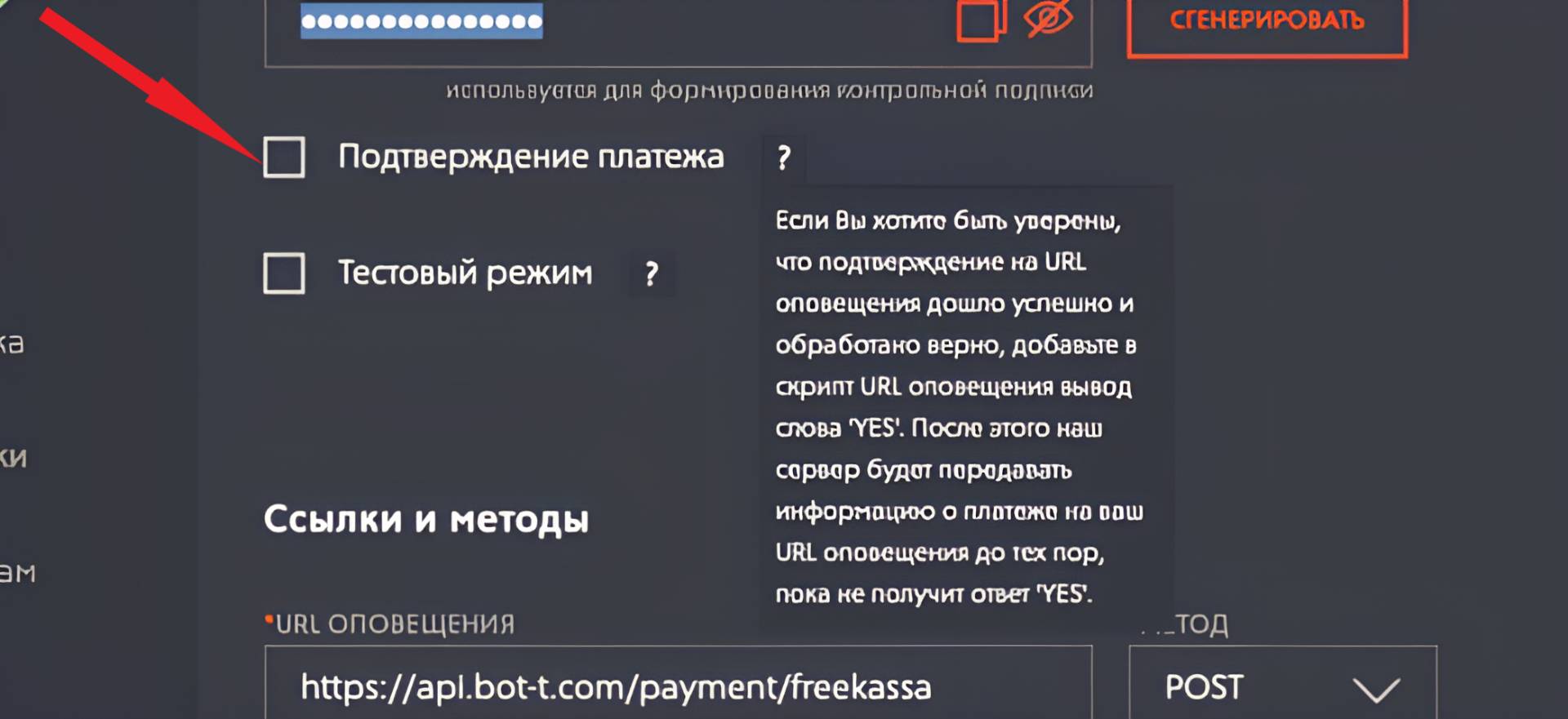 An important setting parameter for the FREEKASSA payment system is payment confirmation; you need to check the corresponding option in the settings.
Setup is complete!
Payment method setup - SGI operating mode
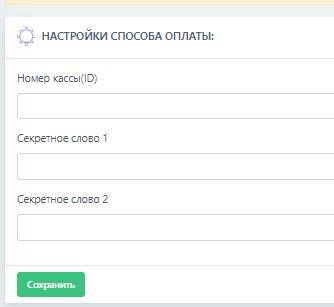 Next, go to the BOT-T website
 Copy the data and paste it into the required fields.
After moderation by FK is completed, the payment method will work
Payment method setup - API operating mode
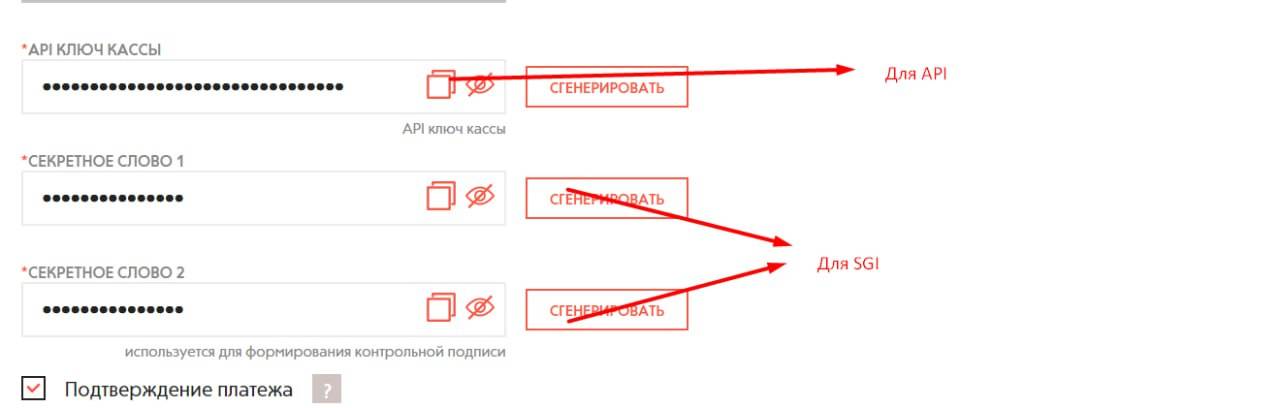 When configuring Free Kassa in API mode, you need to specify the cash register number (ID), payment system ID (to be confirmed with Free Kassa), and the cash register API key
 Adding an IP to the whitelist
After you have passed all moderation checks. It is necessary to add your website IP to the whitelist so that BOT-T does not think you are an attacker and does not block your server if you connected the site! You can do this through the "IP Address Control" section