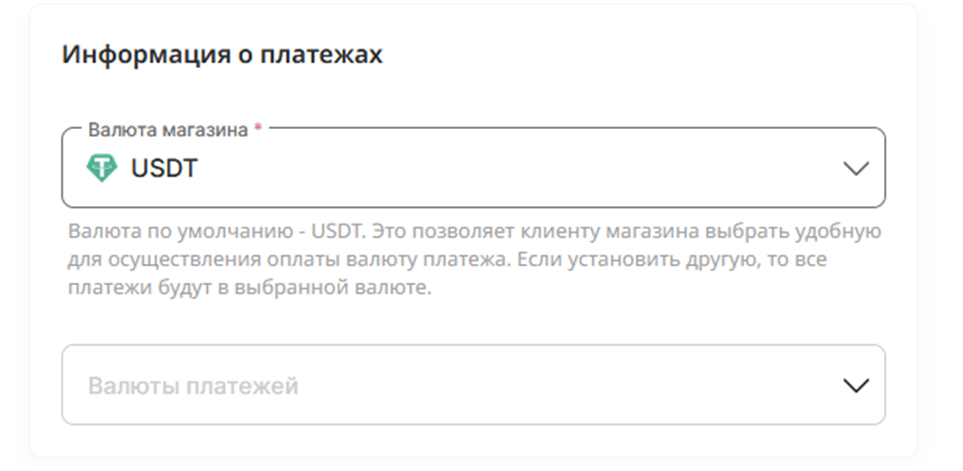
 To work in the first mode
 – you must select one of the offered fiat currencies in which payment acceptance is available as the store currency. Remember that in order to start accepting in another currency, you will need to change this setting both in the bot and in your store.
To work in mode two (type 2) and in mode three (type 2) – you need to specify USDT in the store settings. You can leave the “Payment currencies” field empty, because it works as a restriction, not as an allowance. If it remains empty, all active currencies in the StreamPay system are available to you. If you specify some fiat currencies, then your store will work ONLY with the selected currencies, and all new ones will be unavailable to you until you add them yourself. (see screenshot)


 StreamPay - a reliable and cost-effective P2P payment solution for your projects, suitable for individuals
 Setting up successful payment notifications
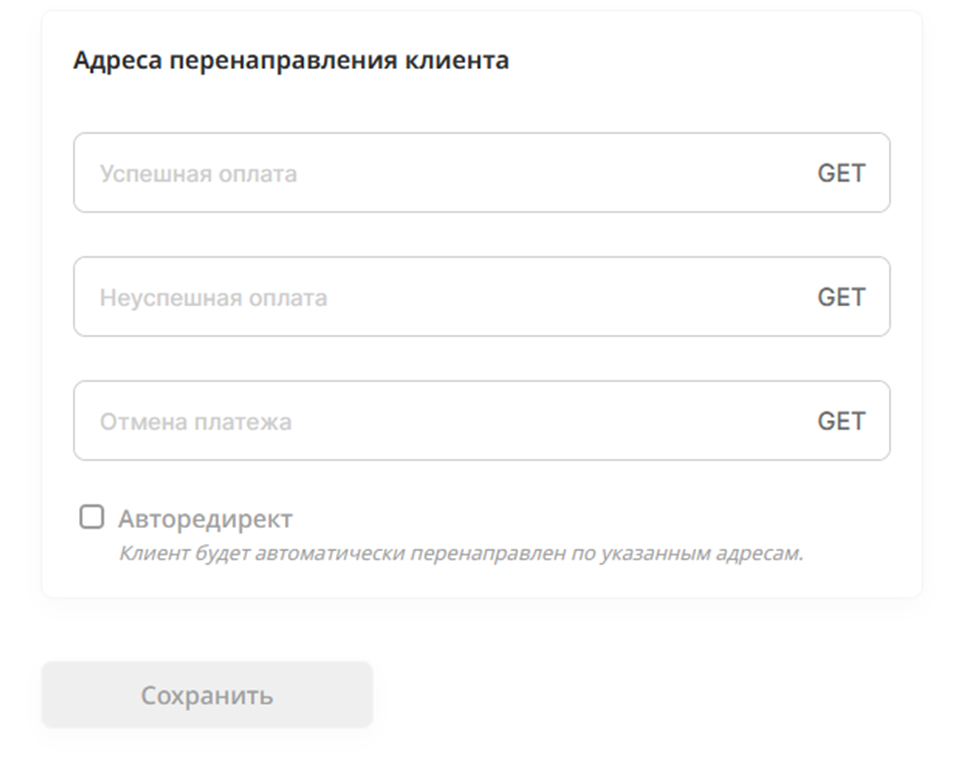 Can you provide your Telegram bot (or website) so that the client understands that the payment was successfully made.
 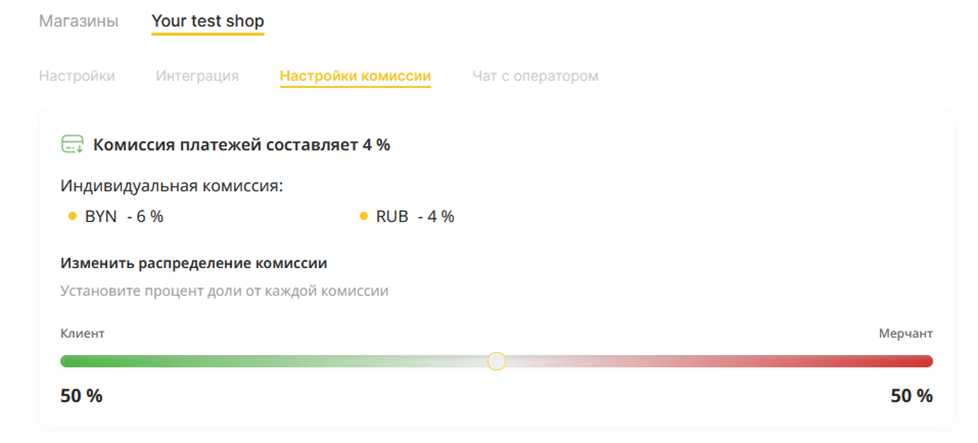 In your store settings, you have the option to pass the
 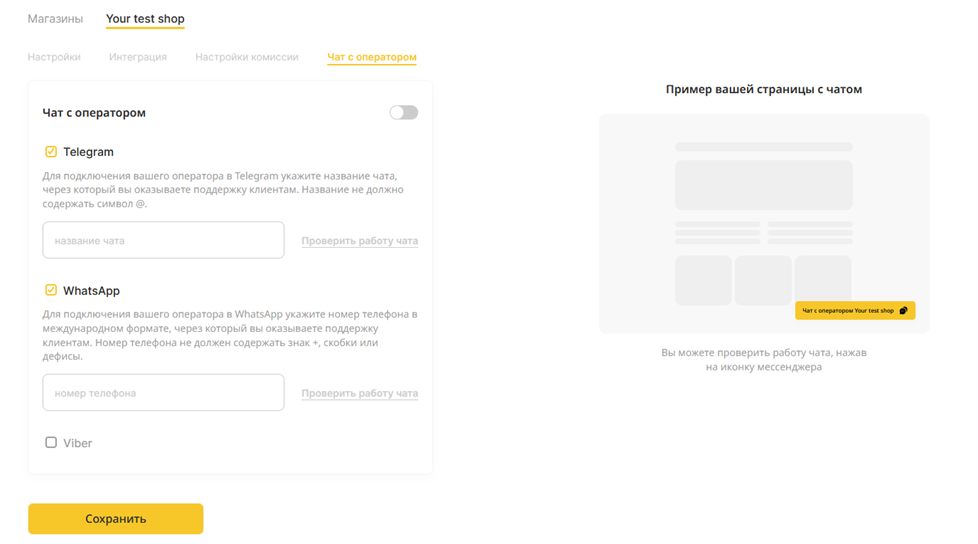 If you communicate with customers via messengers, you can add links to your messengers in the store settings. This way, your customer can message the store support team directly from the payment page.
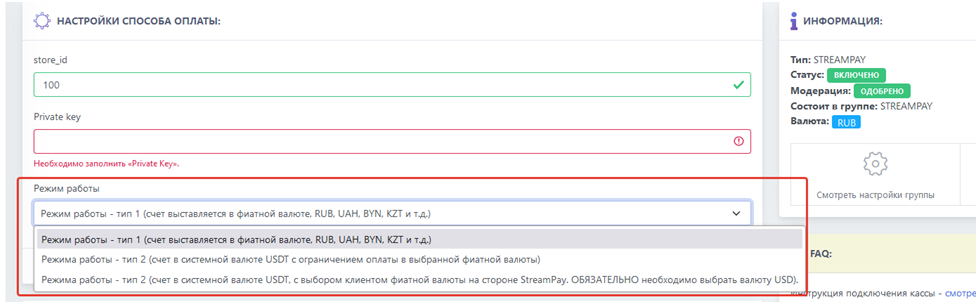 Next, you need to choose one of the three operating modes in the payment method settings of your bot
 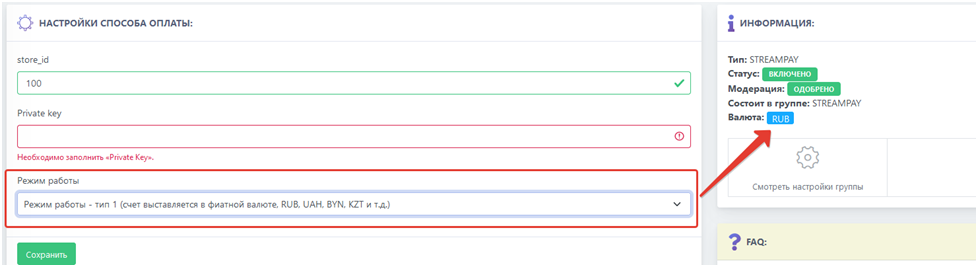 Operating mode – type 1: issues invoices in the selected currency (on the right in the “information” block), and the amount is specified in that currency. For example, 1000 RUB, 500 UAH, 2000 KZT, etc. You can find out the available fiat currencies in your StreamPay personal account (in the “Finance - invoice creation” section).
 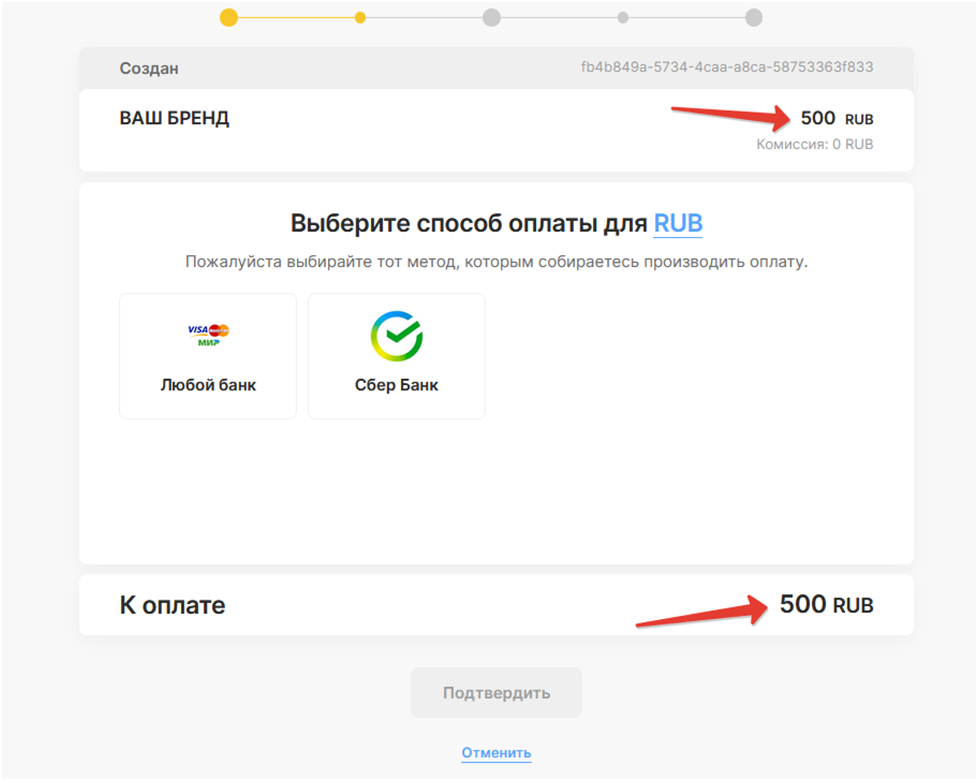 Cash register operation mode example – type 1: issuing an invoice in the selected currency
 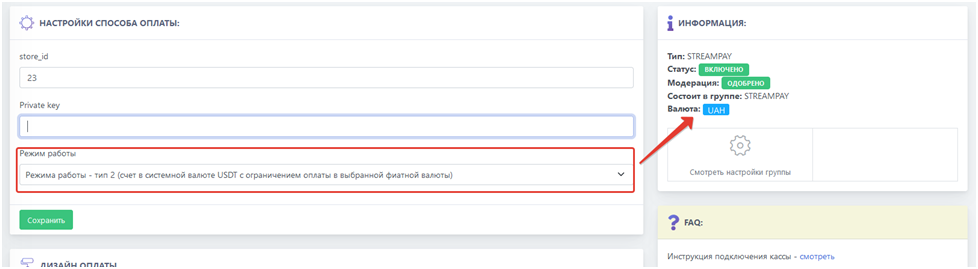 Operating mode – type 2: issues invoices in the system currency USDT with a limit in the selected fiat currency (on the right in the “information” block). It differs from the first mode in that the exchange rate from USDT to fiat currency is passed on to your client, while you receive the exact specified amount in USDT in the invoice.
 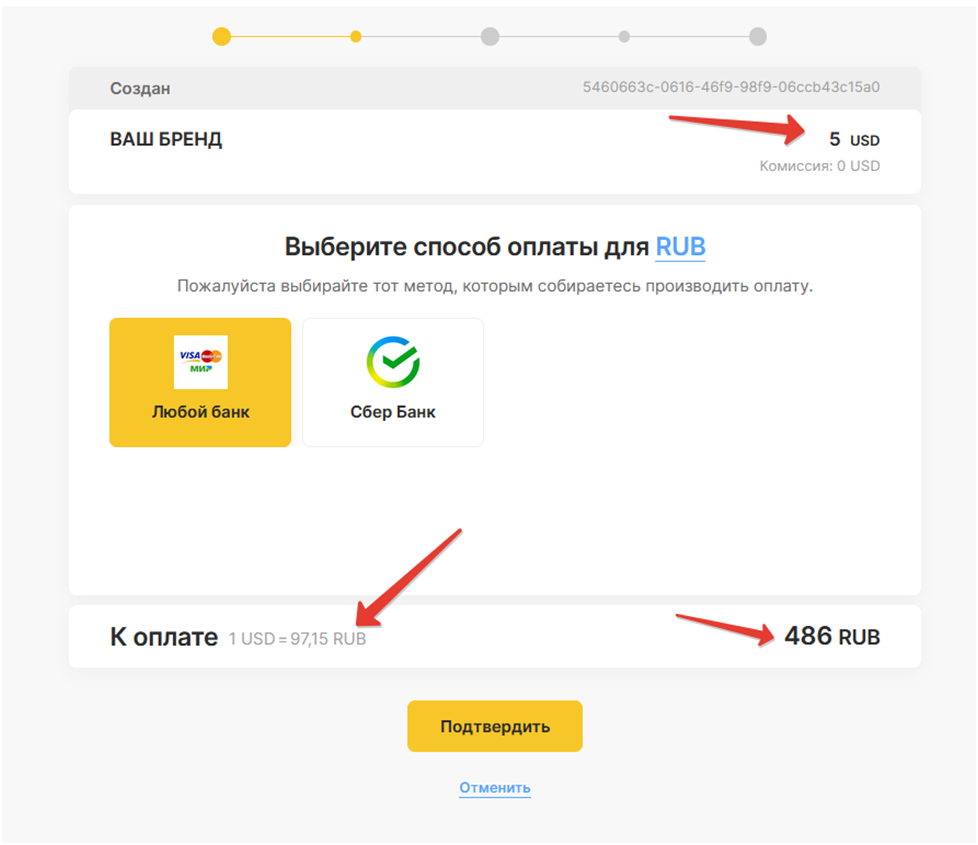 Example of cash register mode – type 2: issues invoices in the system currency USDT with a limit in the selected fiat currency
 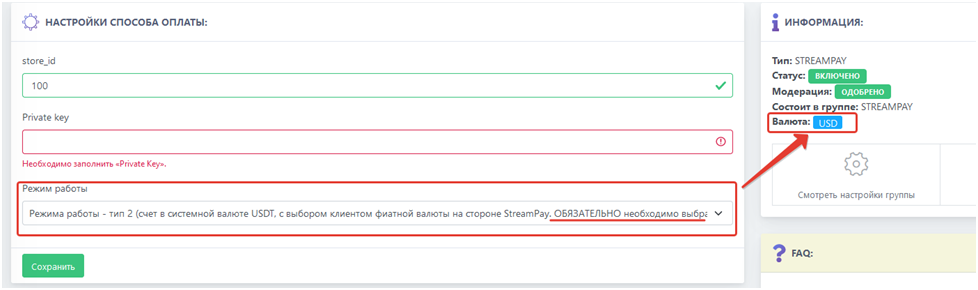 Operating mode – type 2: issues invoices in the system currency USDT without restrictions in fiat currencies. The payment currency is selected by the client on the StreamPay payment page. For the correct operation of this mode, it is MANDATORY to select the USD currency in the Bot-T settings. The exchange rate fee is also borne by the client.
 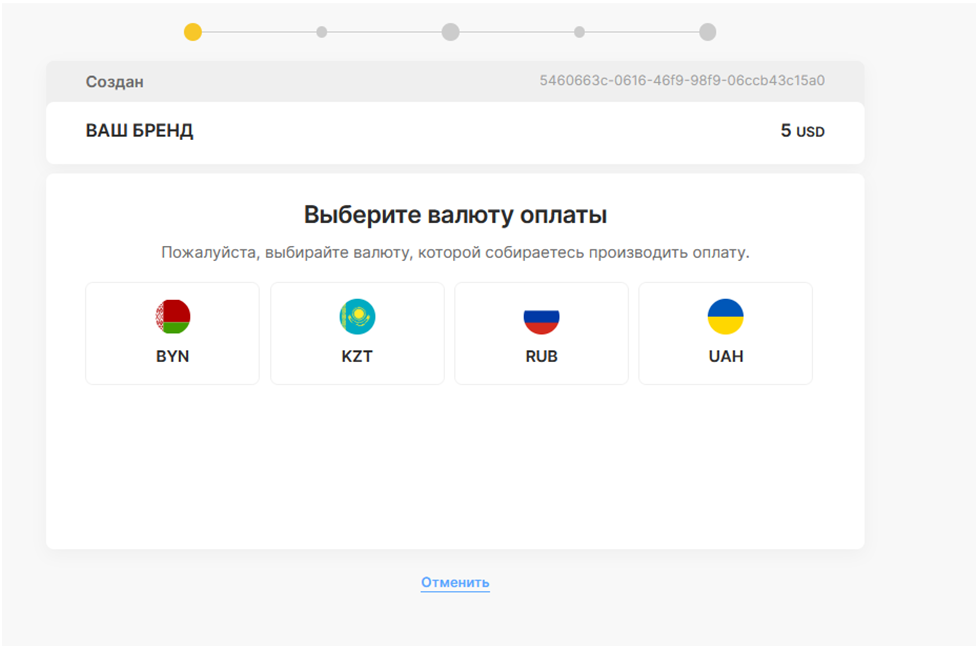 Example of cash register operation mode – type 2: issues invoices in the system currency USDT without limitation in fiat currencies.
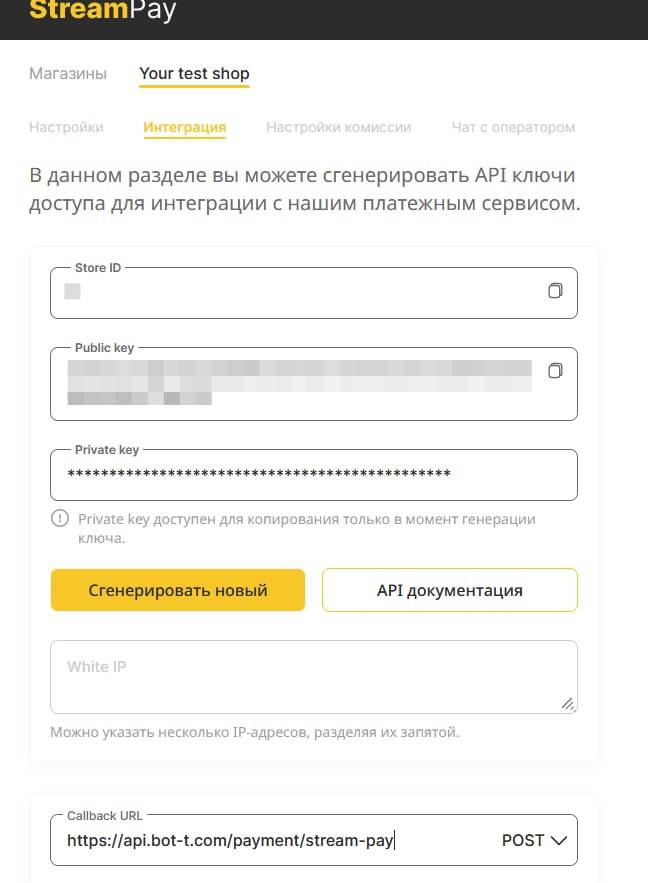
 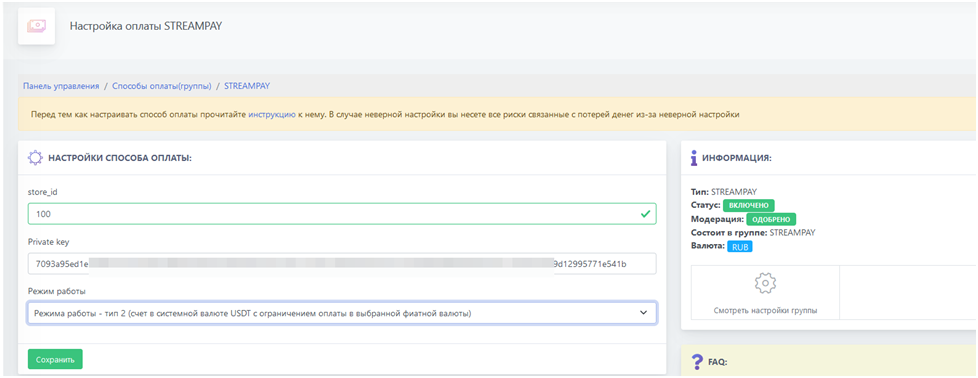 You need to fill in the Store ID (store_id) and API key (Private key) fields on the website, which you will find in your StreamPay personal account after your store has passed moderation.
 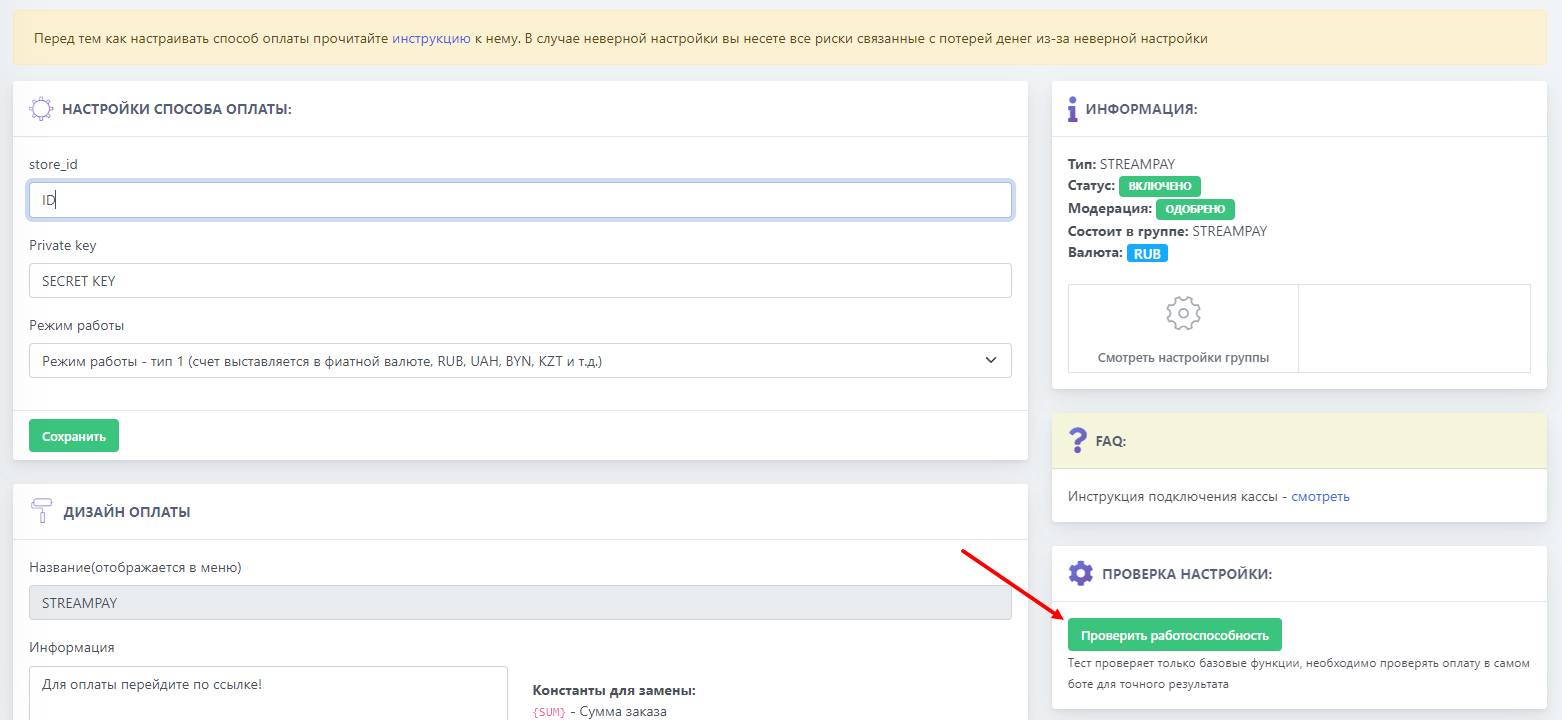 After you have filled in all the required fields on the BOT-T website and selected the operating mode, you need to check the cash register’s functionality by clicking the corresponding button.